Multi-Location Auto Split & Auto Move
Automatically check stock across all Linnworks locations and decide whether each order should stay at its current location, move to another location, or be split across several locations.
Overview
Multi-Location Auto Split & Auto Move is an automated fulfilment-routing solution for Linnworks. It checks stock for every item on an order across all Linnworks stock locations and decides the best way to fulfil the order.
The macro processes order IDs supplied through the Linnworks Rules Engine. For each order it decides one of three outcomes:
- Keep the order at its current location when that location can fulfil every item
- Move the whole order to another location when one other location can fulfil every item
- Split the order when no single location can fulfil every item, sending each item to a location that has stock for it
The macro supports standard and composite items, follows an optional location priority order, writes an internal note explaining every decision, and marks each order with an extended property so it is not processed twice.
Multi-Location Auto Split & Auto Move removes manual stock checks across warehouses and routes every order to the locations that can fulfil it.
Who Should Use Multi-Location Auto Split & Auto Move
Warehouse & Fulfilment Teams
Teams working across several warehouses receive orders already routed to a location that has the stock to fulfil them.
Inventory & Stock Managers
Stock managers make better use of stock held in every location instead of leaving orders waiting at one warehouse.
Integration Administrators
Administrators configure the location priority order, the label setting and the Rules Engine conditions, and monitor the macro logs.
Operations & Customer Service Teams
Operations and customer service teams use the internal order notes to see why an order was kept, moved or split.
Key Features
Automatic Keep, Move or Split
Chooses the right outcome for each order based on live stock at every location.
Location Priority Order
Checks locations in the order set in PriorityLocations, then all other locations alphabetically.
Composite Item Support
Checks stock for every component of a composite item at the same location.
Parent Order Rebasing
When no item can stay at the current location, keeps the largest group of items in the original order and moves it to their location.
Internal Decision Notes
Adds an internal order note for every keep, move, split and failure decision.
Duplicate Processing Protection
Marks handled orders with the AutoSplitProcessed extended property and skips them on later runs.
How Multi-Location Auto Split & Auto Move Works
Multi-Location Auto Split & Auto Move runs through a defined sequence every time it processes one or more orders. The macro is triggered through the Linnworks Rules Engine and receives the relevant order IDs automatically.
Step 1: Order retrieval
The macro reads each order ID supplied through the OrderIds parameter and retrieves the order from Linnworks. All stock locations are also loaded.
Step 2: Skip checks
Parked orders and orders that already have the AutoSplitProcessed extended property set to Yes are skipped.
Step 3: Location priority
Locations are put in order: the PriorityLocations list first, then all other locations alphabetically. If no priority is set, the order's current location comes first.
Step 4: Fulfilment check
The macro checks that every item can be fulfilled in full from at least one location. If any item cannot, a note is added, the order is marked as processed, and it is not moved or split.
Step 5: Keep at current location
If the current location can fulfil every item, the order stays where it is.
Step 6: Move the whole order
If another location can fulfil every item, the order is queued to move to the first such location in priority order.
Step 7: Build a split plan
Items that the current location can fulfil stay on the original order. Every other item is assigned to the first location in priority order that has enough stock for it.
Step 8: Rebase the parent order
If no item can stay at the current location, the location with the most assigned items keeps those items on the original order, and the original order is moved there.
Step 9: Split and move new orders
One new order is created for each remaining location. Each new order is moved to its location, given a note and marked as processed.
Step 10: Clear label information
If ReprintLabels is True, shipping label information is cleared on the new split orders so new labels can be printed for them.
Step 11: Apply queued moves
After all orders are checked, queued orders are moved to their new locations in batches, given a note and marked as processed.
Step 12: Record the run summary
The number of orders kept, moved and split, and the number of errors, are written to the macro log.
Configure the Macro
Once the app is installed, you need to create a macro configuration so the system knows which location priority to use and whether label information should be cleared on split orders. The configuration also allows the macro to be selected in the Rules Engine.
This setup can be adjusted anytime based on your fulfilment requirements.
Steps to Configure
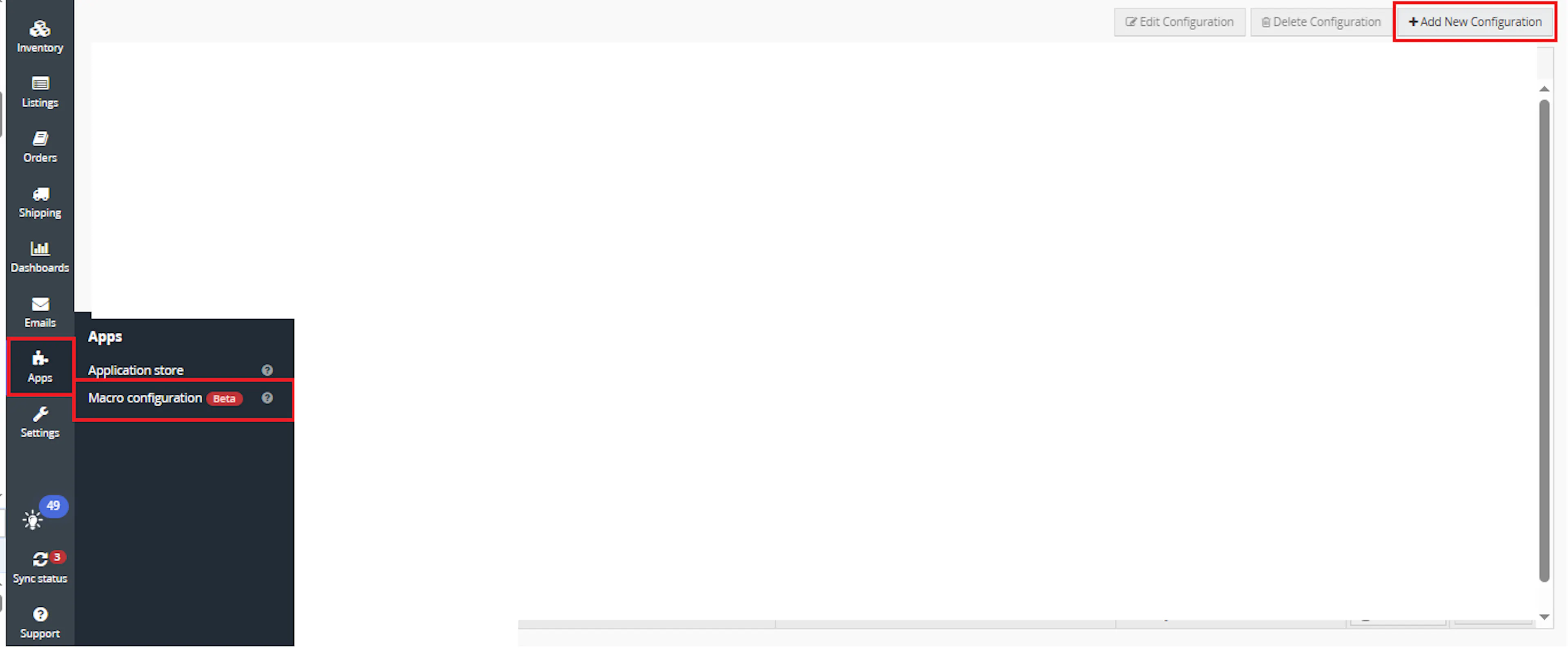
Go to Apps > Macro Configuration and click + Add new configuration.
Select the MultiLocationAutoSplit macro and click Create Configuration.
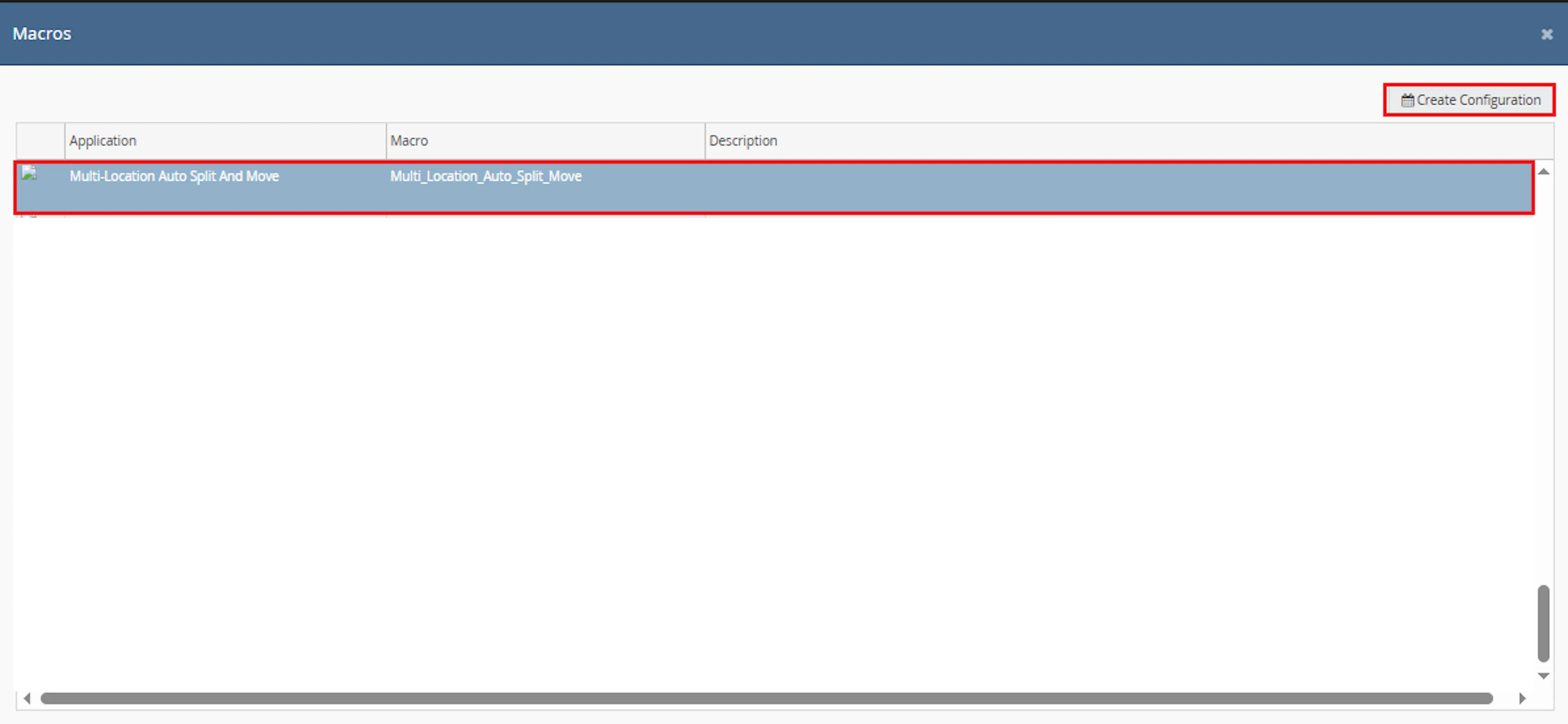
This creates a new configuration where the parameter values can be entered.
In the Macro Configuration screen, add the configuration name and parameter values.
Configure the following parameters:
-
PriorityLocations
Warehouse A,Warehouse B,Warehouse C -
ReprintLabels
True
Note: Location names in PriorityLocations must match the Linnworks stock location names exactly, including upper and lower case.
Make sure to enable the macro to continue with the Rule Engine configuration.

Note: If the macro is not enabled, it will not appear in the Action value list when setting up the rule.
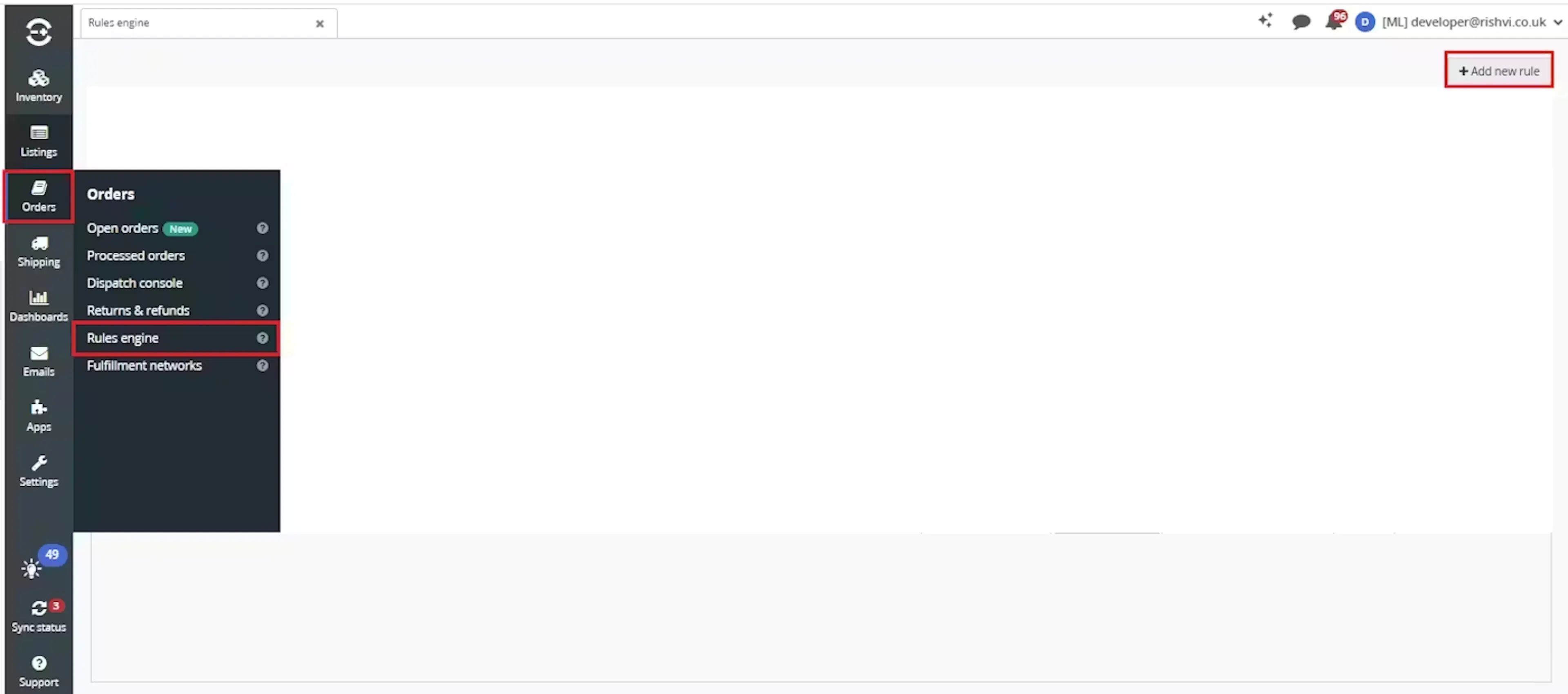
Go to Orders > Rules engine and click + Add new rule.
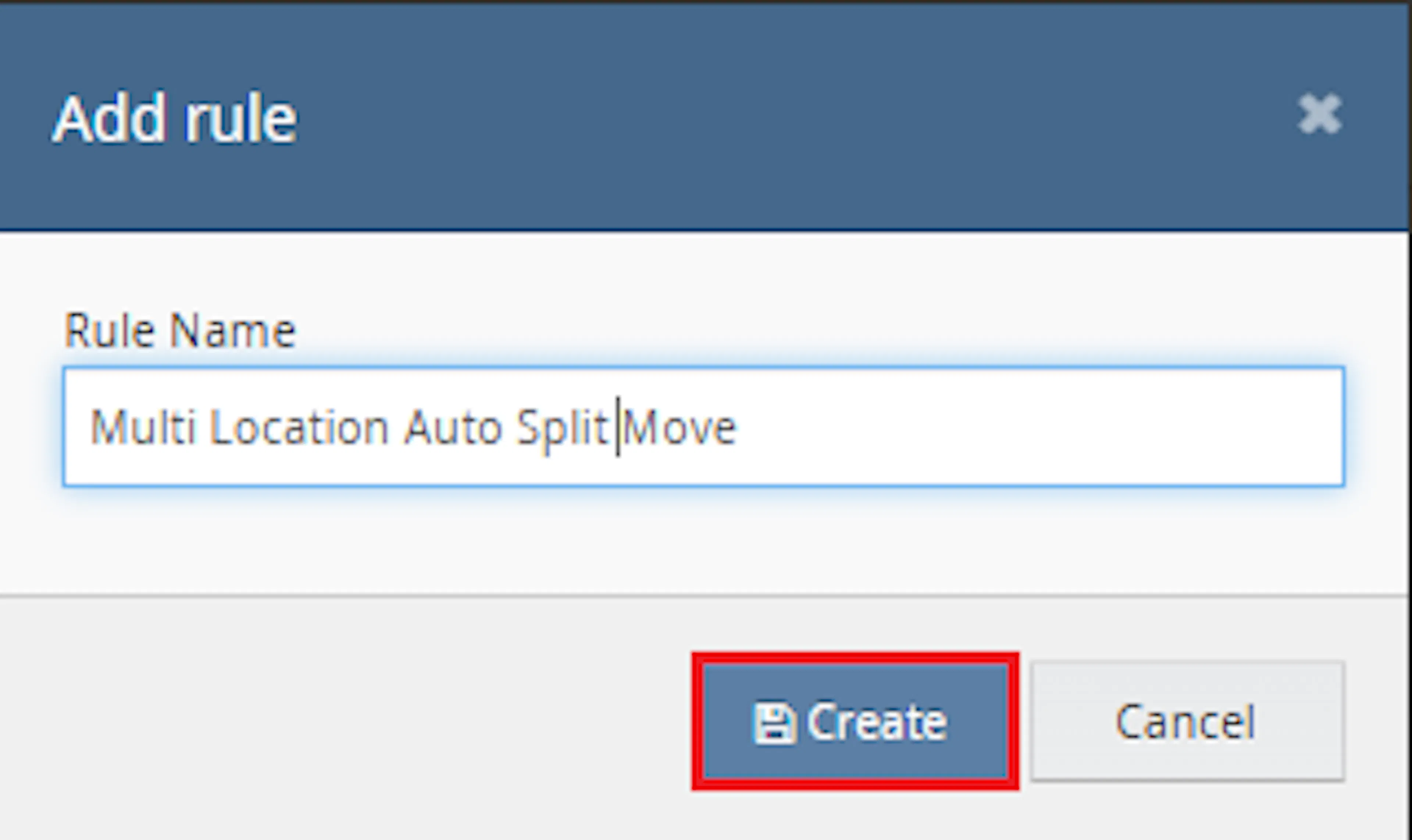
Enter the rule name and click Create.
Click Add new, select Condition, set the condition as required, and save it.
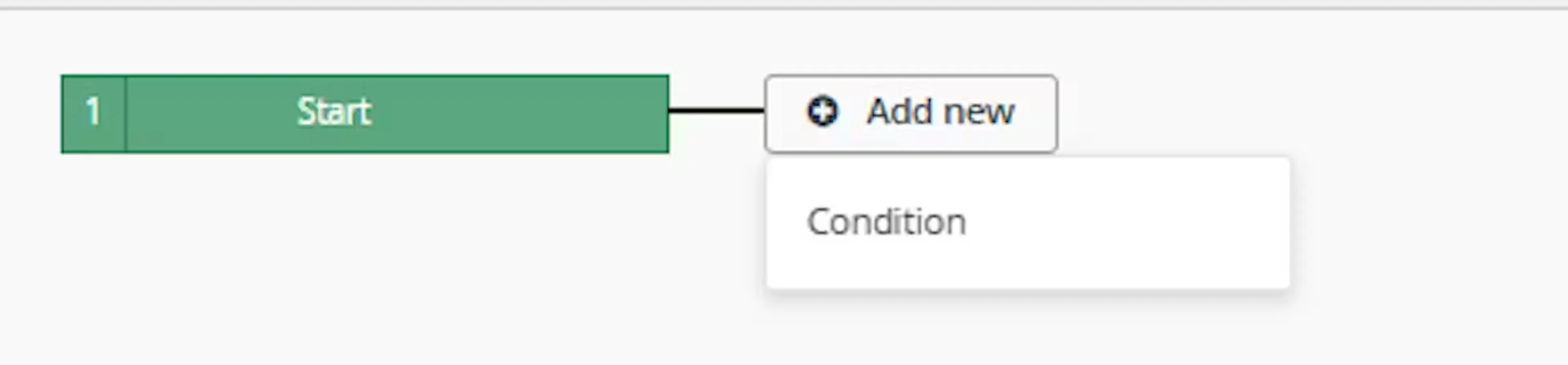
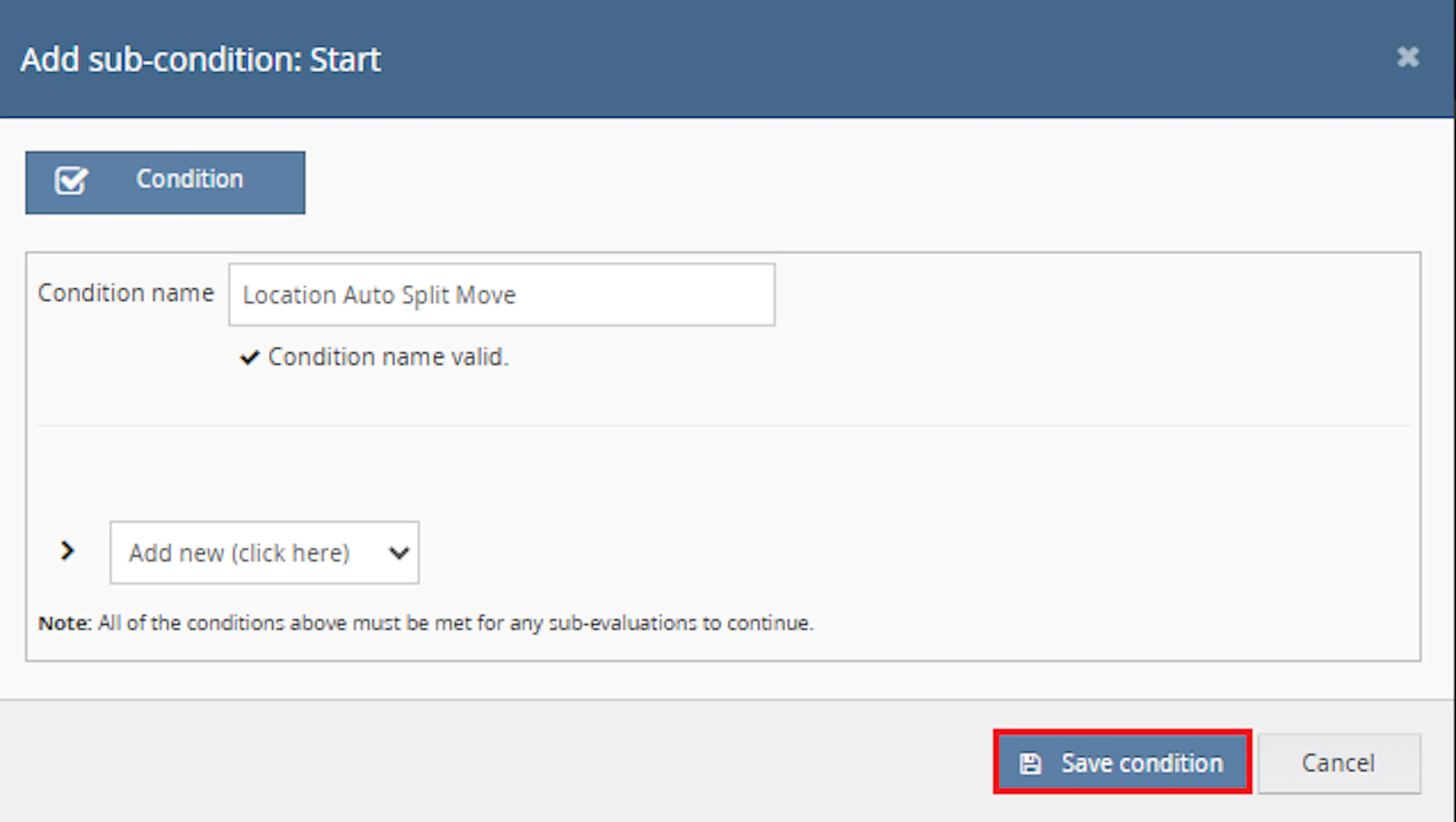
Use conditions that target orders that should be routed across locations, for example:
- Orders that are not parked
- Orders where the extended property
AutoSplitProcessedis notYes - Orders from the channels or locations that share stock
Add the macro action and click Save.
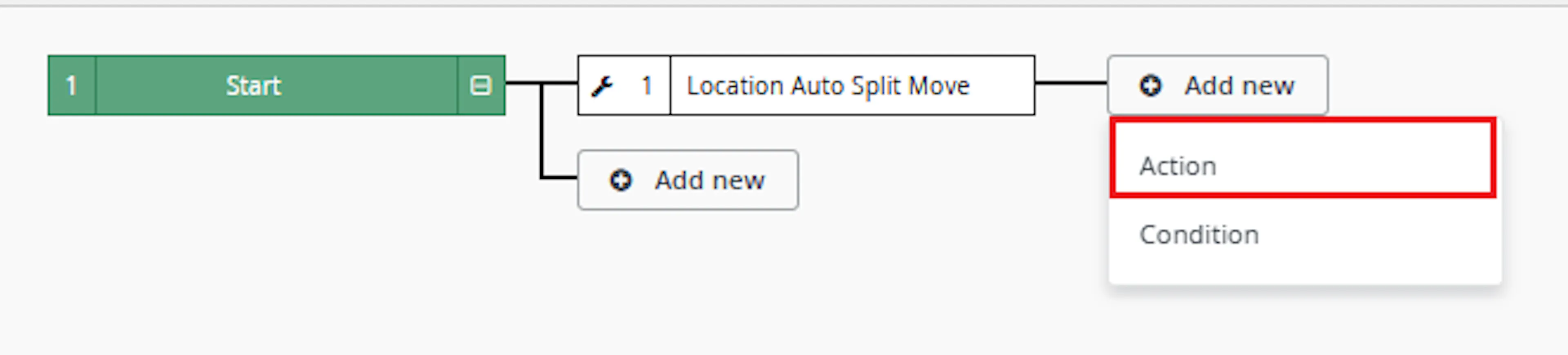
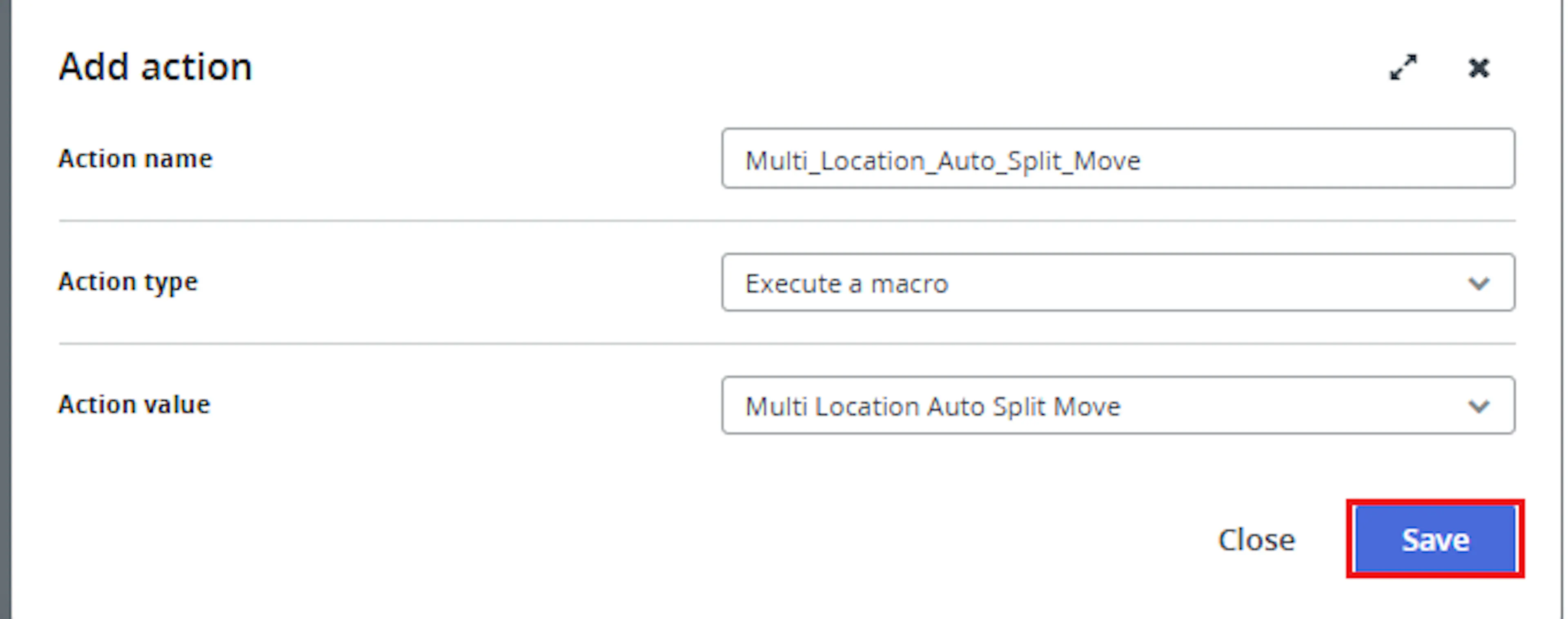
In the Add action window, enter the Action name, for example:
Multi Location Auto Split & Auto Move
-
Set Action type to:
Execute a macro -
In Action value, select:
MultiLocationAutoSplit -
Click Save
Note: If the macro is not enabled, it will not appear in the Action value list when setting up the rule.
Review the saved rule setup.
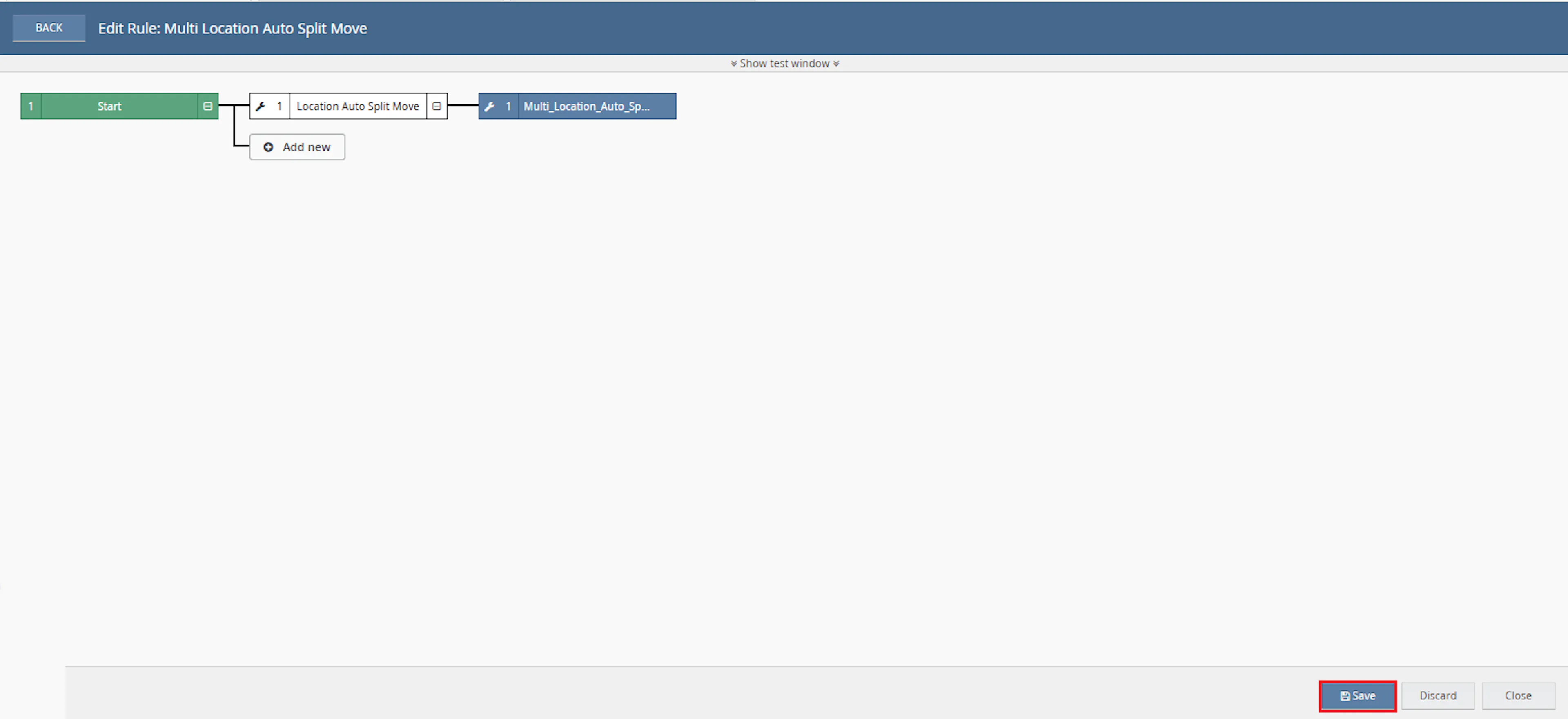
- Verify the condition and action are connected correctly
- Make sure the rule is enabled
- Click Save in the bottom-right corner to save the rule
Key Benefits
Checking stock across several warehouses by hand for every order is slow and leads to inconsistent decisions. Multi-Location Auto Split & Auto Move applies the same stock checks and location priority to every order.
Reduce manual routing decisions, use stock from every location, and keep a clear record of why each order was kept, moved or split.
Reduce Manual Routing
Removes the need to check stock at each warehouse before moving or splitting an order.
Faster Fulfilment
Orders are sent to locations that have stock instead of waiting at a location that does not.
Fewer Splits
An order is split only when no single location can fulfil every item.
Consistent Location Priority
Every decision follows the same location priority order.
Clear Audit Trail
Internal notes record every keep, move, split and failure decision on the order.
No Duplicate Processing
Orders already handled are marked and skipped automatically on later runs.
Usage of App
Multi-Location Auto Split & Auto Move is triggered through the Linnworks Rules Engine to route orders across stock locations automatically.
Execution
Trigger via Rules Engine
Call the MultiLocationAutoSplit macro through the Rules Engine with the required OrderIds. No additional manual input is required once the rule is active.
Outcome
When the macro runs against an order, it:
Reads order and stock data
Retrieves the order, its items, the stock level of each item at every location, and the components of any composite item.
Checks every item can be fulfilled
Confirms that each item can be fulfilled in full from at least one location.
Chooses keep, move or split
Keeps the order, moves it to one location, or splits it across several locations.
Moves orders to their locations
Moves the original order and any new split orders to their assigned locations.
Adds internal notes
Records the decision and the locations involved on each order.
Marks the orders as processed
Sets the AutoSplitProcessed extended property to Yes on the handled orders.
The table below shows how the macro handles different situations:
| Order Situation | Macro Behaviour |
|---|---|
| Current location can fulfil every item | Order stays at its location. A [Keep] note is added and the order is marked as processed. |
| Another location can fulfil every item | Whole order is moved to the first such location in priority order. [Move] and [Moved] notes are added. |
| No single location can fulfil every item | Order is split. Items stay on the original order where possible; one new order is created per other location. |
| No item can stay at the current location | The original order keeps the largest group of items and is moved to their location; the rest are split. |
| An item cannot be fulfilled from any location | An [Unfulfillable] note is added and the order is marked as processed. It is not moved or split. |
| Order is parked | Order is skipped and not marked as processed. |
Order already has AutoSplitProcessed = Yes | Order is skipped. |
| Split or move fails with an error | The error is logged and the order is not marked as processed, so it can be picked up again. |
Input Parameters
Multi-Location Auto Split & Auto Move uses the following values:
| Parameter | Required | Description |
|---|---|---|
| OrderIds | Yes | The Linnworks order IDs to process. Passed through the Rules Engine trigger. |
| PriorityLocations | No | Comma-separated list of location names, in the order they should be checked. Locations not in the list are still used, after the listed ones, alphabetically. |
| ReprintLabels | Yes | True clears shipping label information on new split orders so new labels can be printed. False leaves label information unchanged. |
Example configuration:
| Parameter | Example |
|---|---|
| PriorityLocations | Warehouse A,Warehouse B,Warehouse C |
| ReprintLabels | True |
The following behaviour is defined within the macro code:
| Setting | Description |
|---|---|
| Processed Marker | Extended property AutoSplitProcessed with the value Yes, set on every handled order. |
| Order Notes | Notes are added as internal notes, created by MultiLocationAutoSplit. |
| Shipping Service on Splits | New split orders keep the shipping service of the original order. |
| Locations Checked | All Linnworks stock locations are considered, not only the locations listed in PriorityLocations. |
Fulfilment Decision Rules
The macro uses the following rules when checking stock:
| Rule | How It Works |
|---|---|
| Available stock | An item can be fulfilled at a location when the available quantity there is at least the ordered quantity. |
| Current location | At the order's current location, the quantity already allocated to this order is added back, up to the location's stock level. |
| Composite items | Every component must have enough stock (component quantity × ordered quantity) at the same location. |
| Whole order lines | An order line is never divided between locations. The full quantity of each line must come from one location. |
| Location order | Locations are checked in PriorityLocations order, then alphabetically. Without a priority list, the current location is checked first. |
| One new order per location | When an order is split, one new order is created for each location that receives items. |
The macro adds the following internal notes:
| Note | Meaning |
|---|---|
[Keep] | All items are available at the current location. |
[Move] / [Moved] | The whole order was queued for, and then moved to, another location. |
[MoveInsteadOfSplit] | No items could stay at the current location, so the whole order was moved instead of split. |
[RebaseParent] | The original order keeps one location's items; the remaining items are split. |
[Split] | Added to the original order with the number of new orders and their locations. |
[SplitChild] | Added to each new order with the original order number, its location and its SKUs. |
[SplitFail] | No valid stock combination was found for the split. |
[Unfulfillable] | One or more items cannot be fulfilled from any location. |
Important: Orders with an [Unfulfillable] note are marked as processed. They are not checked again when new stock arrives unless the AutoSplitProcessed extended property is removed.
Best Practices
Accurate stock levels, correct location names and testing on a small set of orders are key to getting the best results from Multi-Location Auto Split & Auto Move.
Set the location priority carefully
List your preferred locations first, using the exact Linnworks location names and case.
Keep stock levels accurate
Decisions are based on live available stock, so incorrect stock levels lead to incorrect moves and splits.
Use targeted rule conditions
Exclude parked orders and orders where AutoSplitProcessed is already Yes.
Test before enabling at scale
Run the macro against a small set of orders and review the moves, splits and notes before going live.
Review unfulfillable orders
Check orders with an [Unfulfillable] note and remove the processed marker once stock is available if they should be checked again.
Enable label clearing only when needed
Set ReprintLabels to True only when split orders need new shipping labels.
The following checks can help diagnose common issues:
| Issue | Check |
|---|---|
| Order was skipped | Check whether the order is parked or already has AutoSplitProcessed set to Yes. |
| Order was not moved | Confirm that one other location has enough available stock for every item on the order. |
| Order was not split | Check for an [Unfulfillable] or [SplitFail] note. Every item must be available in full at one location. |
| Unexpected location was chosen | Review the PriorityLocations order and confirm the location names match exactly, including case. |
| Composite item not fulfilled | Confirm that every component has enough stock at the same location. |
| Order not rechecked after restock | Remove the AutoSplitProcessed extended property so the order can be processed again. |
| Split orders still have old labels | Confirm that ReprintLabels is set to True. |
FAQ
How is Multi-Location Auto Split & Auto Move triggered?
The macro is triggered through the Linnworks Rules Engine. When an order matches a configured rule, the macro receives the relevant OrderIds automatically.
Which locations does the macro check?
All Linnworks stock locations. Locations listed in PriorityLocations are checked first, in the order given, followed by all other locations alphabetically.
What happens if PriorityLocations is left blank?
The order's current location is checked first, then all other locations alphabetically.
When is an order kept at its current location?
When the current location has enough available stock for every item on the order.
When is an order moved?
When the current location cannot fulfil every item, but another location can. The order moves to the first such location in priority order.
When is an order split?
When no single location can fulfil every item. Items that the current location can fulfil stay on the original order, and other items go to new orders at the locations that have stock.
Can one order line be split between two locations?
No. The full quantity of each order line must be available at one location.
What is parent order rebasing?
If none of the items can stay at the current location, the location that receives the most items keeps those items on the original order, and the original order is moved there. The remaining items are split into new orders.
How are composite items handled?
Every component must have enough stock at the same location for the ordered quantity.
What does ReprintLabels do?
When set to True, shipping label information is cleared on the new split orders so new labels can be printed for them. The original order is not changed.
Which shipping service do split orders use?
New split orders keep the shipping service of the original order.
How does the macro prevent duplicate processing?
It sets the AutoSplitProcessed extended property to Yes on each handled order and skips orders that already have it.
What happens to an order with an item that no location can fulfil?
An [Unfulfillable] note is added and the order is marked as processed. It is not moved or split, and it is not checked again unless the extended property is removed.
Are parked orders processed?
No. Parked orders are skipped and are not marked as processed, so they can be handled after they are unparked.
Are the order notes visible to customers?
No. All notes are added as internal notes.
What happens if a move or split fails?
The error is written to the macro log and the order is not marked as processed, so it can be picked up again by the rule.
Legal Information
- Privacy Policy: https://rishvi.co.uk/privacy-policy/
- Terms and Conditions: https://rishvi.co.uk/terms-conditions/
Please review these pages to understand how data is handled and the terms governing the use of this application.
Summary
Multi-Location Auto Split & Auto Move automates fulfilment routing for Linnworks accounts with stock in several locations.
Once configured through the Rules Engine, the macro checks stock for every item across all locations, keeps the order where it is when possible, moves it when one other location can fulfil it, and splits it when stock is spread across locations. Every decision is recorded in an internal note, and handled orders are marked so they are not processed twice.
Automatic routing
Each order is kept, moved or split based on live stock at every location.
Location priority
Preferred locations are checked first using the PriorityLocations order.
Traceable decisions
Internal notes explain every keep, move and split decision.
Duplicate protection
The AutoSplitProcessed extended property stops orders being processed twice.
For orders that do not produce the expected result, review the internal order notes and the macro log, confirm that the location names in PriorityLocations match exactly, and check the available stock for each item at every location.