Shopify POS Location Stock Deduction
Automatically adjust stock levels for processed Shopify POS orders by checking today’s processed orders, identifying orders with the SHOPIFY_POS extended property, and reducing stock at the fulfilment location.
Overview
Shopify POS Location Stock Deduction is an automated inventory-adjustment solution for Linnworks. It searches processed orders from the current UTC day, identifies Shopify POS orders, and reduces stock for eligible items at the fulfilment location recorded against each order.
The macro processes only orders containing the SHOPIFY_POS extended property. It skips service items and items with blank SKUs, while composite products are handled by reducing stock for their individual component items.
Before applying a stock reduction, the macro checks the stock item change history for a matching order-reference note. If the same note already exists, the adjustment is skipped to help prevent duplicate stock deductions.
This is a scheduled macro and does not require OrderIds or any custom configuration parameters.
Keep Shopify POS stock movements aligned with processed Linnworks orders by automatically reducing stock at the correct fulfilment location.
Who Should Use Shopify POS Location Stock Deduction
Retail & POS Teams
Teams processing Shopify POS sales can use the macro to keep Linnworks stock aligned with completed in-store orders.
Warehouse & Inventory Teams
Inventory teams benefit from automatic stock reductions at the fulfilment location recorded against each processed order.
Integration Administrators
Administrators configure the macro schedule, enable the configuration, and monitor processing and stock-adjustment logs.
Operations & Reconciliation Teams
Operations teams can use stock movement notes to connect inventory changes back to the original Shopify POS order.
Key Features
Processed Order Search
Searches Linnworks processed orders from the beginning of the current UTC day up to the current UTC time.
Shopify POS Validation
Processes only orders containing the SHOPIFY_POS extended property.
Location-Based Stock Deduction
Reduces stock at the Linnworks stock location matching the processed order fulfilment location.
Composite Item Support
Reduces stock for composite component items instead of adjusting the parent composite SKU.
Duplicate Adjustment Prevention
Checks stock item history for an existing order-reference note before applying a new stock reduction.
Stock Movement Traceability
Records the order number and reference number in the stock movement note.
How Shopify POS Location Stock Deduction Works
Shopify POS Location Stock Deduction follows a defined sequence whenever the scheduled macro runs.
Step 1: Retrieve stock locations
The macro retrieves all Linnworks stock locations so processed order fulfilment locations can be matched correctly.
Step 2: Build the UTC search window
The processed order search starts at 00:00 UTC on the current day and ends at the current UTC time.
Step 3: Search processed orders
The macro searches up to 500 processed orders using the processed date field.
Step 4: Match the fulfilment location
Each processed order fulfilment location is matched to the corresponding Linnworks stock location.
Step 5: Retrieve full order information
The macro retrieves the complete Linnworks order using the processed order ID.
Step 6: Validate Shopify POS status
The order extended properties are checked for an entry named SHOPIFY_POS.
Step 7: Evaluate order items
Service items and items with blank SKUs are skipped.
Step 8: Handle composite items
When an item contains composite sub-items, each component is processed for stock deduction.
Step 9: Check stock history
The macro checks the SKU stock history at the fulfilment location for an existing note containing the order number and reference.
Step 10: Apply stock deduction
When no matching stock movement note exists, stock is reduced using a negative quantity adjustment.
Step 11: Record the movement note
The stock update is saved with a note in the format Order {OrderNumber} ref: {ReferenceNumber}.
Step 12: Complete execution
Processed orders, skipped items, duplicate checks, stock updates, errors, and macro completion are written to the execution log.
Configure the Macro
Once the app is installed, you need to create a macro configuration so the system knows which macro to run. This macro does not require order IDs or custom parameters because it searches processed orders directly.
This setup can be adjusted anytime based on your operational requirements.
Steps to Configure
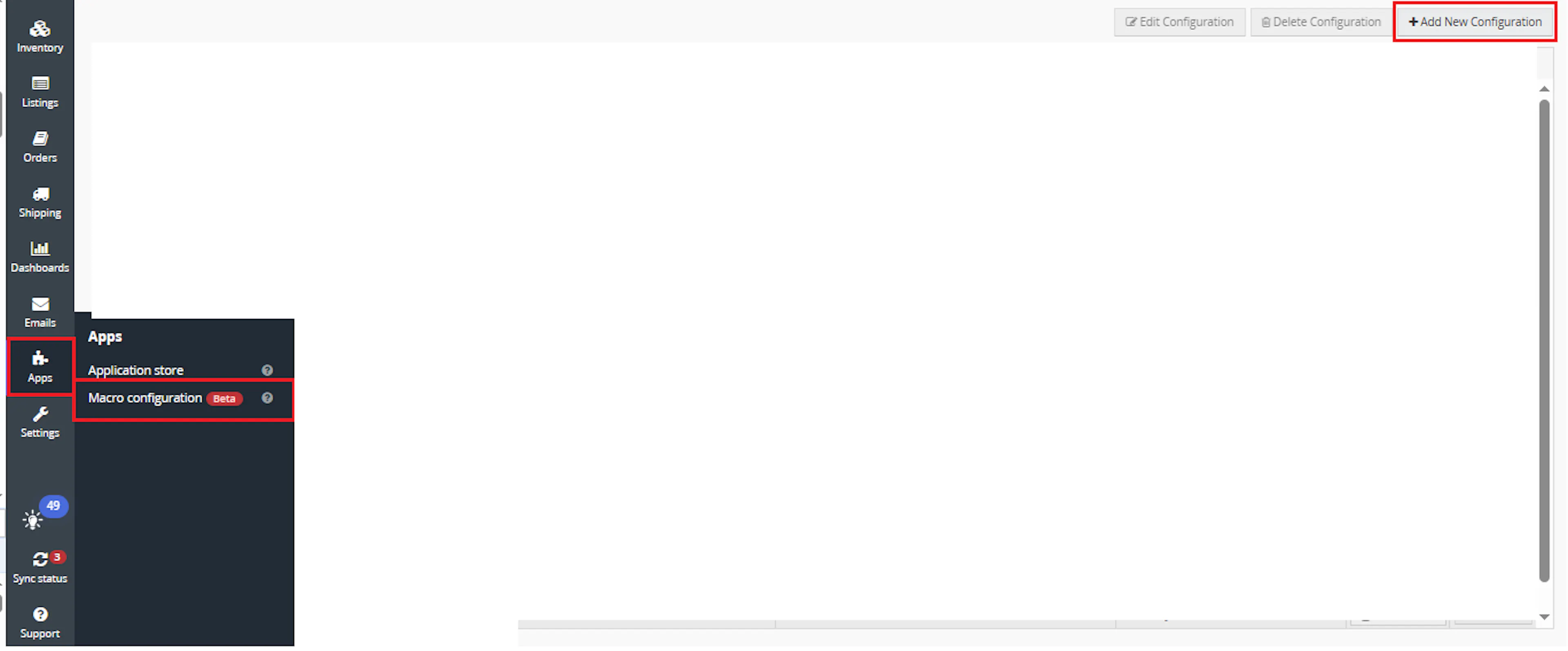
Go to Apps > Macro Configuration and click + Add new configuration.
Select the Shopify POS Location Stock Deduction macro and click Create Configuration.
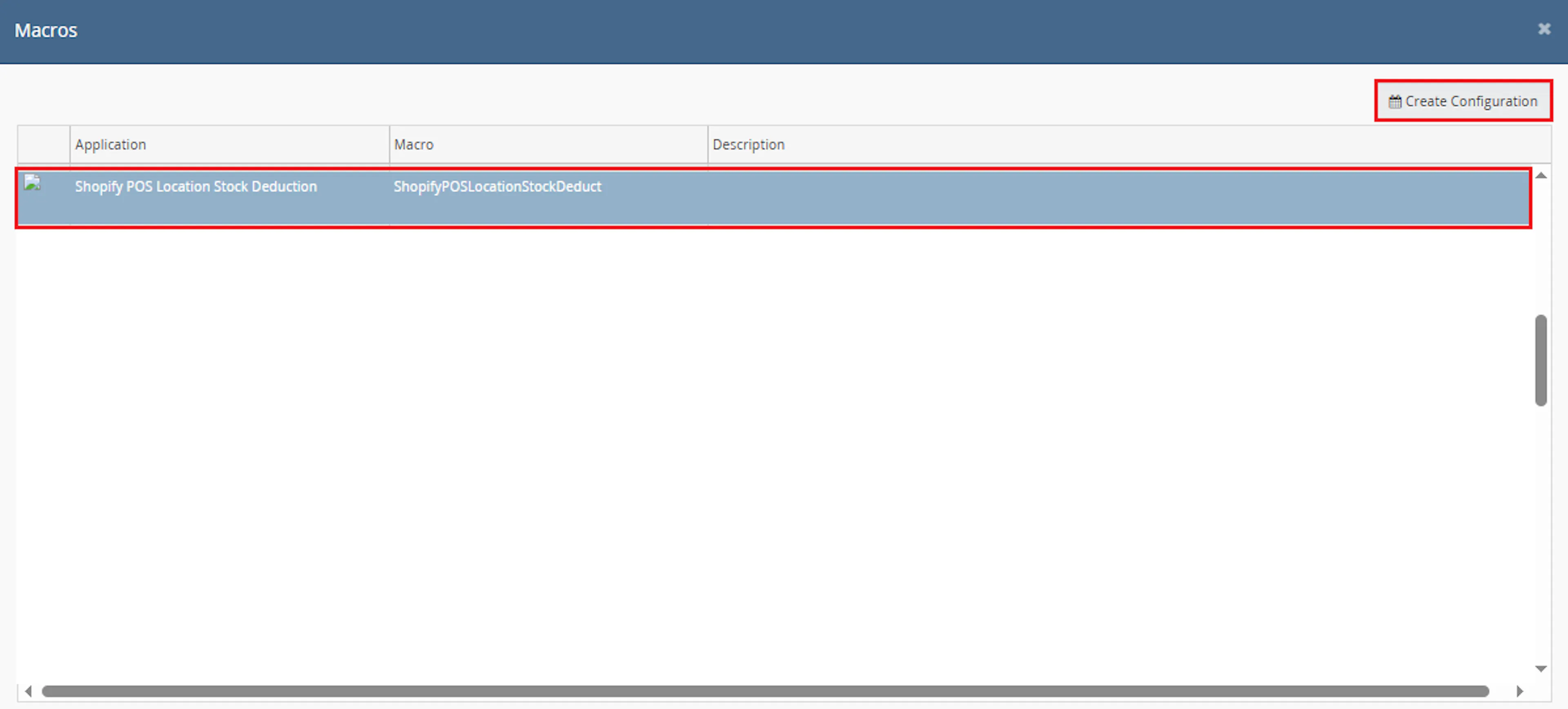
This creates a new configuration where the macro can be enabled and scheduled.
In the Macro Configuration screen, add the configuration name and click New Schedule.
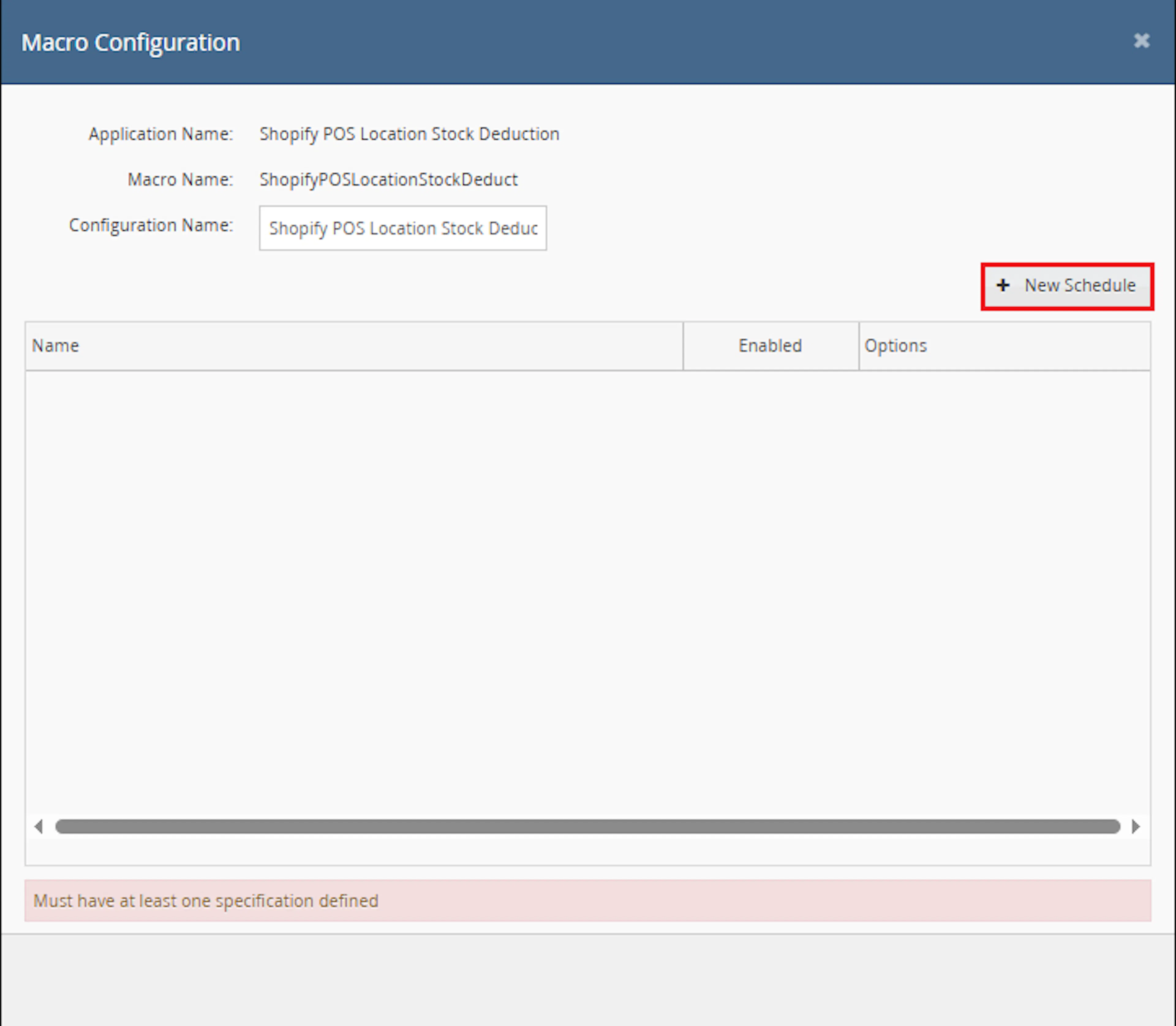
Example configuration name:
Shopify POS Location Stock Deduction
This macro does not require parameter values because it runs without input parameters.
Note: The macro searches processed orders directly, so there are no OrderIds or custom parameter values to enter.
Configure the schedule.
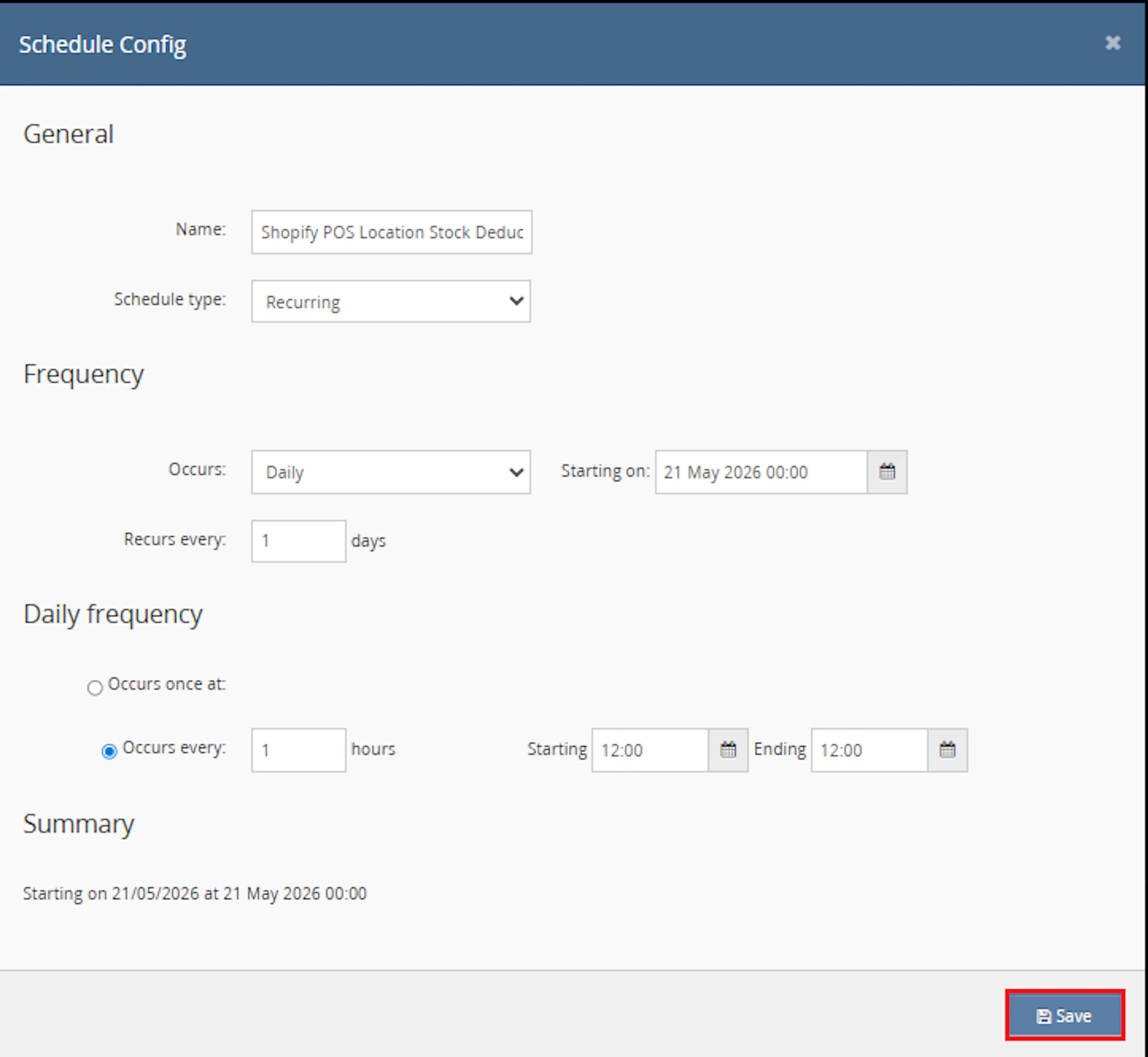
In the Schedule Config window:
-
Enter the Name
-
Select Schedule type from the dropdown:
- One time
- Recurring
-
If Recurring is selected:
- In Frequency, choose:
- Daily
- Weekly
- In Frequency, choose:
-
Set Recurs every, for example:
1 day -
Set the Starting on date and time
-
Under Daily frequency, choose one option:
- Occurs once at
- Occurs every
-
Review the Summary section
-
Click Save
Make sure to enable the macro to continue with the schedule Engine configuration.
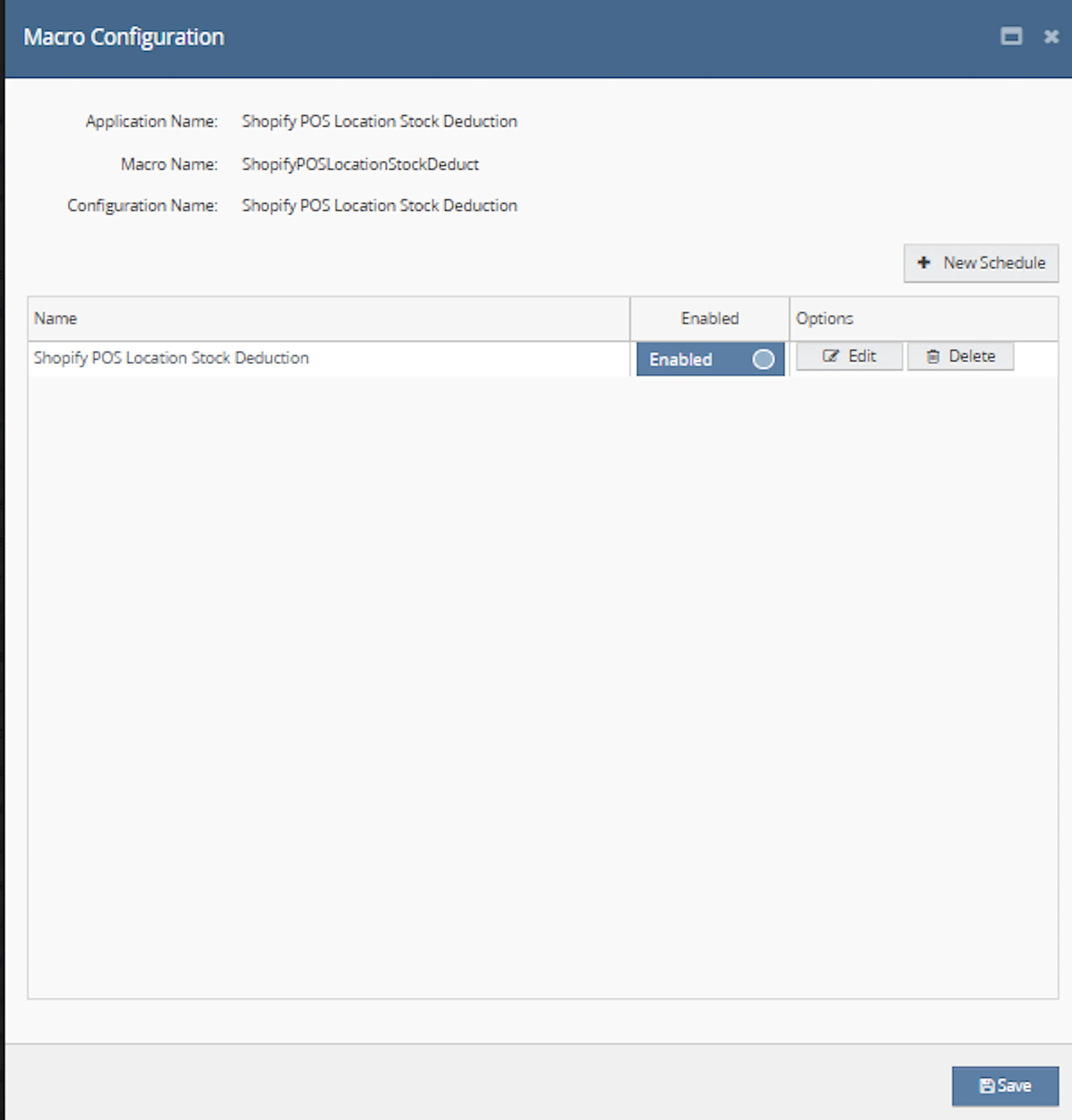
Make sure to enable the macro.

Note: If the macro is not enabled, the scheduled execution will not run.
Key Benefits
Manual Shopify POS stock adjustments require teams to identify the processed order, determine the fulfilment location, inspect the order items, and update each SKU individually. Shopify POS Location Stock Deduction automates this process.
Reduce manual stock corrections, improve location-level inventory accuracy, and maintain traceable stock movements for processed Shopify POS orders.
Reduce Manual Stock Updates
Automatically reduces stock for eligible processed Shopify POS orders.
Improve Inventory Accuracy
Keeps Linnworks stock aligned with Shopify POS orders processed during the current UTC day.
Use the Correct Location
Applies stock adjustments to the stock location matching the order fulfilment location.
Support Composite Products
Reduces stock for composite component items when the processed order contains a composite product.
Prevent Duplicate Deductions
Checks stock history before applying another stock movement for the same order reference.
Improve Stock Traceability
Adds a stock movement note containing the processed order number and reference number.
Usage of App
Shopify POS Location Stock Deduction is designed to run through the Linnworks Macro Schedule Engine.
It does not require selected order IDs. Each execution searches processed orders directly using a current-day UTC date range.
Execution
Trigger via Schedule
Configure a one-time or recurring schedule in Macro Configuration. When the schedule runs, the macro searches the current UTC day's processed orders and evaluates eligible Shopify POS orders automatically.
Outcome
When the scheduled macro runs, it:
Searches processed orders
Retrieves up to 500 orders processed between the start of the current UTC day and the current UTC time.
Identifies Shopify POS orders
Continues only when an order contains the SHOPIFY_POS extended property.
Matches the fulfilment location
Finds the Linnworks stock location corresponding to the processed order fulfilment location.
Evaluates eligible stock items
Skips service lines and blank SKUs while processing normal and composite component items.
Checks for an existing movement
Searches stock item history for a matching order-reference note.
Reduces stock
Applies a negative stock quantity adjustment where no duplicate movement exists.
Records the result
Saves the stock movement note and logs updates, skips, and errors.
Input Parameters
Shopify POS Location Stock Deduction does not require any runtime input parameters.
| Parameter | Required | Description |
|---|---|---|
| OrderIds | No | The macro does not use selected order IDs. |
| Custom parameters | No | No custom values are required in Macro Configuration. |
| Schedule | Yes | A one-time or recurring schedule is required to trigger the macro automatically. |
The macro relies on the following Linnworks order and inventory data:
| Data Requirement | Description |
|---|---|
| Processed order date | Used to find orders processed during the current UTC day. |
| SHOPIFY_POS extended property | Identifies orders eligible for stock deduction. |
| Fulfilment location | Used to select the stock location where inventory is reduced. |
| Order item SKU | Used to identify the stock item to update. |
| Order item quantity | Used to calculate the negative stock adjustment. |
| Composite sub-items | Used instead of the parent item when the item is composite. |
| Stock item history | Checked to help prevent duplicate order-related deductions. |
Processed Order Search Rules
The macro uses the following processed order search behaviour:
| Search Setting | Value |
|---|---|
| Date field | processed |
| Start time | Current UTC day at 00:00 |
| End time | Current UTC time |
| Maximum orders per run | 500 |
| Execution type | Scheduled macro |
Important: The macro searches the current UTC day rather than the local calendar day. Schedule timing should account for this behaviour.
Order Eligibility Rules
The macro applies the following eligibility checks:
| Order or Item Condition | Macro Behaviour |
|---|---|
| Order contains SHOPIFY_POS | Continues with stock processing. |
| Order does not contain SHOPIFY_POS | Skips the order. |
| Fulfilment location matches a Linnworks stock location | Uses that location for stock updates. |
| Service item | Skips the item. |
| Blank SKU | Skips the item. |
| Normal stock item | Processes the order item SKU directly. |
| Composite item | Processes each composite component instead of the parent item. |
| Matching stock history note already exists | Skips the stock adjustment. |
| Matching stock history note does not exist | Reduces stock by the required quantity. |
Stock Adjustment Rules
The stock update uses the ordered quantity as a negative adjustment.
| Item Type | Quantity Used |
|---|---|
| Normal item | Negative order item quantity |
| Composite component | Negative component quantity based on the ordered composite quantity |
| Service item | No stock update |
| Blank SKU item | No stock update |
The stock movement note follows this format:
Order {OrderNumber} ref: {ReferenceNumber}
This note is used both for traceability and for the duplicate-adjustment check.
Example Scenario
Assume a processed order contains:
| Order Detail | Example Value |
|---|---|
| Extended property | SHOPIFY_POS |
| Order number | 100245 |
| Reference number | SPOS-7890 |
| Fulfilment location | Main Warehouse |
| SKU | CHAIR-BLACK |
| Quantity | 2 |
The macro checks the stock history for CHAIR-BLACK at Main Warehouse for the following note:
Order 100245 ref: SPOS-7890
No Matching History Note
The macro reduces stock for CHAIR-BLACK at Main Warehouse by -2.
Matching History Note Exists
The macro skips the adjustment to help avoid deducting stock again.
Best Practices
Schedule the macro frequently enough to keep Shopify POS stock movements current while accounting for the current-day UTC search window.
Run the macro regularly
Configure a recurring schedule that matches how frequently Shopify POS orders are processed.
Confirm Shopify POS tagging
Ensure eligible orders contain the SHOPIFY_POS extended property.
Validate fulfilment locations
Confirm that processed order fulfilment location names match active Linnworks stock locations.
Review stock history notes
Check sample stock movements after setup to confirm the expected order-reference notes are created.
Monitor the 500-order limit
Review daily processed order volumes and schedule frequency where more than 500 orders may be processed.
Test composite items
Confirm that component quantities are reduced correctly for composite Shopify POS products.
FAQ
How is Shopify POS Location Stock Deduction triggered?
The macro is triggered through a schedule configured in Linnworks Macro Configuration.
Does the macro use OrderIds?
No. It searches processed orders directly and does not require selected order IDs.
Does the macro require custom configuration parameters?
No. Only the configuration name, schedule, and enabled status are required.
Which processed orders are searched?
The macro searches orders processed from the beginning of the current UTC day up to the current UTC time.
How many processed orders are checked in one run?
The documented limit is 500 processed orders per execution.
How does the macro identify Shopify POS orders?
It checks whether the order contains an extended property named SHOPIFY_POS.
Which stock location is updated?
The stock location matching the processed order fulfilment location is used.
What happens when the fulfilment location does not match a Linnworks stock location?
The stock update cannot be completed correctly for that order, and the issue should be reviewed in the execution logs.
Are service items processed?
No. Service items are skipped.
What happens when an item has a blank SKU?
The item is skipped.
How are normal items processed?
The macro reduces stock for the order item SKU using the ordered quantity as a negative adjustment.
How are composite items processed?
The component items are processed instead of the parent composite SKU.
How does the macro prevent duplicate deductions?
It checks stock item history for a matching order-reference note before applying the update.
What is the stock movement note format?
The note follows this format:
Order {OrderNumber} ref: {ReferenceNumber}
What happens when the note already exists?
The stock adjustment is skipped.
What happens when the note does not exist?
The macro reduces the stock level and saves the order-reference note with the movement.
Does the macro process orders from previous UTC days?
The documented search covers only the current UTC day.
What should be checked when an order is not processed?
Confirm that the order was processed during the current UTC day, contains the SHOPIFY_POS property, and has a valid fulfilment location.
What should be checked when stock is not reduced?
Confirm that the item is not a service line, has a valid SKU, and does not already have the matching order-reference note in its stock history.
What should be checked when a composite item's stock looks different?
Review the component items because the macro reduces the composite sub-items rather than the parent SKU.
Legal Information
- Privacy Policy: https://rishvi.co.uk/privacy-policy/
- Terms and Conditions: https://rishvi.co.uk/terms-conditions/
Please review these pages to understand how data is handled and the terms governing the use of this application.
Summary
Shopify POS Location Stock Deduction automates stock reductions for eligible Shopify POS orders processed in Linnworks during the current UTC day.
Once scheduled and enabled, the macro searches processed orders, validates the SHOPIFY_POS extended property, matches the fulfilment location, evaluates normal and composite order items, checks stock history for duplicates, and applies negative stock adjustments where required.
Automated processed-order search
The macro searches the current UTC day's processed orders automatically.
Location-level stock updates
Eligible stock is reduced at the fulfilment location recorded against the order.
Composite-aware deductions
Composite component items are reduced instead of the parent product.
Duplicate adjustment protection
Existing order-reference notes in stock history prevent repeated stock reductions.
For orders that do not update as expected, review the macro execution logs, confirm that the order was processed during the current UTC day, verify the SHOPIFY_POS extended property, and check that the fulfilment location matches an active Linnworks stock location.