Shipping Delivery Note
Automatically prepend configured text to Linnworks order notes created by Customer_Message, helping teams highlight customer delivery notes during order review, fulfilment, and dispatch.
Overview
Shipping Delivery Note is an automated order-note formatting solution for Linnworks. The underlying Append Customer Message Note macro checks selected orders and highlights customer messages by adding a configured prefix to matching notes.
The macro processes order IDs supplied through the Linnworks Rule Engine. For each order, it retrieves notes where CreatedBy equals Customer_Message.
When a matching note does not already begin with the configured AppendNote value, the macro prepends that value and saves the updated note list back to the order.
Notes that already start with the current prefix are left unchanged, helping prevent the same prefix from being added repeatedly.
Highlight customer delivery instructions by automatically adding a consistent prefix to matching Linnworks order notes.
Who Should Use Shipping Delivery Note
Warehouse & Fulfilment Teams
Teams reviewing orders before picking and packing can identify customer delivery instructions more quickly.
Shipping & Dispatch Teams
Dispatch teams can see clearly marked customer messages before labels are created or parcels are handed to couriers.
Integration Administrators
Administrators configure AppendNote, enable the macro, connect it to the Rule Engine, and monitor execution logs.
Customer Service Teams
Customer service teams benefit from consistent presentation of customer-provided delivery information.
Key Features
Customer Message Detection
Updates only order notes where CreatedBy equals Customer_Message.
Configurable Note Prefix
Uses the AppendNote parameter to define the text added before each matching note.
Duplicate Prefix Prevention
Checks whether the note already starts with the configured prefix before changing it.
Selected Order Processing
Processes only the Linnworks order IDs supplied through the Rule Engine action.
Direct Note Updating
Saves the modified order-note list back to Linnworks after applying the required prefix.
Execution Logging
Records macro start, processed order numbers, errors, and completion.
How Shipping Delivery Note Works
Shipping Delivery Note follows a defined sequence whenever it receives one or more order IDs through the Linnworks Rule Engine.
Step 1: Read selected order IDs
The macro loops through each order ID supplied through the OrderIds parameter.
Step 2: Retrieve the Linnworks order
The order details are retrieved for each selected ID.
Step 3: Record the order number
When the order exists, its order number is written to the execution log.
Step 4: Find customer-message notes
The macro retrieves order notes where CreatedBy equals Customer_Message.
Step 5: Check the current prefix
Each matching note is checked to determine whether its text already starts with the configured AppendNote value.
Step 6: Prepend the configured text
When the note does not already contain the current prefix, AppendNote is added directly before the existing text.
Step 7: Save the updated notes
The modified note list is saved back to the Linnworks order.
Step 8: Complete execution
Errors are logged where required, and the macro writes Macro Finished when processing ends.
Configure the Macro
Once the app is installed, you need to create a macro configuration so the system knows which macro to run and what text should be added to customer message notes.
This setup can be adjusted anytime based on your operational requirements.
Steps to Configure
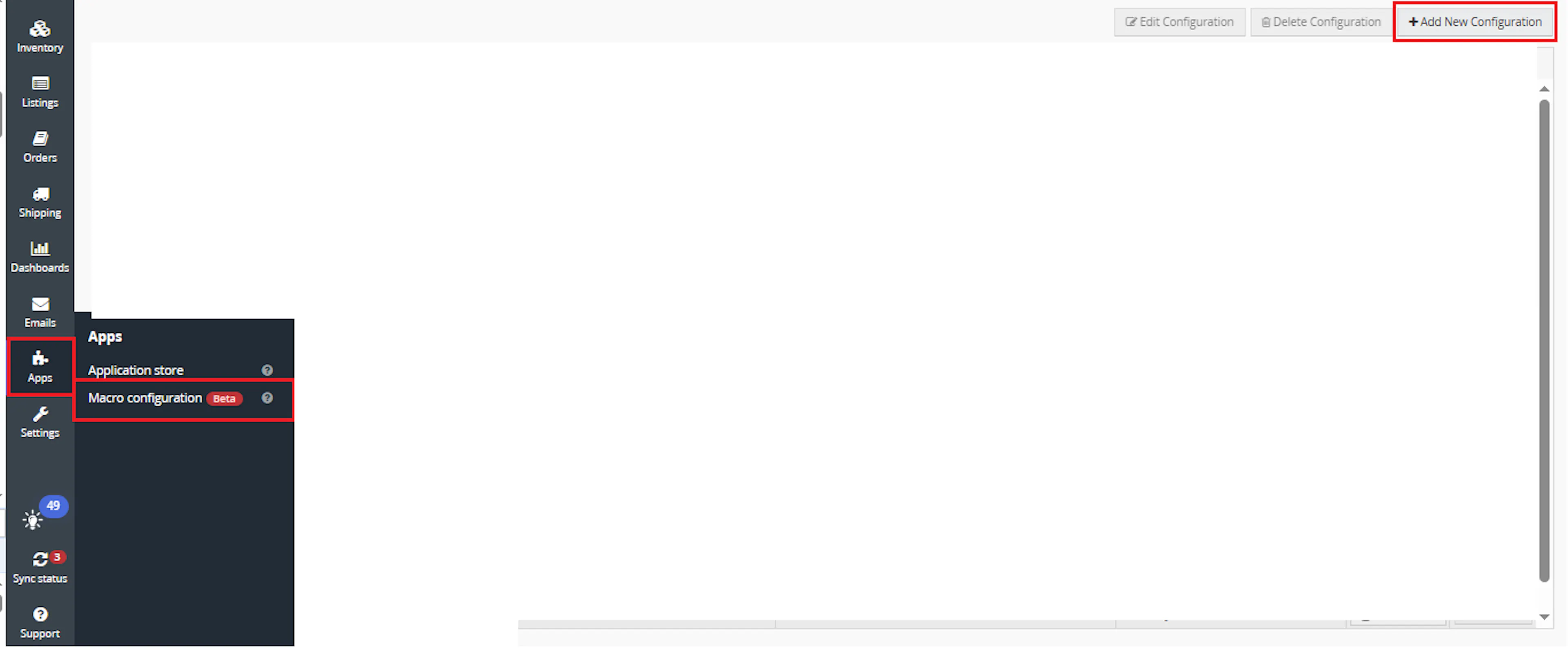
Go to Apps > Macro Configuration and click + Add new configuration.
Select the ShippingDeliveryNote macro and click Create Configuration.
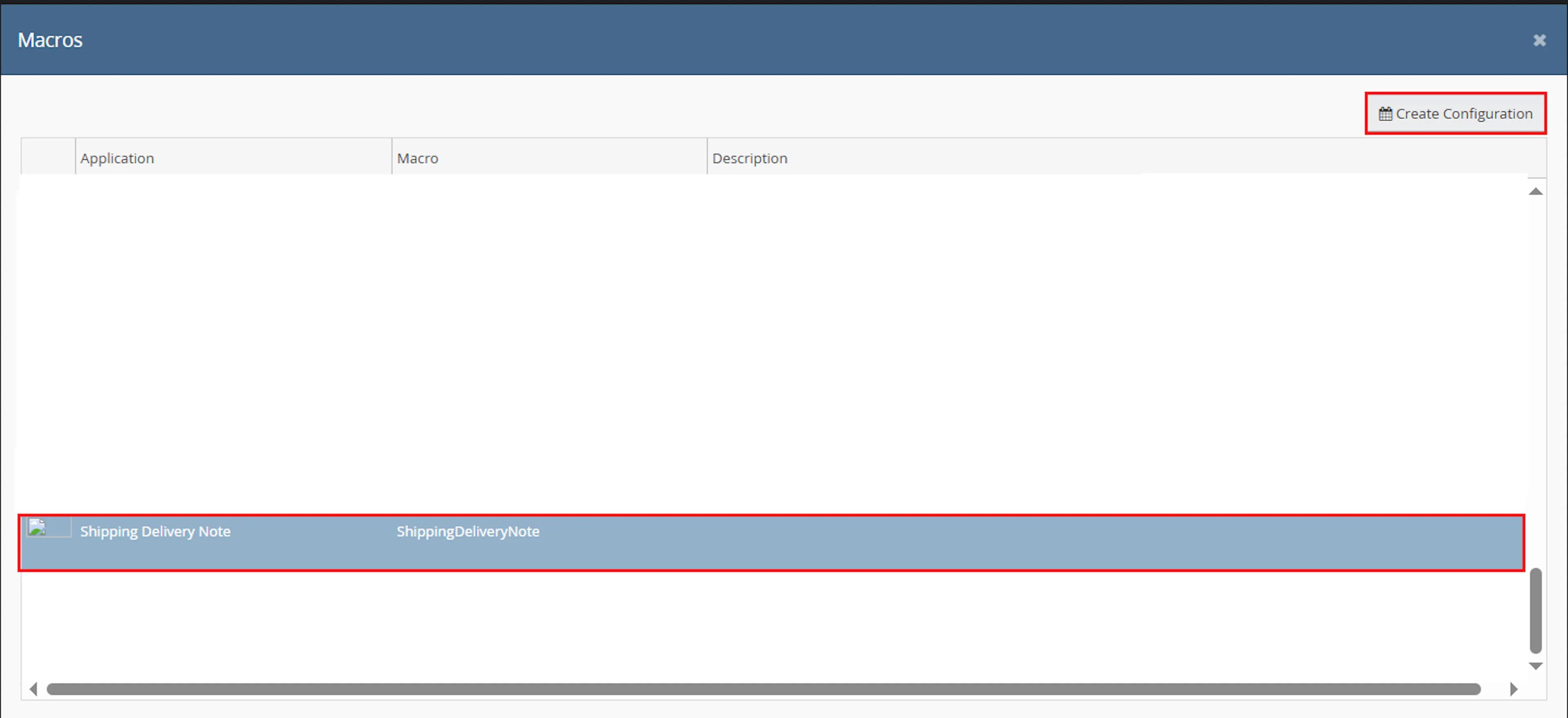
This creates a new configuration where you can define the required parameter value.
In the Macro Configuration screen, add the configuration name and parameter value.
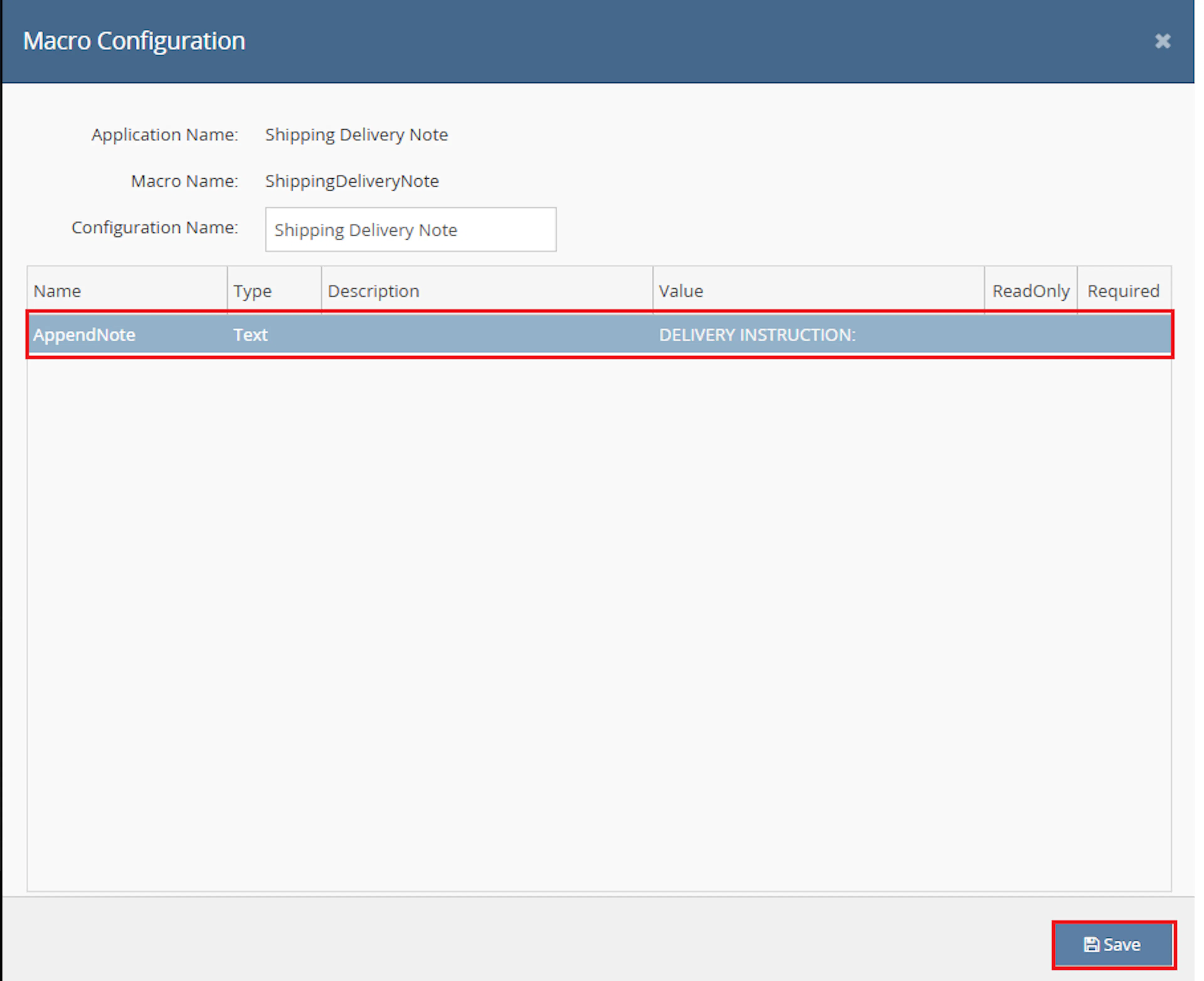
Configure the required parameter:
- AppendNote
Example value:
DELIVERY NOTE:
Note: Include any required spacing, punctuation, or separator in the AppendNote value. The macro adds the value directly before the existing note text.
Make sure to enable the macro to continue with the Rule Engine configuration.

Note: If the macro is not enabled, it will not appear in the Action value list when setting up the rule.
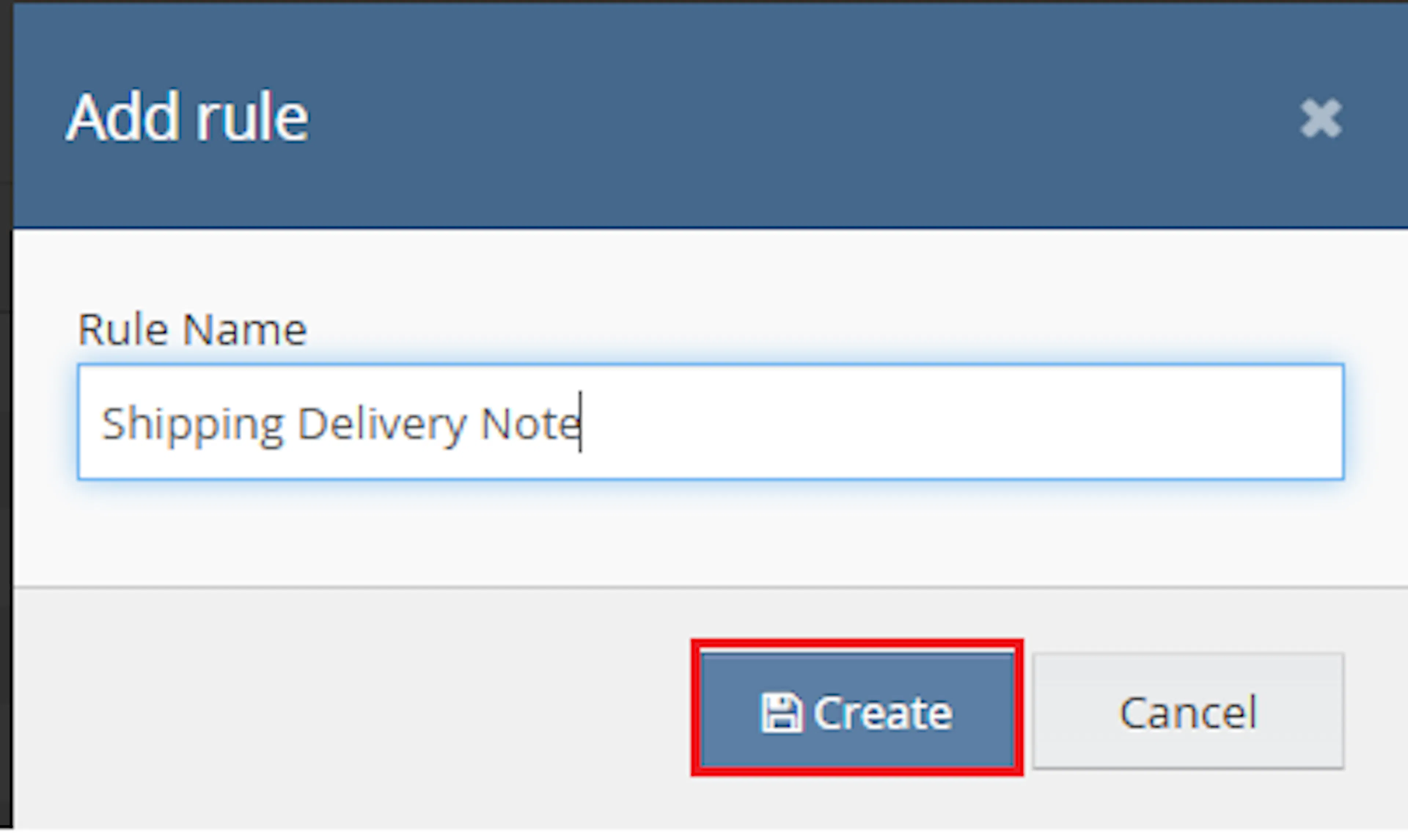
Go to Orders > Rules engine and click + Add new rule.
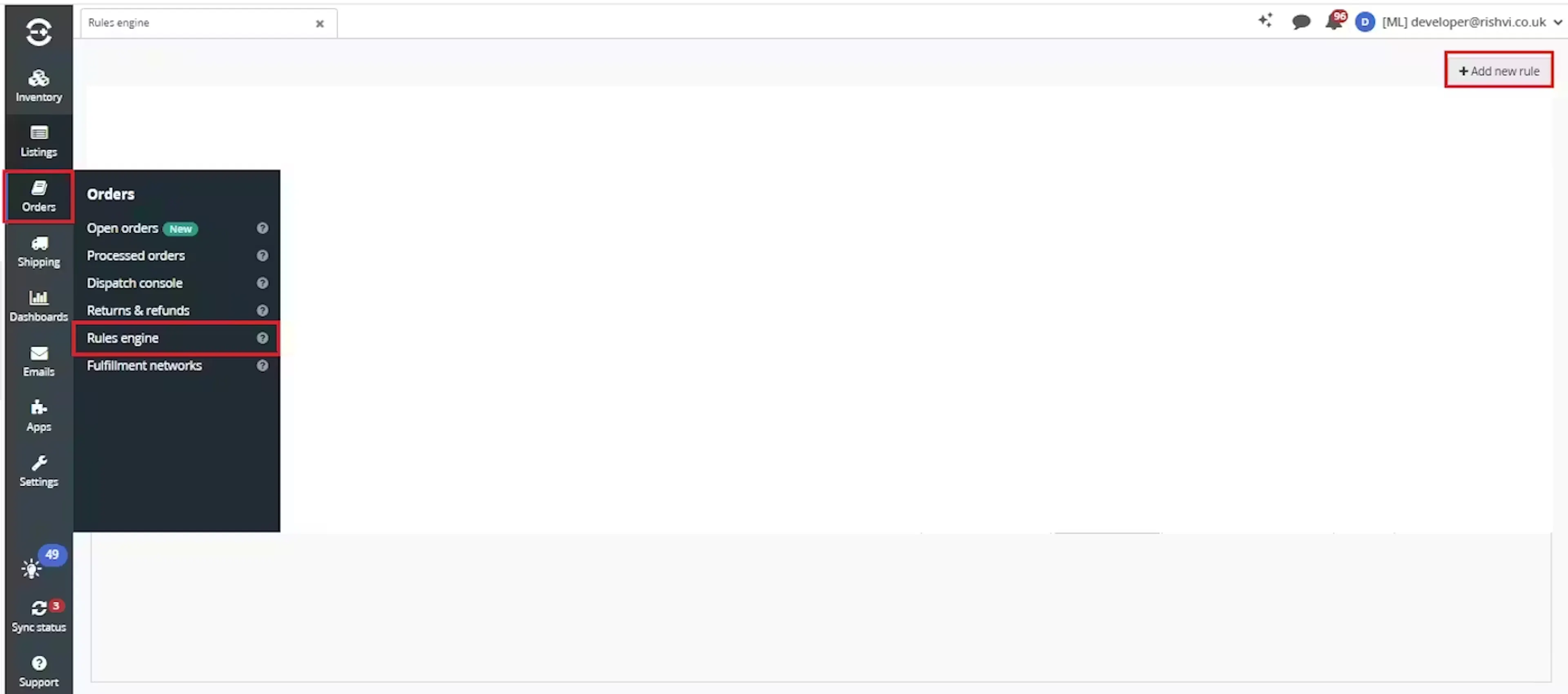
Enter the rule name and click Create.
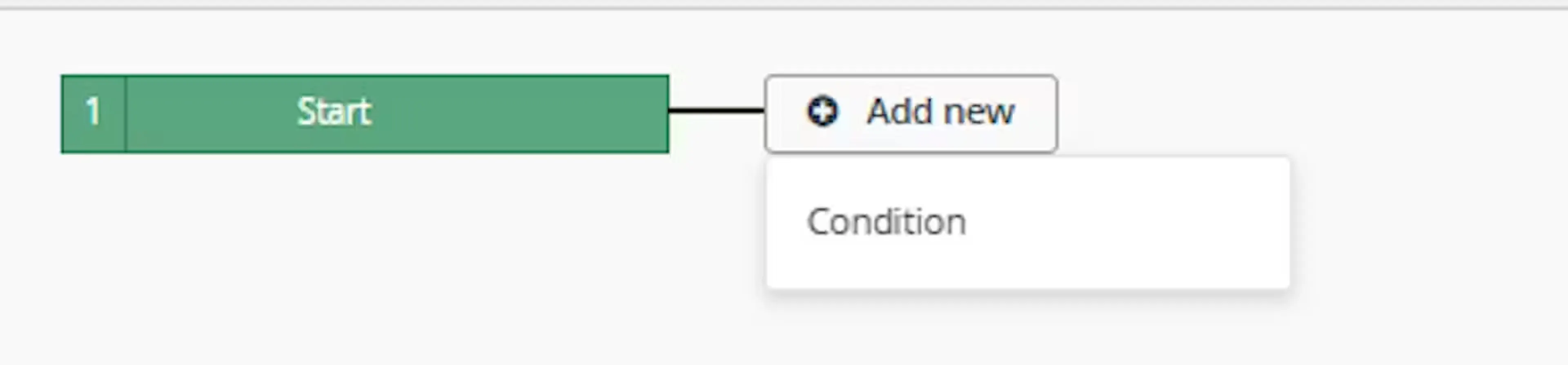
Click Add new, select Condition, set the condition as required, and save it.
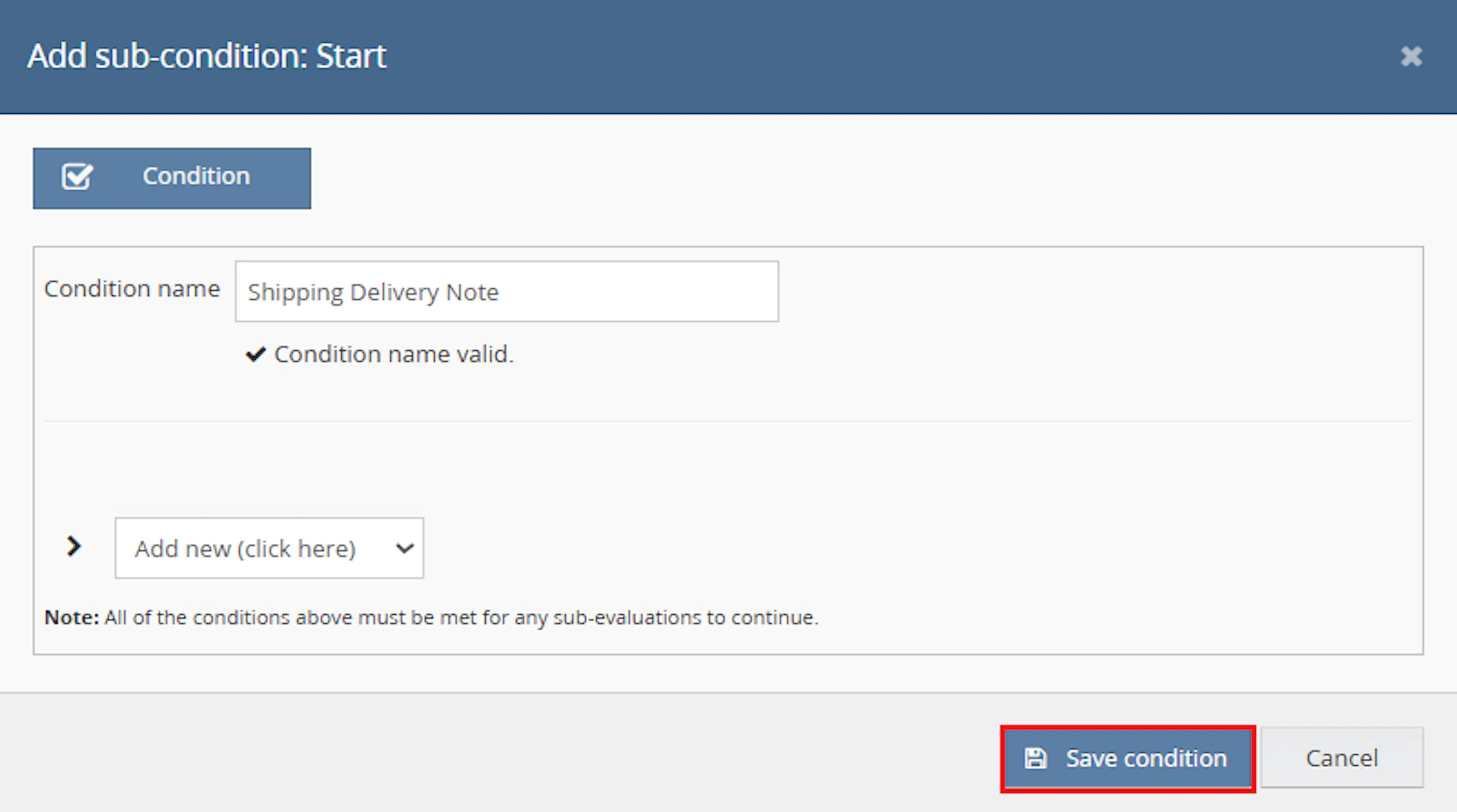
Use conditions that target orders where delivery or customer message notes should be highlighted.
Add the macro action and click Save.
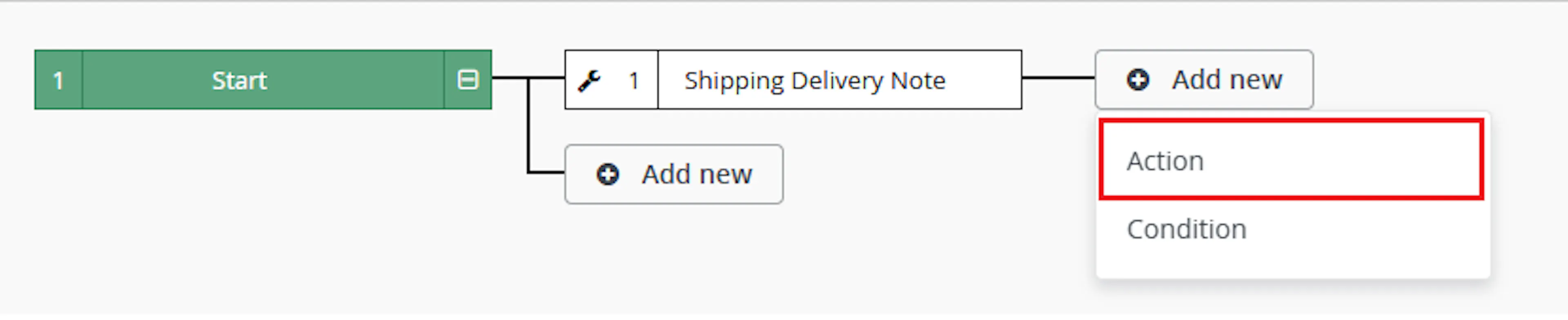
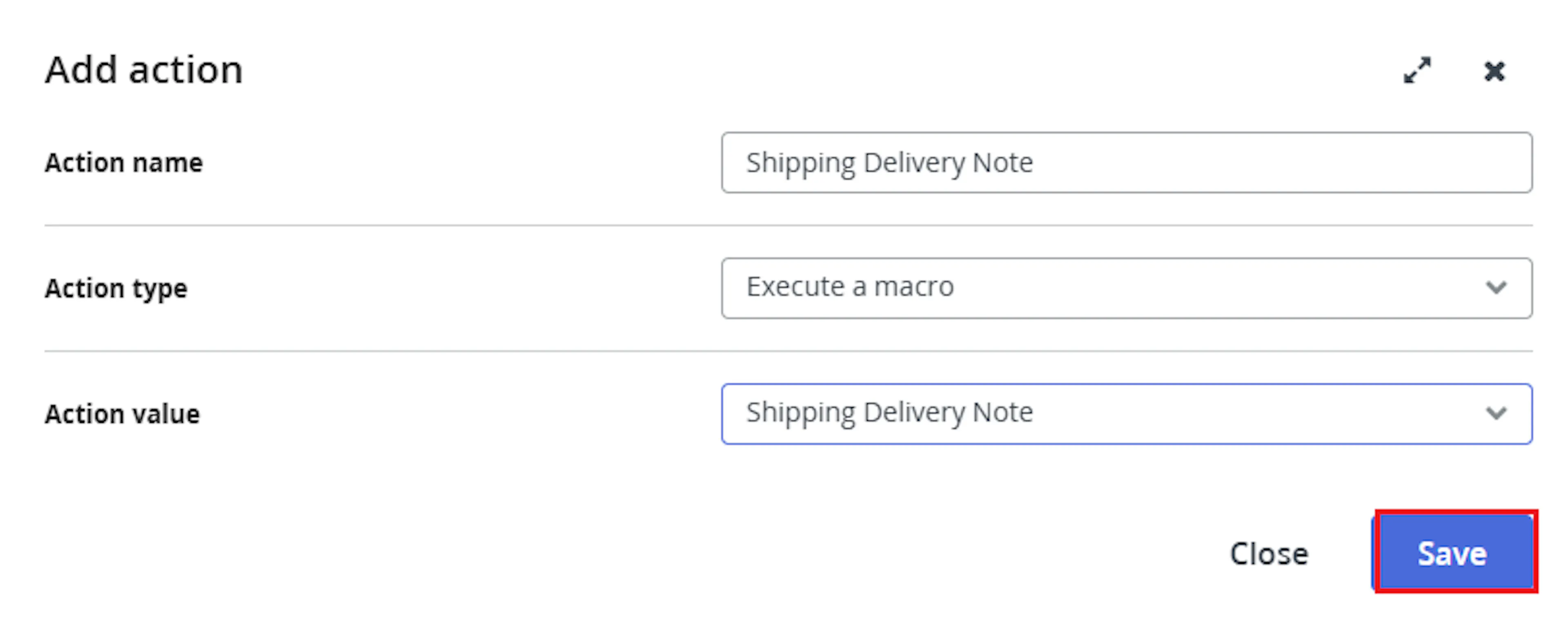
In the Add action window, enter the Action name, for example:
ShippingDeliveryNote
-
Set Action type to:
Execute a macro -
In Action value, select:
ShippingDeliveryNote -
Click Save
Note: If the macro is not enabled, it will not appear in the Action value list when setting up the rule.
Review the saved rule setup and save the rule.
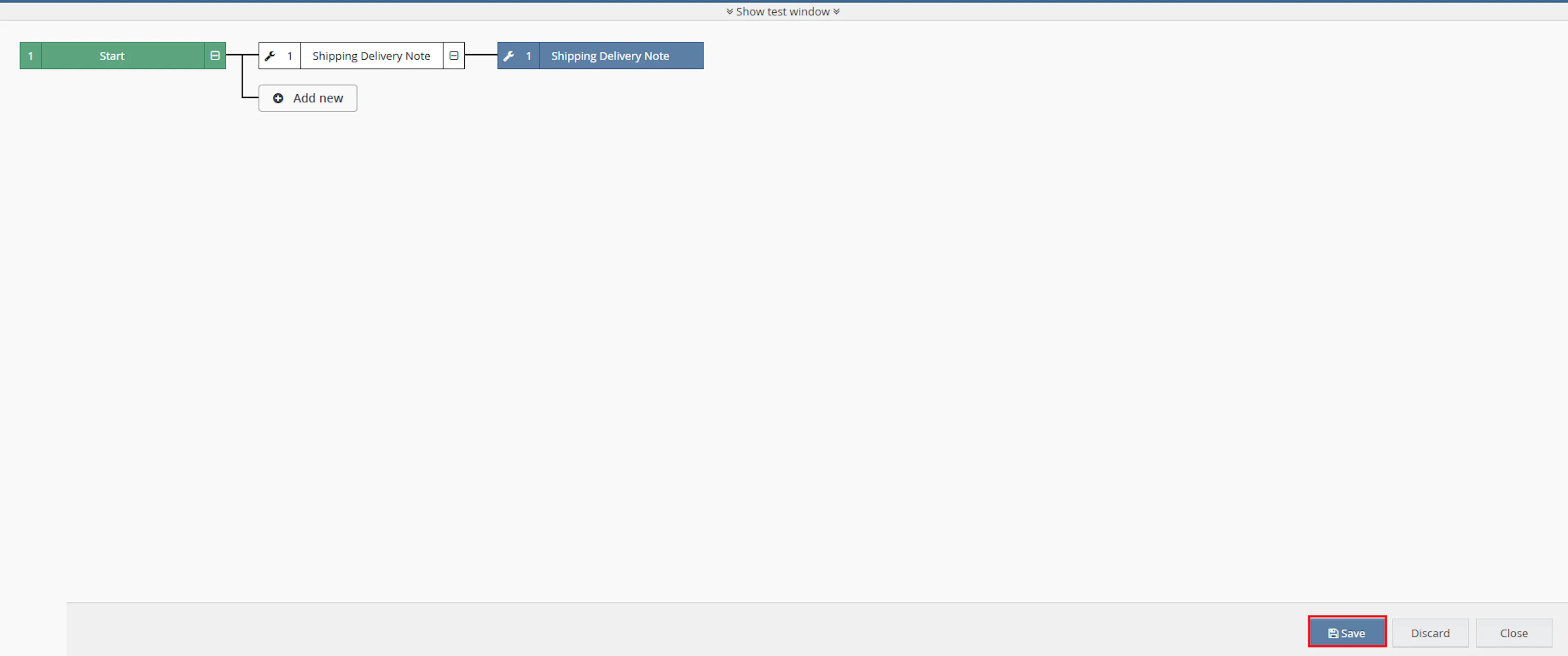
- Verify the condition and action are connected correctly
- Click Save in the bottom-right corner to save the rule
Key Benefits
Customer messages can contain important delivery, product, or fulfilment instructions. Without consistent formatting, these notes may be overlooked during order handling.
Improve operational visibility by marking matching customer messages with a clear and consistent prefix.
Highlight Customer Messages
Adds configured text to the beginning of notes created by Customer_Message.
Reduce Missed Instructions
Helps warehouse, customer service, and dispatch teams recognise important customer information.
Prevent Duplicate Prefixes
Does not update a note that already starts with the current AppendNote value.
Improve Dispatch Awareness
Makes delivery-related customer messages more visible before packing and dispatch.
Process Multiple Orders
Updates matching notes across all order IDs supplied in the Rule Engine execution.
Simple Configuration
Requires only one user-entered configuration value: AppendNote.
Usage of App
Shipping Delivery Note is triggered through the Linnworks Rule Engine to update matching notes on selected orders.
Execution
Trigger via Rule Engine
Call the ShippingDeliveryNote macro through the Rule Engine with the required OrderIds and configured AppendNote value.
Outcome
When the macro runs against an order, it:
Retrieves the selected order
Reads the Linnworks order associated with each supplied order ID.
Finds matching notes
Selects notes where CreatedBy equals Customer_Message.
Checks the prefix
Determines whether each matching note already starts with AppendNote.
Updates unprefixed notes
Adds AppendNote directly before the existing note text.
Preserves already-prefixed notes
Leaves notes unchanged when they already start with the current configured value.
Saves the note list
Submits the updated order notes back to Linnworks.
Input Parameters
Shipping Delivery Note requires the following inputs:
| Parameter | Required | Description |
|---|---|---|
| OrderIds | Yes | The Linnworks order IDs to process. Supplied automatically through the Rule Engine. |
| AppendNote | Yes | The text added directly before each matching Customer_Message note. |
Example configuration:
| Setting | Example |
|---|---|
| Configuration Name | Shipping Delivery Note |
| AppendNote | DELIVERY NOTE: |
Example transformation:
| Before | After |
|---|---|
Please leave the parcel with reception. | DELIVERY NOTE: Please leave the parcel with reception. |
Important: AppendNote is concatenated directly with the existing note. Include a trailing space or separator in the configured value where required.
The macro applies the following note rules:
| Note Condition | Macro Behaviour |
|---|---|
CreatedBy equals Customer_Message | Note is eligible for processing. |
| CreatedBy contains another value | Note is not updated. |
| Note already starts with AppendNote | Note is left unchanged. |
| Note does not start with AppendNote | AppendNote is prepended. |
| Order contains no matching notes | No note changes are made. |
| AppendNote changes after previous runs | Notes with an older prefix may receive the new prefix because they do not start with the current value. |
Best Practices
Use a clear, stable prefix and include the required spacing or punctuation directly in AppendNote.
Use a clear prefix
Choose wording such as DELIVERY NOTE:, SHIPPING NOTE:, or CUSTOMER DELIVERY MESSAGE:.
Include required spacing
Add a trailing space after the prefix so it does not run into the original note text.
Keep the prefix consistent
Avoid changing AppendNote frequently because older prefixes are not recognised as the current value.
Use targeted rule conditions
Run the macro only for orders where customer-message notes are expected.
Test sample notes first
Test notes with no prefix, the current prefix, and an older prefix before enabling the rule widely.
Review execution logs
Check logs for processed order numbers, missing orders, save failures, and completion.
FAQ
How is Shipping Delivery Note triggered?
The macro is triggered through the Linnworks Rule Engine. Matching order IDs are supplied through the OrderIds parameter.
Which macro should be selected in Macro Configuration?
Select ShippingDeliveryNote.
Which action value should be selected in the Rule Engine?
Select ShippingDeliveryNote.
What configuration value is required?
The macro requires the AppendNote parameter.
Which notes are updated?
Only notes where CreatedBy equals Customer_Message.
Does the macro update all order notes?
No. Notes created by other users, integrations, or macros are not changed.
How is the prefix added?
AppendNote is placed directly before the existing note text.
Does the macro add a space automatically?
No. Include a trailing space in AppendNote when required.
What happens when a note already starts with AppendNote?
The note is left unchanged.
Can the prefix be added twice?
Not when the note already starts with the current configured AppendNote value.
What happens after AppendNote is changed?
A note beginning with an older prefix may receive the new prefix because it no longer starts with the current value.
What happens when the order has no Customer_Message notes?
No note update is made.
Can multiple matching notes be updated on one order?
Yes. The macro checks every matching Customer_Message note returned for the order.
Can multiple orders be processed in one execution?
Yes. The macro loops through each order ID supplied through OrderIds.
Does the macro create a new note?
The documented behaviour modifies existing Customer_Message notes. It does not describe creating a separate new note.
Does the macro change note visibility?
No visibility change is described in the supplied documentation.
Does the macro change customer address or shipping information?
No. It updates matching order-note text only.
What should be checked when no note is updated?
Confirm that the order contains a note where CreatedBy matches Customer_Message exactly.
What should be checked when the prefix has no spacing?
Update AppendNote so it includes the required trailing space or separator.
What should be checked when the macro is unavailable in the Rule Engine?
Confirm that the macro configuration has been created and enabled.
What should be checked when notes do not save?
Review the macro logs for Linnworks API errors and confirm that the order can be edited.
Legal Information
- Privacy Policy: https://rishvi.co.uk/privacy-policy/
- Terms and Conditions: https://rishvi.co.uk/terms-conditions/
Please review these pages to understand how data is handled and the terms governing the use of this application.
Summary
Shipping Delivery Note automates the highlighting of customer-message notes on selected Linnworks orders.
Once connected to the Rule Engine, the underlying Append Customer Message Note macro retrieves notes created by Customer_Message, checks whether they already start with the configured AppendNote value, prepends the value where required, and saves the updated notes.
Automatic note detection
Notes created by Customer_Message are identified automatically.
Configurable prefix
AppendNote controls the exact text placed before each matching note.
Duplicate-prefix prevention
Notes already beginning with the current prefix are not updated again.
Rule Engine automation
Selected orders are processed automatically through the configured Linnworks rule.
For notes that do not update as expected, review the Rule Engine and macro logs, confirm that the note creator is exactly Customer_Message, and verify that AppendNote has been configured with the required punctuation and spacing.