Stream-Shopify Integration – Quick Start Guide
End User Guide
Simple step-by-step guide for using the Stream-Shopify Integration
Overview
The Stream-Shopify Integration helps connect your Shopify store with Stream so your shipping and delivery process becomes automatic. Once everything is set up:
-
Shopify orders are automatically sent to Stream
-
Shipping labels are created automatically
-
Tracking numbers are added back into Shopify
-
Delivery updates stay synced between both systems This reduces manual work and helps you manage deliveries more easily.
What You Can Do
With this integration, you can:
-
Automatically send Shopify orders to Stream
-
Manually sync orders whenever needed
-
Generate shipping labels from Shopify
-
Automatically receive tracking numbers
-
Track planning and route updates
-
Receive delivery status updates automatically
-
Monitor activity using the Stream dashboard
Before You Start
Make sure you have the following ready:
Shopify Requirements
-
A Shopify store
-
The Stream-Shopify app installed
Stream Requirements
You will need:
-
Client ID
-
Client Secret
-
API URL
Shipping Setup in Stream
The following should already be configured:
-
Depot
-
Delivery Method
-
Stock Location
Order Requirements
Orders should include:
-
Complete customer delivery address
-
The Send-To-Stream tag
Basic Setup
Follow these simple steps to configure the integration:
-
Install the Stream-Shopify app
-
Enter your Stream API credentials
-
Add your sender/company address details
-
Configure shipping methods and map them with Stream delivery settings
-
Choose how tracking updates should appear in Shopify:
-
Immediate Fulfillment
-
Order Notes
-
After Planning
-
-
Enable synchronization Once enabled, the integration will start processing orders automatically.
How the Integration Works
Here is the normal order flow:
-
Add the Send-To-Stream tag to an order
-
The system checks for tagged orders every few minutes
-
Orders are automatically sent to Stream
-
Stream creates the shipment and tracking number
-
Tracking details sync back into Shopify
-
Delivery updates continue syncing automatically
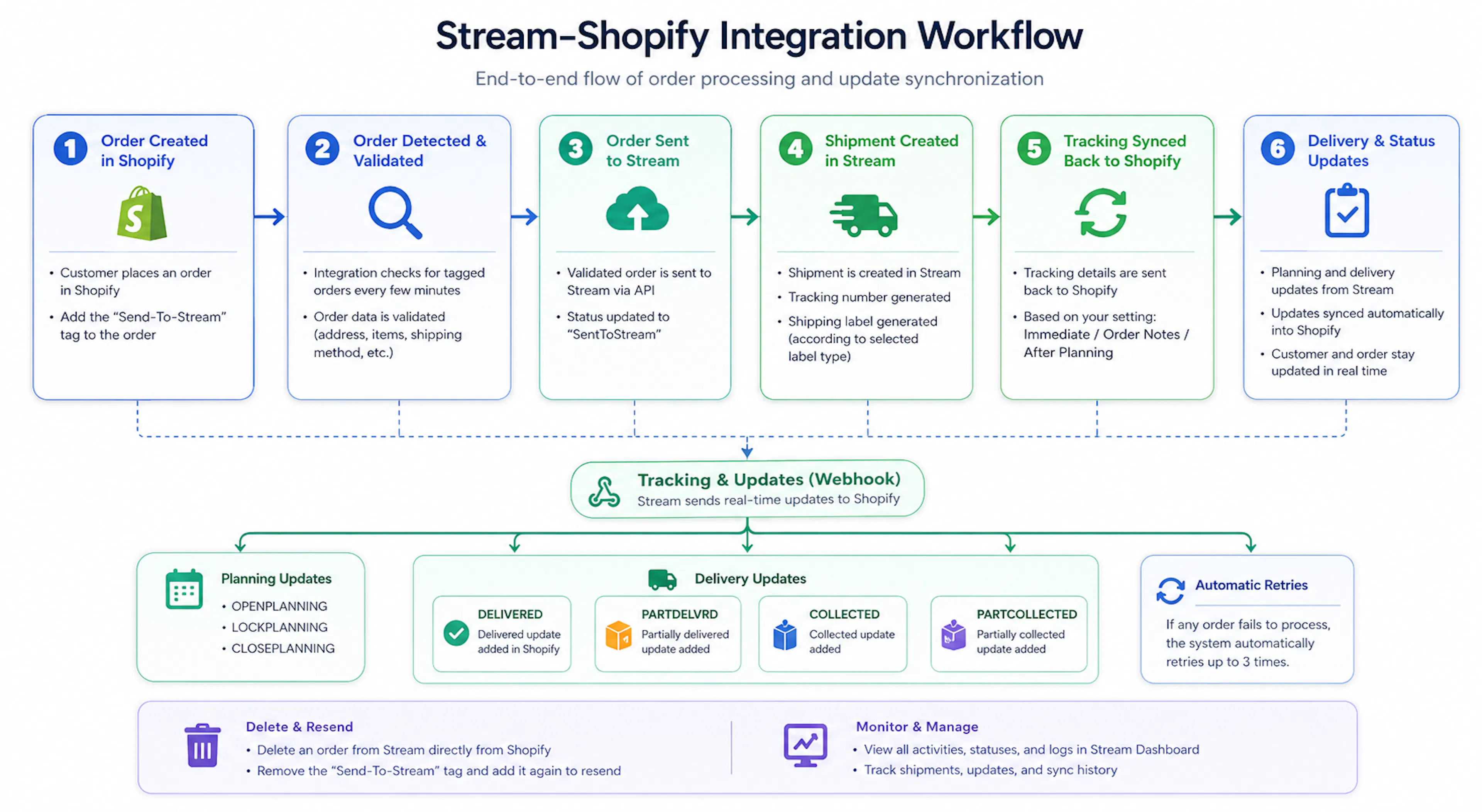
Order Status Flow
Orders move through different stages during processing:
| Status | Meaning |
|---|---|
| Pending | Waiting to be processed |
| Processing | Currently being sent to Stream |
| SentToStream | Successfully sent |
| Completed | Fully processed |
| Additional statuses: | |
| Status | Meaning |
| --- | --- |
| ValidationFailed | Order data has an issue |
| ReadyForRetry | System will retry processing |
| Failed | Processing failed after retries |
| Deleted | Order removed from Stream |
| The system automatically retries failed orders up to 3 times. |
Tracking Update Options
You can choose how tracking information is updated inside Shopify.
Immediate Fulfillment (Recommended)
Tracking is added immediately once the shipment is created.
Order Notes
Tracking details are added inside Shopify order notes instead of fulfillments.
After Planning
Tracking is added only after route planning is completed in Stream.
Label Generation
Shipping labels are automatically generated after successful order processing.
Available Label Types
| Label Type | Description |
|---|---|
| Default | Standard shipping label |
| Portrait No QR | Portrait layout without QR code |
| Portrait Standard | Standard portrait label |
| Compact 100x50 No QR | Small compact label |
Planning and Delivery Updates
Once orders are planned in Stream, updates are automatically added back into Shopify.
Planning Events
-
OPENPLANNING
-
LOCKPLANNING
-
CLOSEPLANNING
Delivery Updates
| Stream Event | Shopify Update |
|---|---|
| DELIVERED | Delivered update added |
| PARTDELVRD | Partially delivered update |
| COLLECTED | Collected update |
| PARTCOLLECTED | Partially collected update |
Delete and Resend Orders
If an order has not been planned yet, you can:
-
Delete it
-
Correct information
-
Resend it again This is useful when fixing address or order issues. If the order is already planned, it must first be unplanned in Stream before deletion.
External Dashboard
The Stream dashboard helps you monitor everything in one place.
Dashboard Features
-
User management
-
Order monitoring
-
Processing logs
-
Webhook history
-
Delivery tracking
-
Reports and analytics
-
Manual sync controls
-
Business configuration settings
Quick Checks
If something is not working, check the following first:
-
Is the Send-To-Stream tag added?
-
Is the customer address complete?
-
Are shipping settings configured correctly?
-
Has the order already been planned?
-
Was tracking generated successfully?
Common Problems
| Problem | Possible Reason |
|---|---|
| Order not sent | Missing Send-To-Stream tag |
| No tracking number | Shipment not created yet |
| Label not generated | Order not confirmed in Stream |
| Tracking not updating | Tracking configuration issue |
| Cannot delete order | Order already planned |
| Delivery updates missing | Webhooks disabled |
| Order failed | Invalid order information |
Helpful Tips
-
Add the Send-To-Stream tag before the sync cycle starts
-
Use Manual Sync when urgent processing is needed
-
Check Shopify order notes for validation errors
-
Use Delete and Resend for fixing unplanned orders
-
Start testing with a few orders first
-
Review dashboard logs if issues occur
Summary
The Stream-Shopify Integration helps automate your shipping workflow between Shopify and Stream. Orders, labels, tracking numbers, planning updates, and delivery statuses all stay synchronized automatically — saving time and reducing manual effort.