Address Field Character Replacement
Replace accented characters in Linnworks order addresses, set a cost on zero-cost items in international orders and keep a note of every change.
Overview
Address Field Character Replacement is an automated address-cleaning solution for Linnworks. It replaces accented and special characters in order addresses with plain letters, so couriers accept your labels first time.
The macro runs through the Linnworks Rules Engine. It checks the shipping and billing address fields, changes only the characters that need replacing and saves the cleaned address.
For orders shipping outside your own country, the macro also gives a small cost to any item that has no cost. You choose your own country, and the United Kingdom is used if you leave it blank. Every change, to the address or to an item cost, is listed in one order note with the old and new values.
The macro helps you avoid courier address errors, save time on manual fixes and keep a record of every change.
Cleans addresses
Replaces characters such as á, ñ and ß with plain letters in the address fields couriers check.
Runs automatically
The Rules Engine sends matching orders to the macro. Both settings are optional, so it works straight away.
Notes every change
One order note lists each address and cost change, with the old and new values.
Video Walkthrough
Configure the Macro
Once the app is installed, please create a macro configuration. This tells Linnworks which macro to run and lets you select it in the Rules Engine.
You can change this set-up at any time to suit how you work.
Steps to Configure
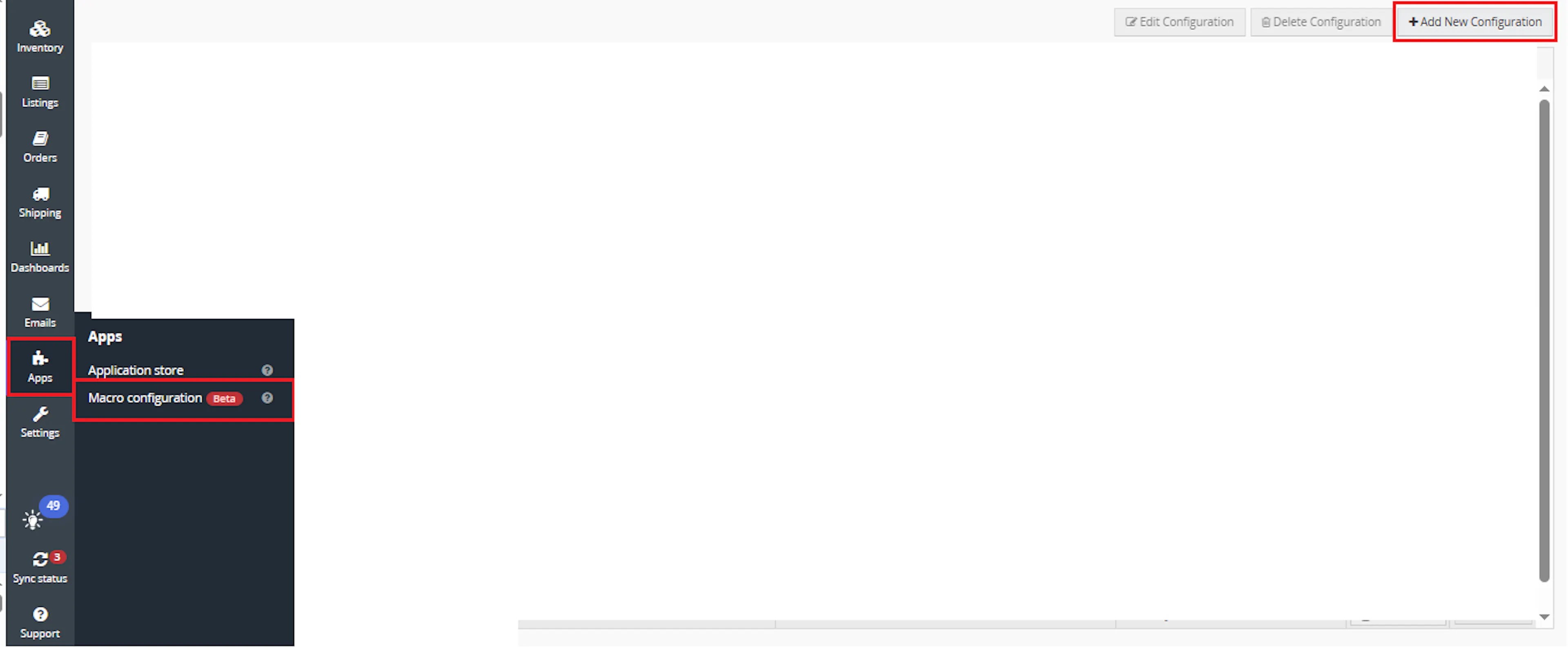
Go to Apps > Macro Configuration and click + Add new configuration.
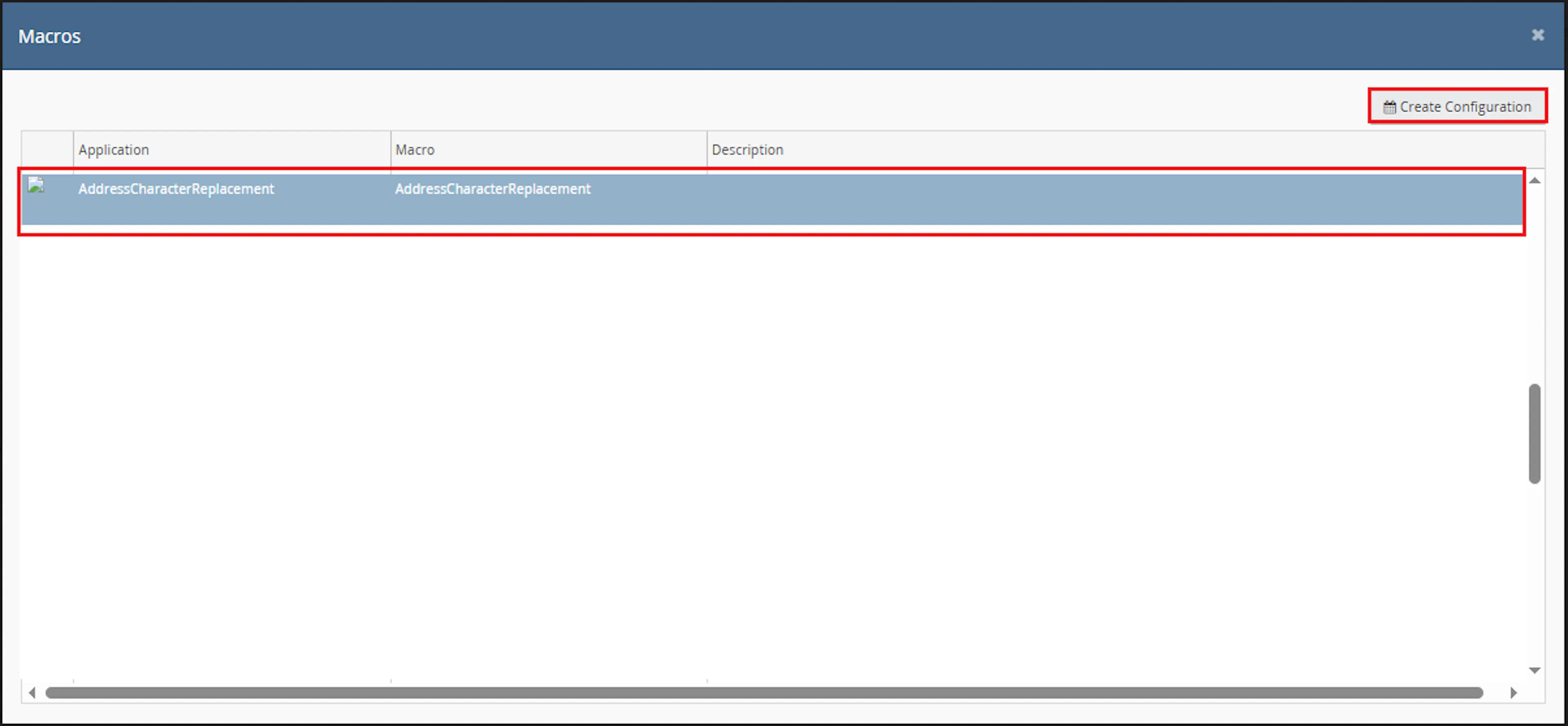
Select the AddressCharacterReplacement macro and click Create Configuration.
In the Macro Configuration screen, add the configuration name and, if you wish, the two optional settings. Then click Save.
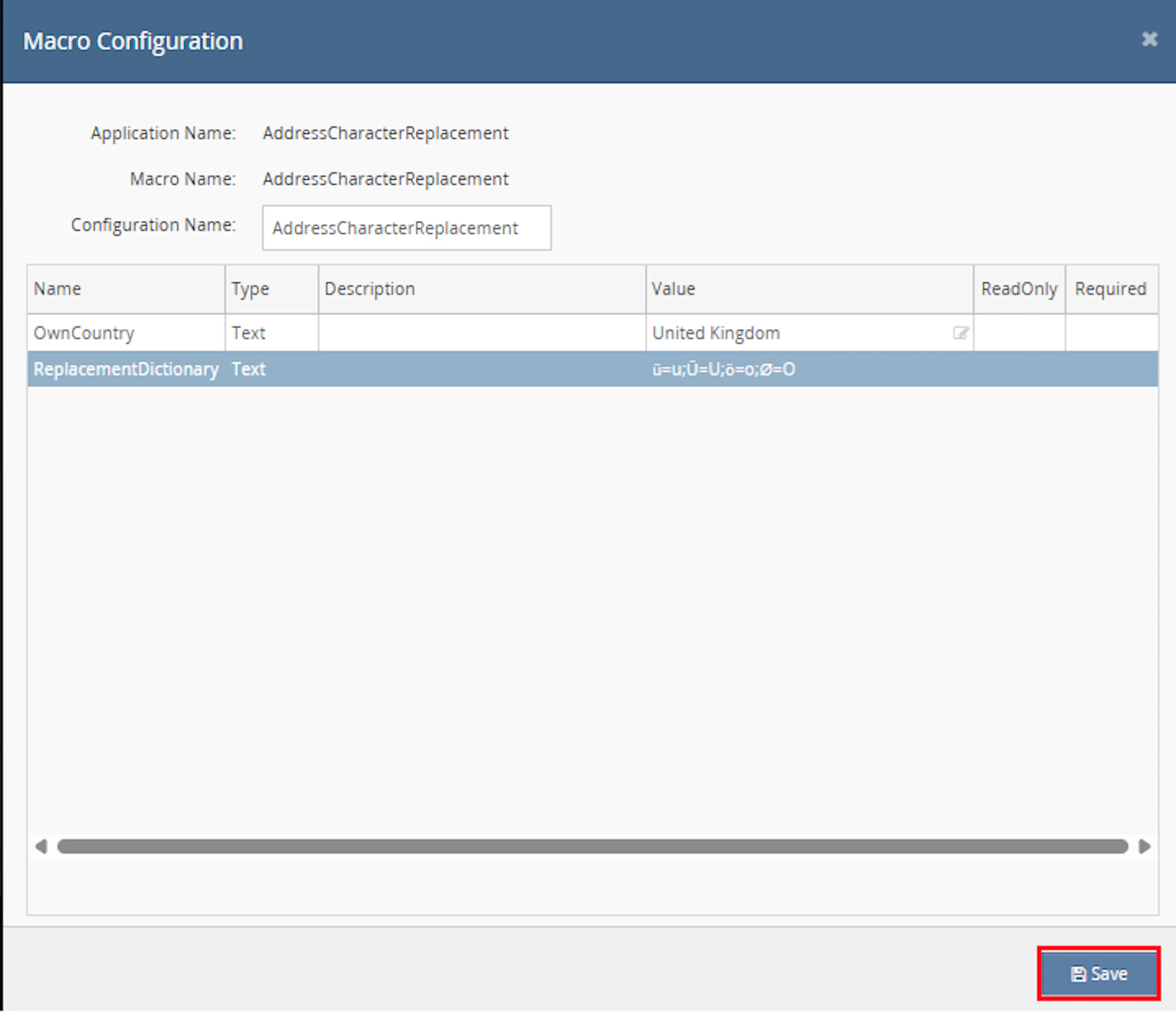
This macro has two optional settings:
| Parameter | Required | Description |
|---|---|---|
| ReplacementDictionary | No | Your own replacement rules, used together with the standard rules. Leave it blank to use the standard rules only. |
| OwnCountry | No | The country you ship from. Orders to any other country count as international and get the zero-cost item update. Leave it blank to use United Kingdom. |
How to write your replacement rules
- Write each rule as
character=replacement, for exampleü=u. - Separate rules with a semicolon (
;). - Capital and small letters need separate rules, so add
Ü=Uas well asü=u. - If a character is already in the standard rules, your replacement is used instead.
For example, enter:
ü=u;Ü=U;ö=o;Ø=O
How to fill in OwnCountry
- Type the country name exactly as Linnworks shows it on your orders, for example
United Kingdomrather thanUK. - Capital letters and extra spaces do not matter.
For example, enter:
Germany
Please double-check the spelling of OwnCountry. If it does not match the country on your orders, domestic orders are treated as international and their zero-cost items get a cost too.
Please make sure the macro is enabled so you can use it in the Rules Engine.

Note: If the macro is not enabled, it will not appear in the Action value list when you set up the rule.
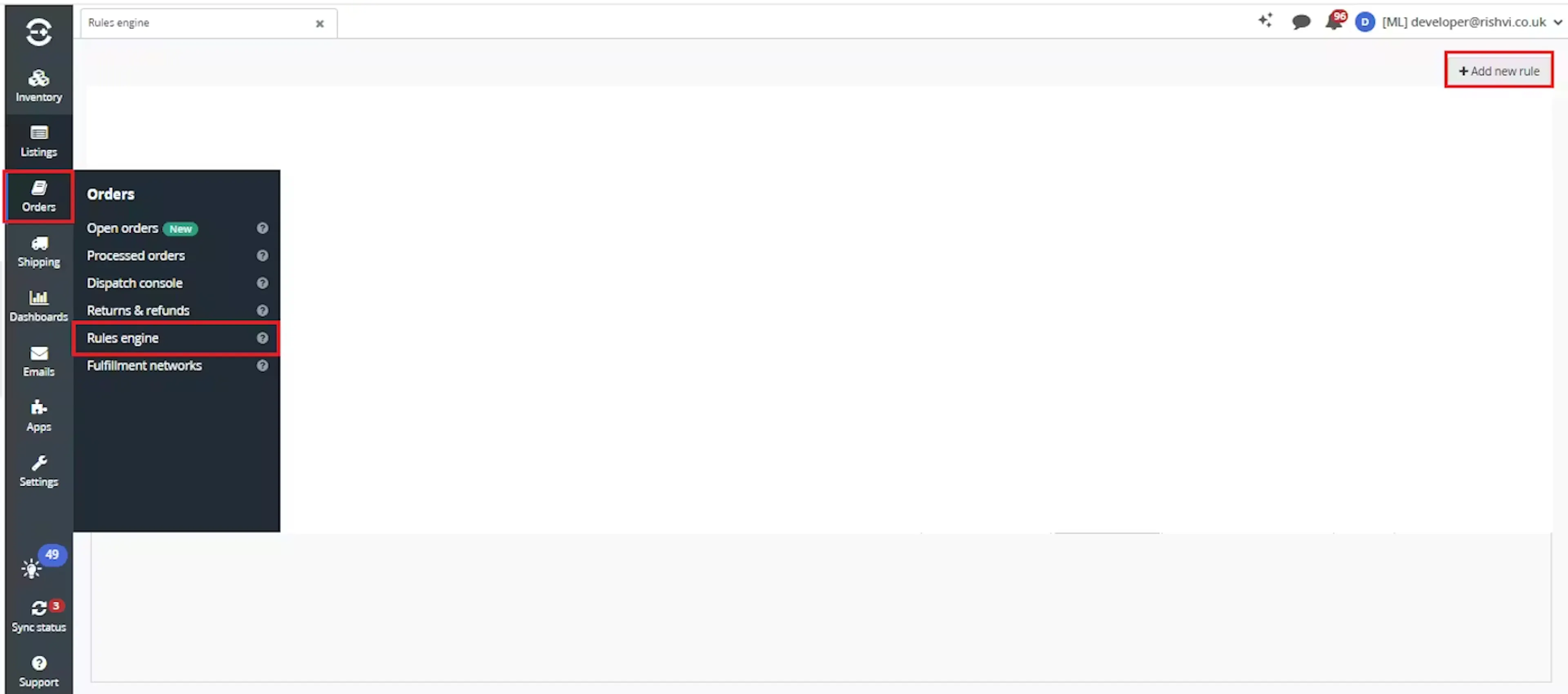
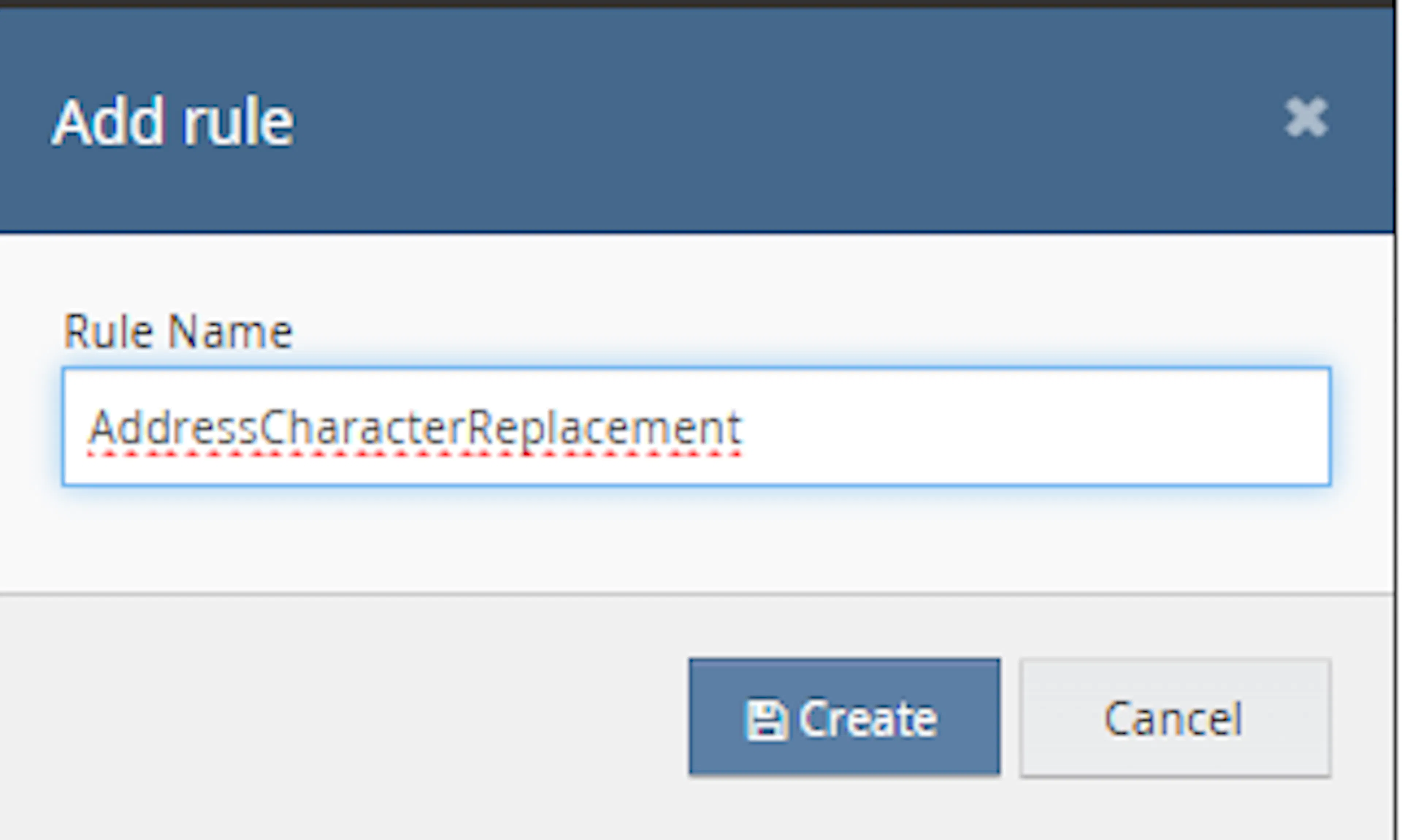
Go to Orders > Rules engine and click + Add new rule.
Enter the rule name and click Create.
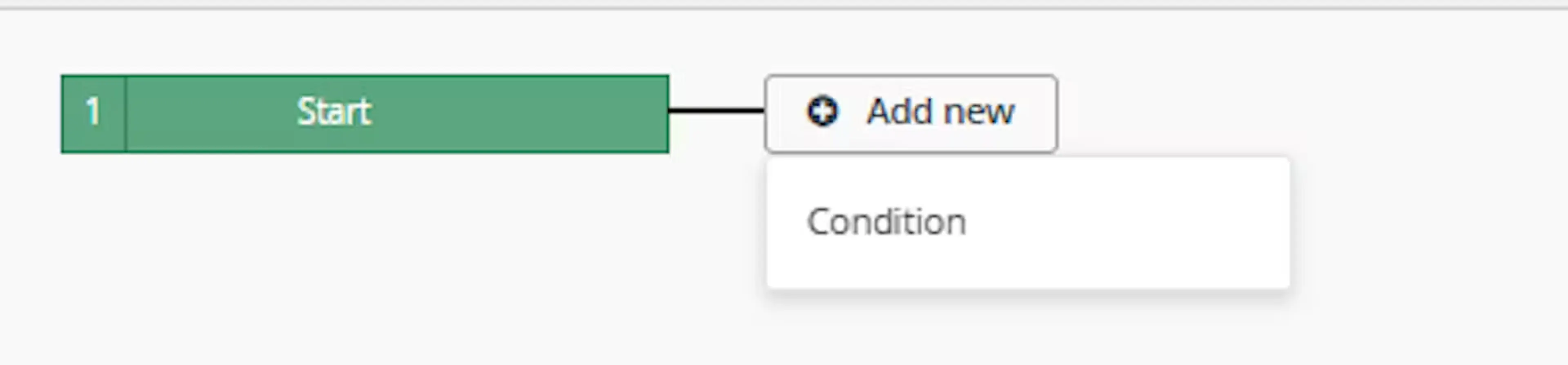
Click Add new, select Condition, set the condition as required and save it.
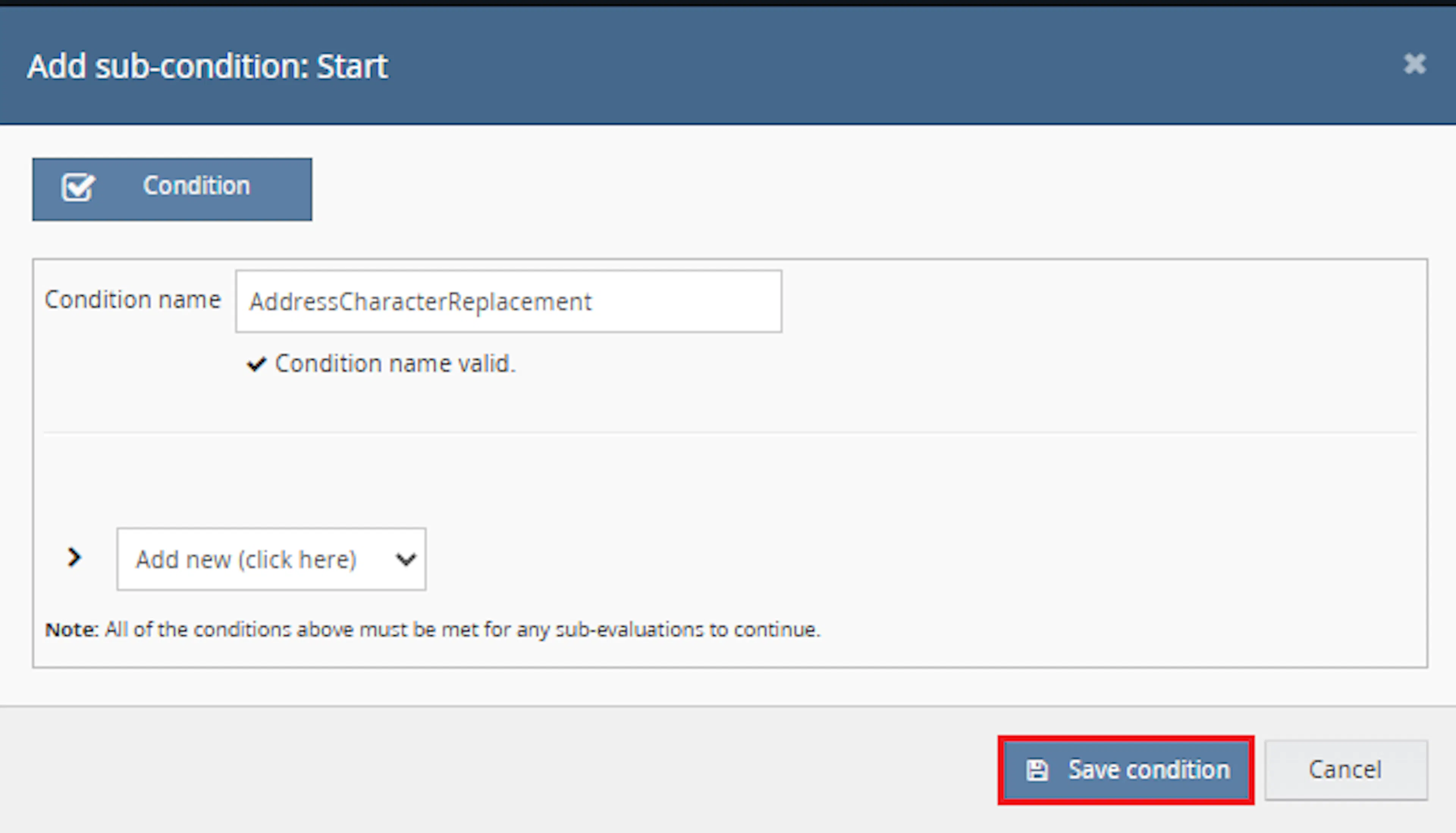
Use conditions that target orders where address cleanup is needed, such as international orders, marketplace orders or orders ready for despatch.
Add the macro action and click Save.

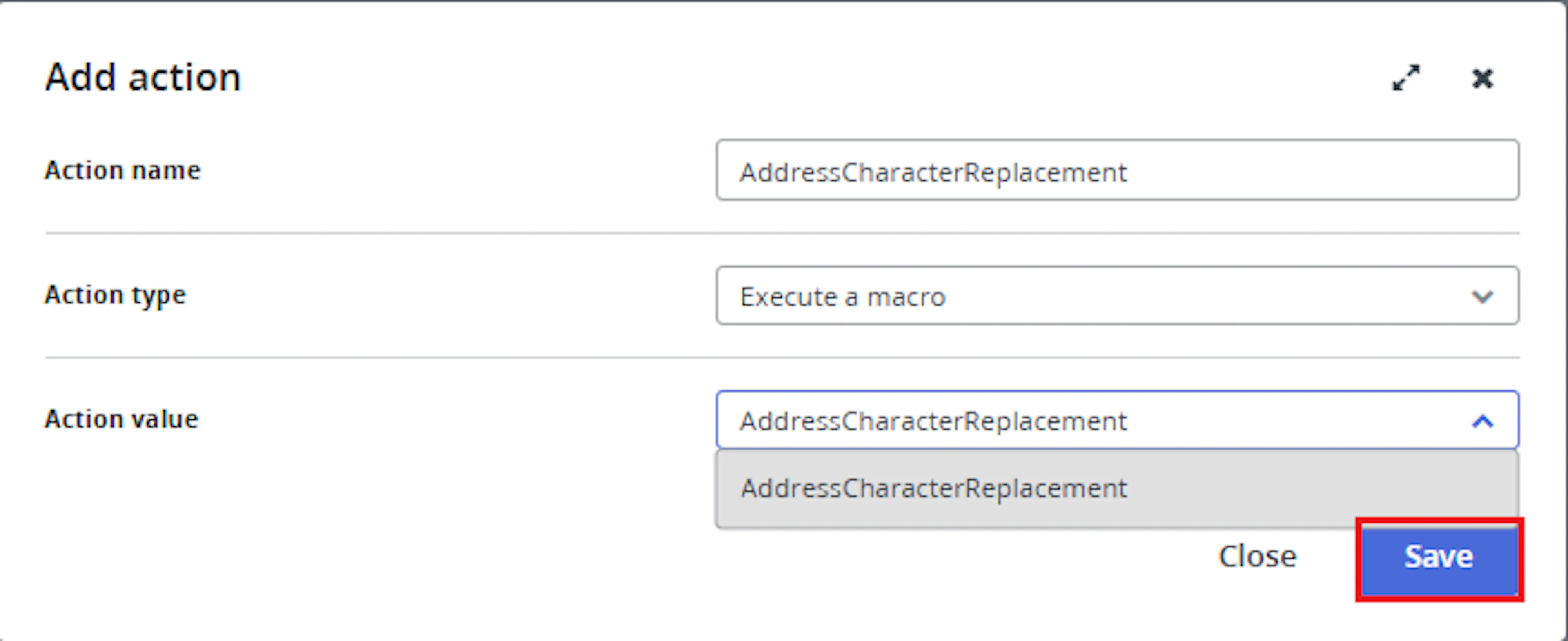
In the Add action window:
- Enter an Action name, for example
AddressCharacterReplacement - Set Action type to
Execute a macro - In Action value, select
AddressCharacterReplacement - Click Save
Note: If the macro is not enabled, it will not appear in the Action value list when you set up the rule.
Review the saved rule.
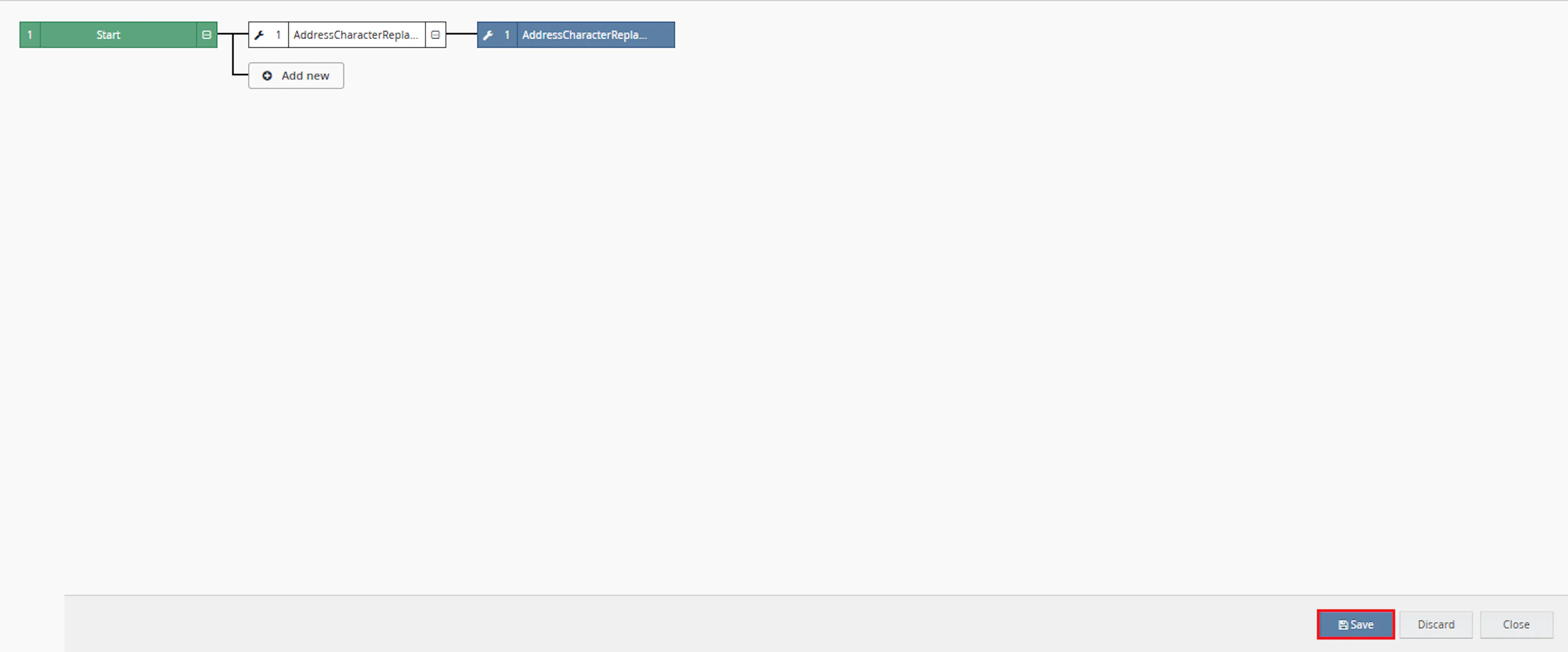
- Check that the condition and action are connected correctly
- Click Save in the bottom-right corner to save the rule
Who Should Use Address Field Character Replacement
Warehouse & Fulfilment Teams
Labels print without address errors, so parcels are not held back while someone fixes the address.
Logistics Managers
Fewer courier rejections for international and marketplace orders that contain accented names or towns.
Linnworks Administrators
Administrators set up the macro, enable it for the Rules Engine and choose which orders it runs on.
Operations & Customer Service Teams
The order note shows exactly what was changed, so questions about an address or item cost are quick to answer.
Key Features
Standard replacement rules
Common accented characters and commas are replaced as soon as the macro is enabled.
Your own rules
Add new rules or change the standard ones without any change to the macro.
Cost for zero-cost items
On orders shipping outside your own country, items with no cost get a line cost of 1.00.
One note for every change
Address and cost changes are listed together, each with the old and new values.
Safe to run again
An order that has already been cleaned is not changed a second time.
Handles large batches
The macro stays within the Linnworks time limit and does not start an order it cannot finish.
How Address Field Character Replacement Works
Address Field Character Replacement follows the same steps each time it processes one or more orders. The Rules Engine starts it and sends it the matching orders automatically.
Step 1: Replacement rules are prepared
The macro combines the standard replacement rules with any rules you added in ReplacementDictionary. Any entry it cannot read is skipped and recorded in the macro log.
Step 2: Address fields are checked
The macro looks at six fields: shipping Address 1, Address 2, Town and Full Name, and billing Address 1 and Postcode. It replaces any character that has a replacement rule. Other characters and other fields are left as they are.
Step 3: The cleaned address is saved
If anything changed, the macro saves the updated address. If nothing needed changing, the address is left untouched.
Step 4: International orders are checked
If the shipping country is not your OwnCountry, every item with a cost of 0.00 gets a line cost of 1.00. Items that already have a cost are not changed.
Step 5: An order note is added
The macro adds one order note listing every change it saved, to the address and to item costs. If nothing changed, no note is added.
Key Benefits
The macro replaces the manual job of finding and retyping accented addresses and fixing zero-cost items before despatch.
Cleaner addresses mean fewer courier rejections and faster despatch.
Fewer label errors
Couriers that do not accept accented characters receive plain-letter addresses instead.
Quick to set up
The standard rules work straight away. Your own rules can be added later on the configuration screen.
Clear audit trail
The order note keeps the original address and item costs, so you can always see what was there before.
No zero-cost items abroad
Items on international orders no longer go out with a cost of 0.00, without anyone editing them by hand.
Usage of App
Address Field Character Replacement runs through the Linnworks Rules Engine to clean addresses on the orders you choose.
Execution
Once your rule is active, the macro runs automatically on every order that matches it. You can also run it yourself on the orders you choose. This is handy for testing, or for orders that need it straight away.
Quick path: Orders > Open Orders → select your orders → Actions → Other actions → Run rules engine → your rule name
Select your orders
Go to Orders > Open Orders and tick the box next to each order you want the macro to process.
Open the Actions menu
Click the Actions button at the top left of the screen. You can also right-click any of the selected orders.
Go to Other actions > Run rules engine
Point to Other actions, then Run rules engine. A list of your rules appears.
Choose your rule
Click the name of the rule you created in Step 6 of Steps to Configure, for example Address Cleanup. The macro runs on the selected orders straight away.
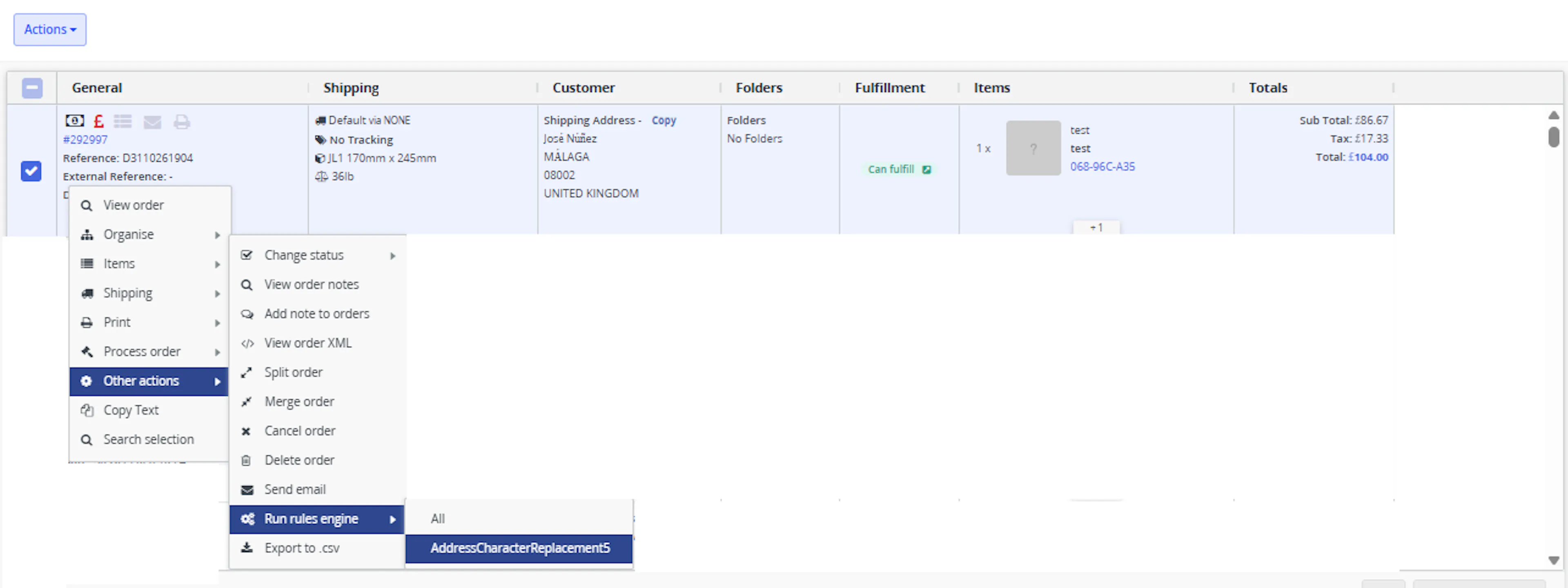
Good to know: The rule's conditions still apply, so the macro only changes selected orders that match them. If you choose All instead of your rule's name, every active rule runs on the selected orders.
Outcome
When the macro runs on an order, it:
Reads the order address
The macro checks the shipping and billing address fields for characters that have a replacement rule.
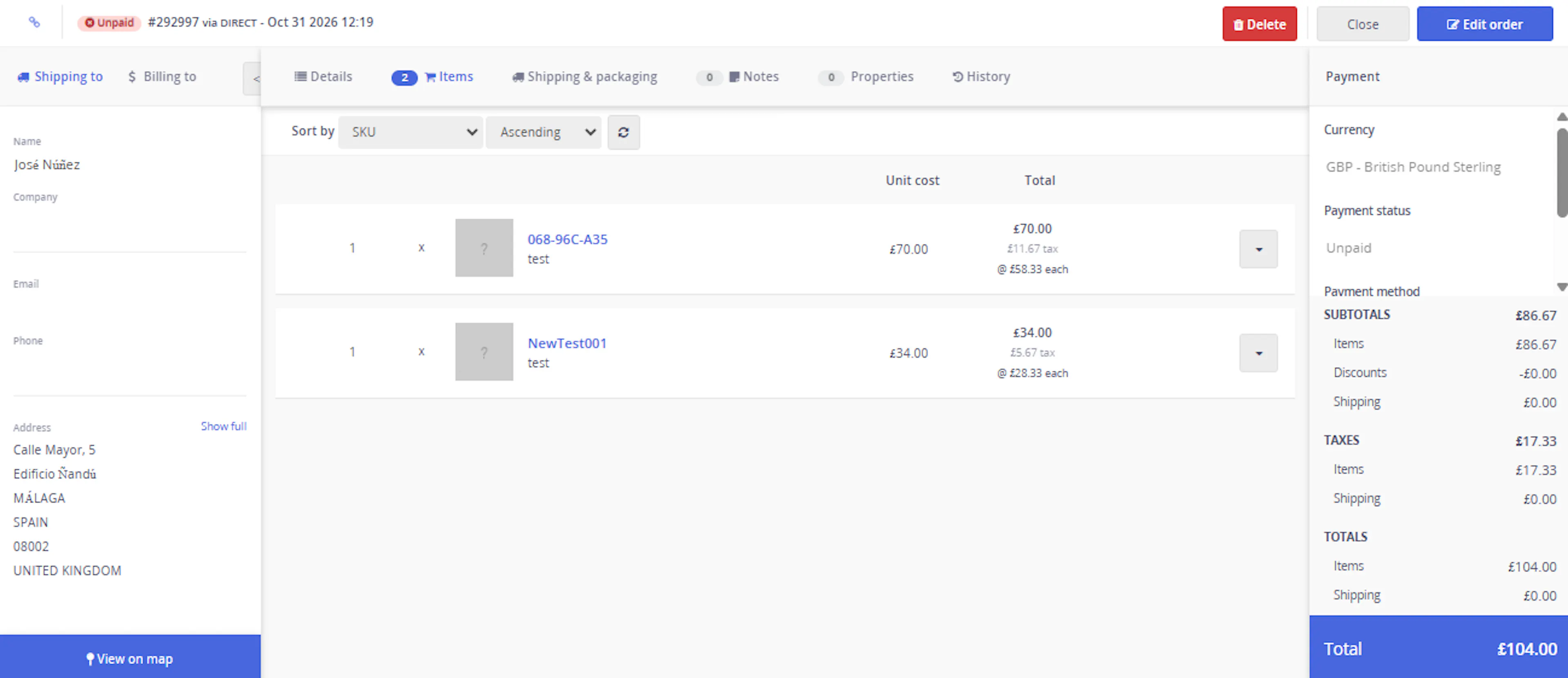
Updates the address
Accented and special characters are replaced, for example the town "Málaga" becomes "Malaga". With ü=u added to your rules, the name "Jürgen" becomes "Jurgen".
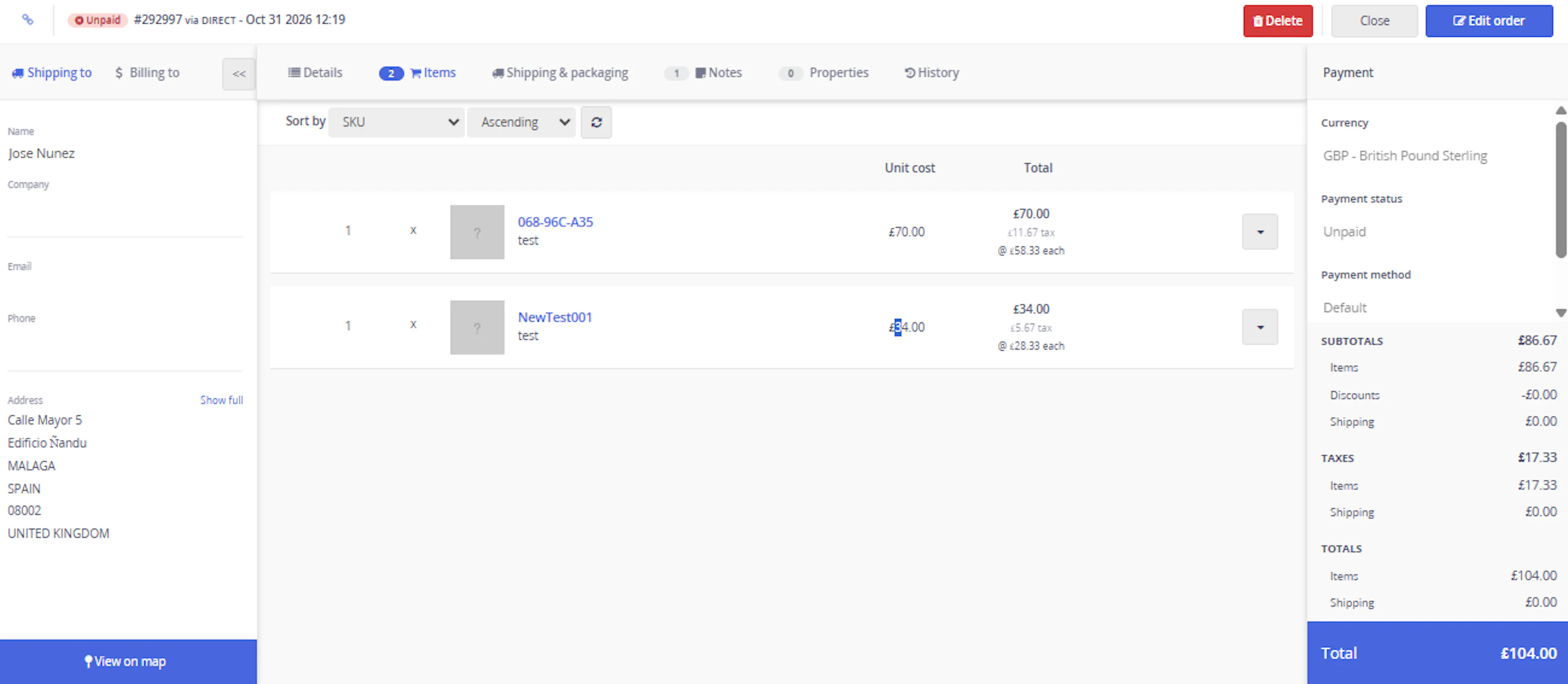
Updates zero-cost items on international orders
For an order shipping outside your own country, each item with a cost of 0.00 gets a line cost of 1.00. The cost including tax becomes 1.20.

Adds an order note
A note created by Address Character Replacement lists every address and cost change on its own line, with the old and new values.
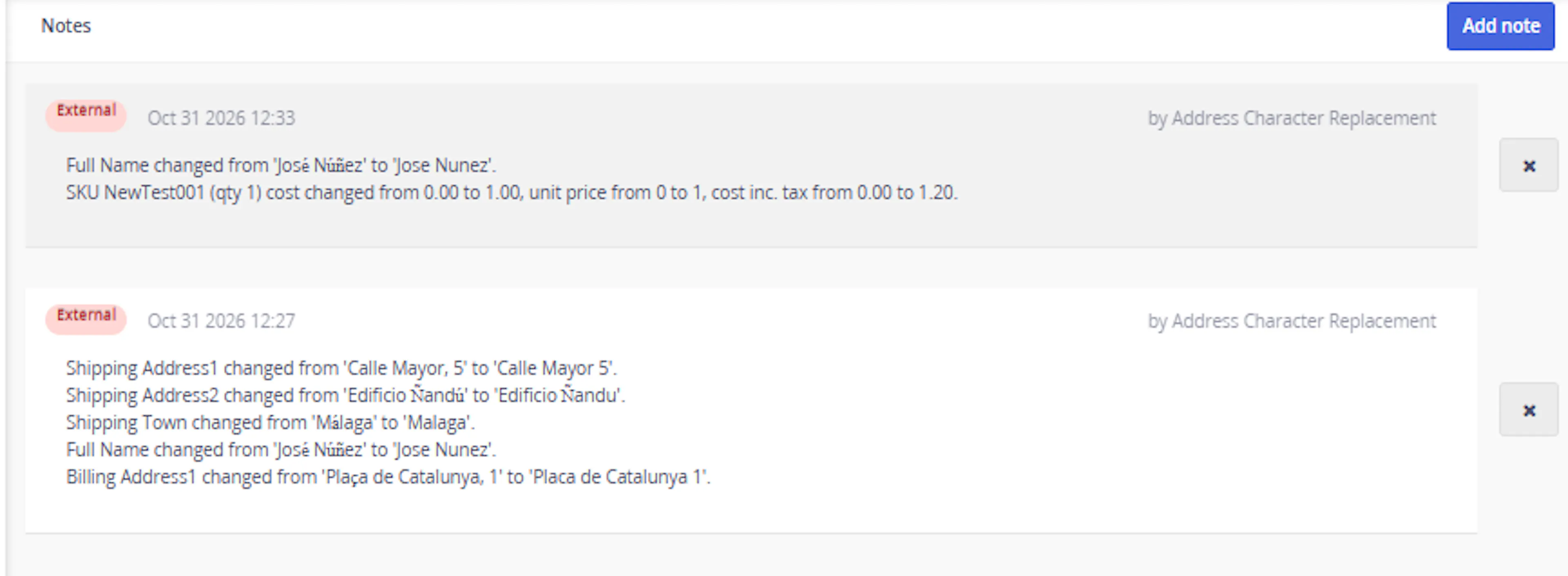
Please note: The macro changes the order address and item costs directly in Linnworks. The original values are kept in the order note, but we recommend testing on a few orders first.
Input Parameters
You enter this macro's two settings, ReplacementDictionary and OwnCountry, in Step 3 of Steps to Configure. Both are optional. If you leave them blank, the macro uses the standard replacement rules and treats the United Kingdom as your own country.
The Rules Engine sends the matching orders to the macro automatically, so you do not need to enter any order numbers.
The following behaviour is built into the macro and cannot be changed on the Macro Configuration screen:
| Setting | Description |
|---|---|
| Fields checked | Shipping Address 1, Address 2, Town and Full Name, and billing Address 1 and Postcode. |
| International orders | An order is international when its shipping country does not match OwnCountry (or "United Kingdom" if it is blank). Capital letters and extra spaces are ignored. An order with no shipping country is also treated as international. |
| Zero-cost update | On international orders, each item with a cost of 0.00 gets a line cost of 1.00, a unit price of 1.00 divided by the quantity and a cost including tax of 1.20. |
| Order note | Added only when at least one change is saved. It is created by Address Character Replacement. |
Replacement Rules
These standard rules are always active. Your ReplacementDictionary setting (in Step 3) adds to them or changes them.
| Character | Replaced with |
|---|---|
| á à â ä ã å ā | a |
| ç | c |
| é | e |
| í | i |
| ñ | n |
| ó | o |
| ú | u |
| ý | y |
| ž | z |
| ß | ss |
| œ | oe |
| æ | ae |
| , (comma) | a space |
Please keep these points in mind when you write your own rules:
- Rules match capital and small letters separately. A rule for
édoes not changeÉ, so addÉ=Eif you need it. - To remove a character completely, leave the replacement empty, for example
#=. - Spaces after
=are kept, so/=followed by a space replaces a slash with a space. - A rule for a group of characters, such as
ae=a, is applied before rules for single characters. - An entry without
=is skipped, and the macro log records which entry was skipped.
Best Practices
A few simple checks before you switch the rule on will give you the best results.
Run before printing labels
Place the rule so the macro runs before labels are generated, so couriers receive the cleaned address.
Use targeted rule conditions
Set up the Rules Engine so the macro runs only on the orders that need it.
Test before enabling at scale
Run the macro on a few test orders first before switching it on for all orders.
Check the order notes
Review the notes on your first orders to confirm the address and cost changes are what you expect.
Add capital letters too
If you add a rule for a small letter, remember to add the capital version as well.
Check your own country name
Make sure OwnCountry matches the country name on your orders, so domestic orders are not treated as international.
FAQ
How is Address Field Character Replacement triggered?
The macro runs through the Linnworks Rules Engine. When an order matches your rule, the Rules Engine sends it to the macro automatically.
Can I run the macro on an order straight away?
Yes. Select the orders in Orders > Open Orders, then click Actions or right-click them. Choose Other actions > Run rules engine and select the rule name you created in Step 6. The rule's conditions still apply.
Does the macro need any settings?
No. Both settings are optional. If you leave them blank, the macro uses the standard replacement rules and treats the United Kingdom as your own country.
Which address fields does the macro change?
Shipping Address 1, Address 2, Town and Full Name, and billing Address 1 and Postcode. Other fields, such as the postcode on the shipping address, the region and the company name, are not changed.
Can I add characters that are not in the standard list?
Yes. Add them in the ReplacementDictionary setting in Step 3 of Steps to Configure, for example ü=u;ö=o. There is no need to change the macro itself.
Why was a capital letter not replaced?
Rules match capital and small letters separately. Please add a rule for the capital letter as well, for example É=E.
Which orders count as international?
Any order whose shipping country does not match your OwnCountry setting, or "United Kingdom" if it is blank. Orders with no shipping country are also treated as international. Please spell OwnCountry exactly as it appears on your orders. Otherwise domestic orders are treated as international and their zero-cost items get a cost too.
Is the item cost change recorded in the order note?
Yes. Each changed item is listed with its SKU, quantity and the old and new cost, unit price and cost including tax.
I don't want the zero-cost item update. Can I switch it off?
This cannot be switched off on the Macro Configuration screen. Please get in touch with our support team and we can update the macro to clean addresses only.
What happens if the order has no billing address?
The macro still cleans the shipping address and name. It records in the macro log that the billing address was missing.
What happens if the macro runs on the same order twice?
Nothing changes the second time. The address no longer contains characters to replace, and items already have a cost, so no new note is added.
What happens if many orders are sent at once?
The macro works within the Linnworks time limit for macros. If time runs short, it stops before starting the next order. Orders it did not reach are left untouched and are processed the next time the rule runs on them.
Legal Information
- Privacy Policy: https://rishvi.co.uk/privacy-policy/
- Terms and Conditions: https://rishvi.co.uk/terms-conditions/
Please review these pages to understand how data is handled and the terms that apply to this application.
Summary
Address Field Character Replacement automates the cleaning of accented and special characters in the Linnworks order addresses you choose.
Once it is set up through the Rules Engine, the macro replaces the characters and gives zero-cost items on international orders a small cost. It then adds one note listing every change.
Clean, courier-ready addresses
Accented and special characters are replaced with plain letters before despatch.
Rules Engine automation
Matching orders are sent to the macro automatically through your Linnworks rule.
Your own settings
Add replacement rules and choose your own country on the configuration screen.
Full record of changes
Every address and cost change is listed in an order note with the old and new values.
If an order does not give the expected result, please check that the macro configuration is enabled. Please also make sure the order matches your rule's conditions, and check that OwnCountry matches the country name on your orders.