Order Split Macro (POD + Stock Adjust + PO Creation)
Automatically process POD orders in Linnworks by validating fulfilment location, adjusting non-POD stock lines, splitting POD items where required, moving POD orders to the configured POD location, and creating purchase orders.
Orders that contain POD items can require additional handling before fulfilment. These orders may need POD items separated from standard stock items, moved to a dedicated POD location, and converted into purchase orders for supplier processing.
The OPT POD Split, Stock Adjustment & PO Creation macro helps automate this workflow by checking selected Linnworks orders, identifying POD items, adjusting unavailable non-POD items, splitting mixed orders, moving POD orders to the configured POD location, and creating purchase orders for POD fulfilment.
This macro identifies POD items based on the order item title. Any order item with a title that starts with a double quote character is treated as a POD item.
Automate POD order handling by splitting POD items, adjusting stock-backed lines, moving POD orders, and creating purchase orders from one macro workflow.
Configure the Macro
Once the app is installed, you need to create a macro configuration so the system knows which macro to run, which source location to validate, and which POD location should receive POD orders.
This setup can be adjusted anytime based on your operational requirements.
Steps to Configure
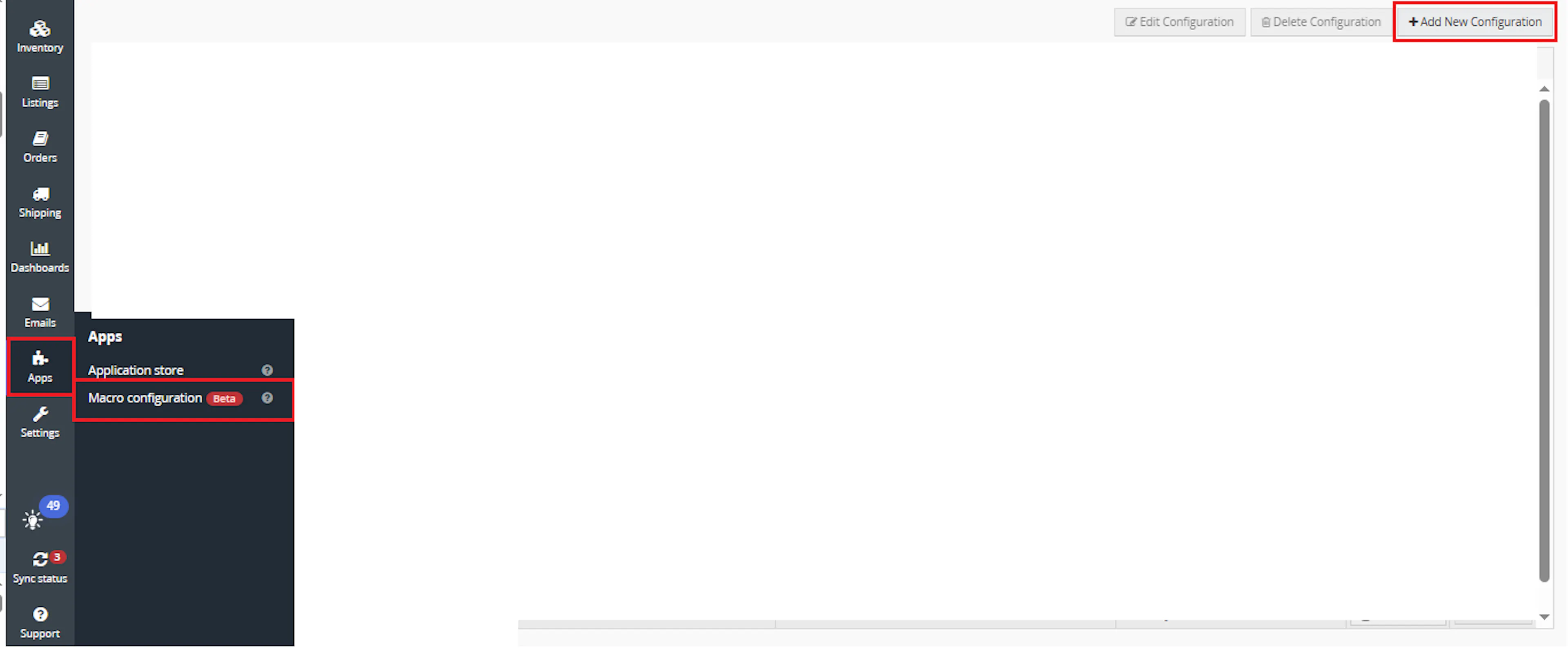
Go to Apps > Macro Configuration and click + Add new configuration.
Select the 2269_StockAdjust_POcreation macro and click Create Configuration.
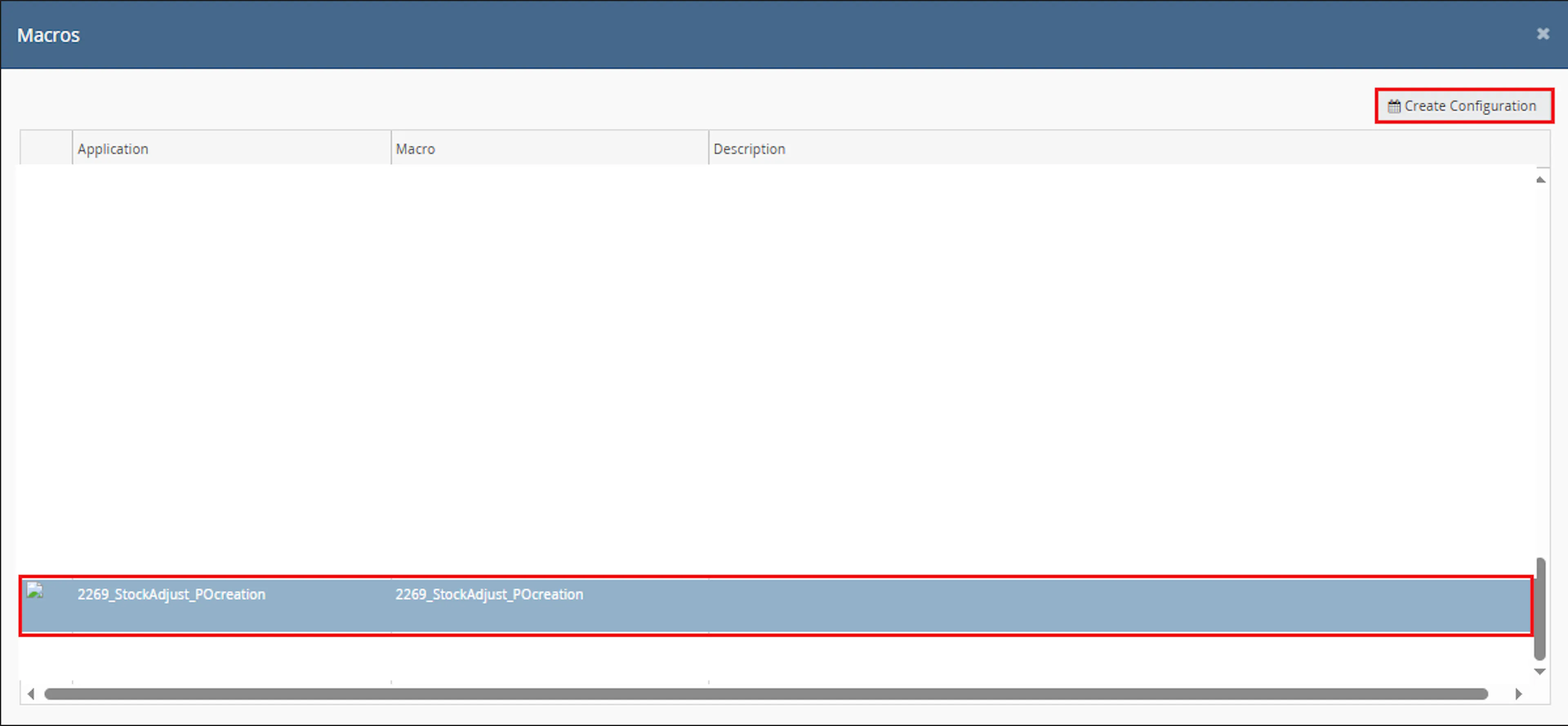
This creates a new configuration where you can define the required parameter values.
In the Macro Configuration screen, add the configuration name and parameter values.
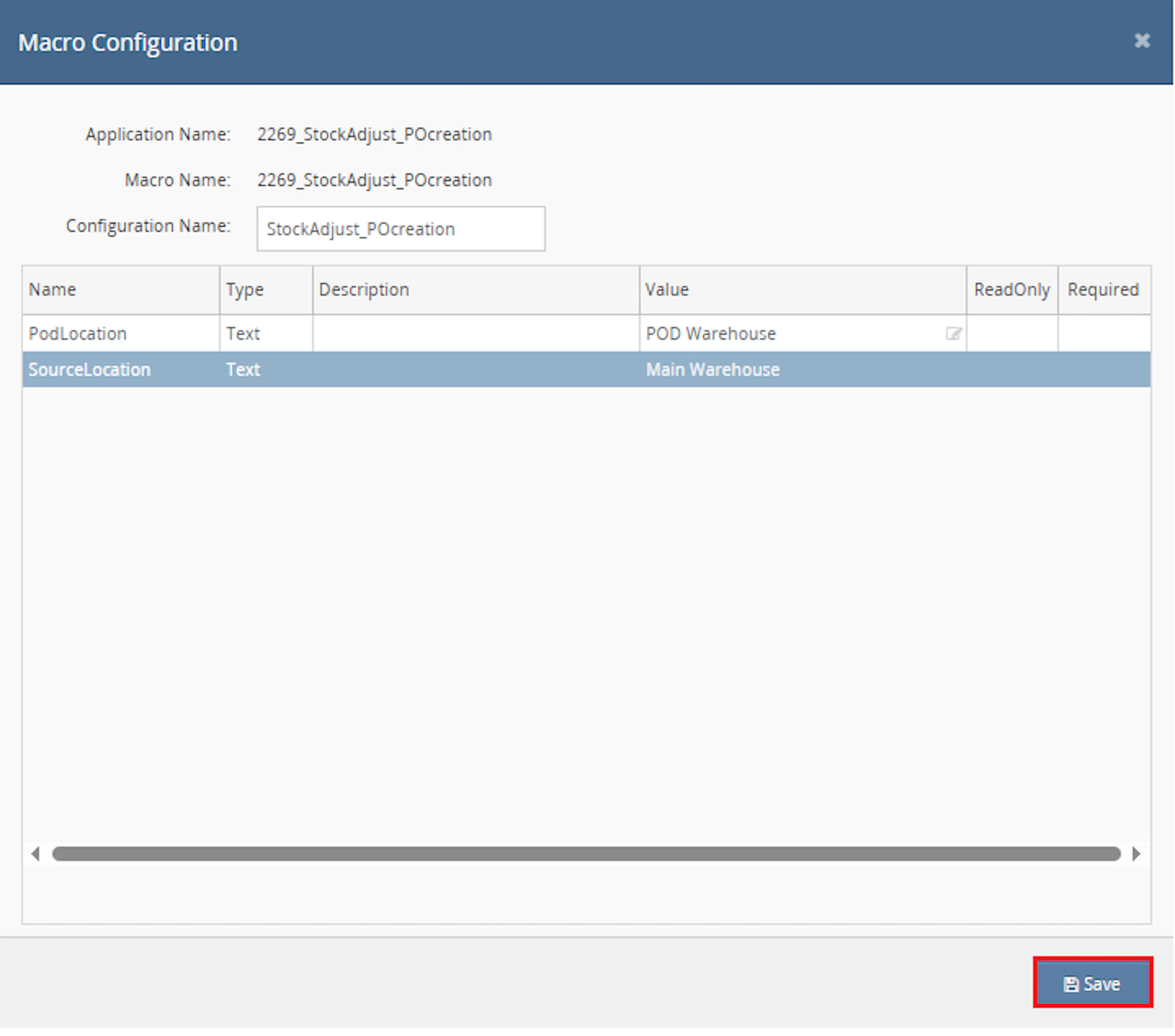
Configure the required parameters, including:
-
SourceLocation
-
PodLocation
Make sure to enable the macro to continue with the Rule Engine configuration.

Note: If the macro is not enabled, it will not appear in the Action value list when setting up the rule.
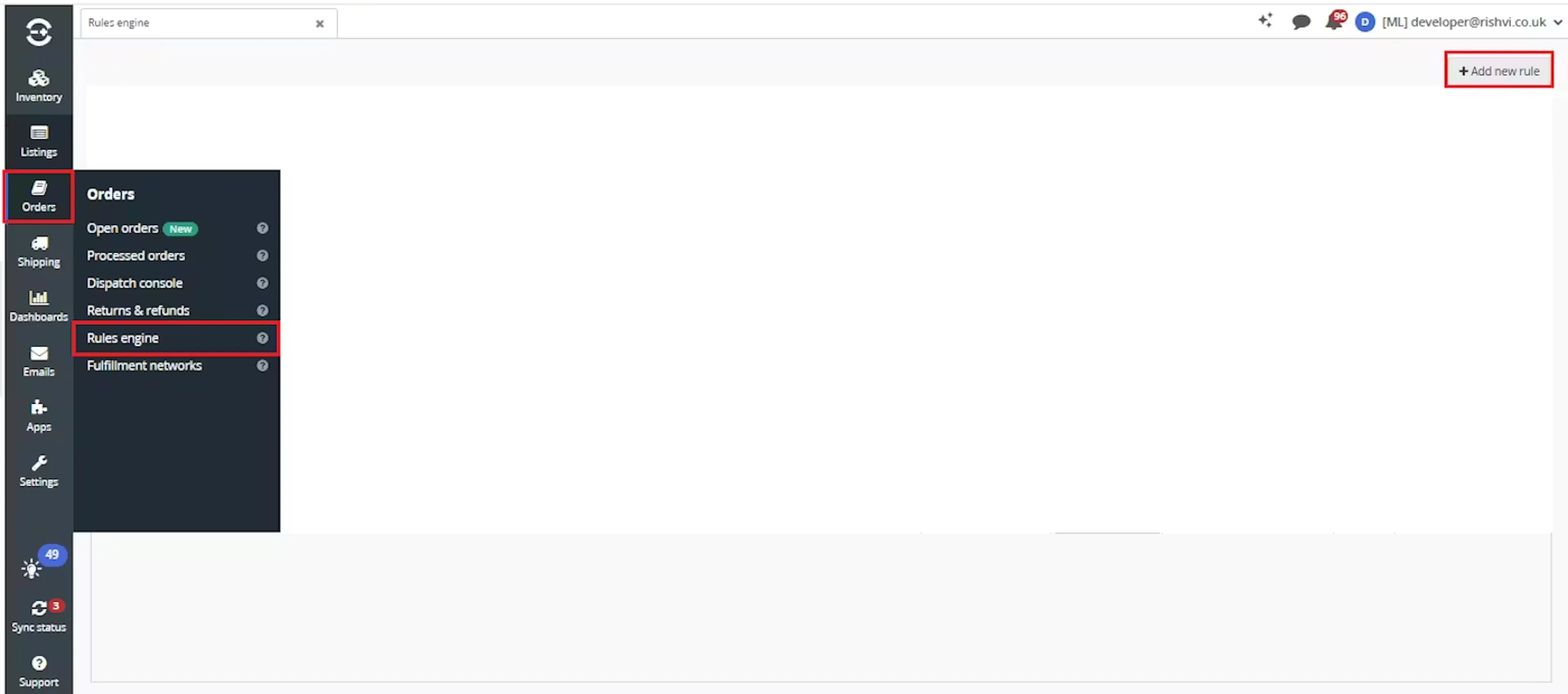
Go to Orders > Rules engine and click + Add new rule.
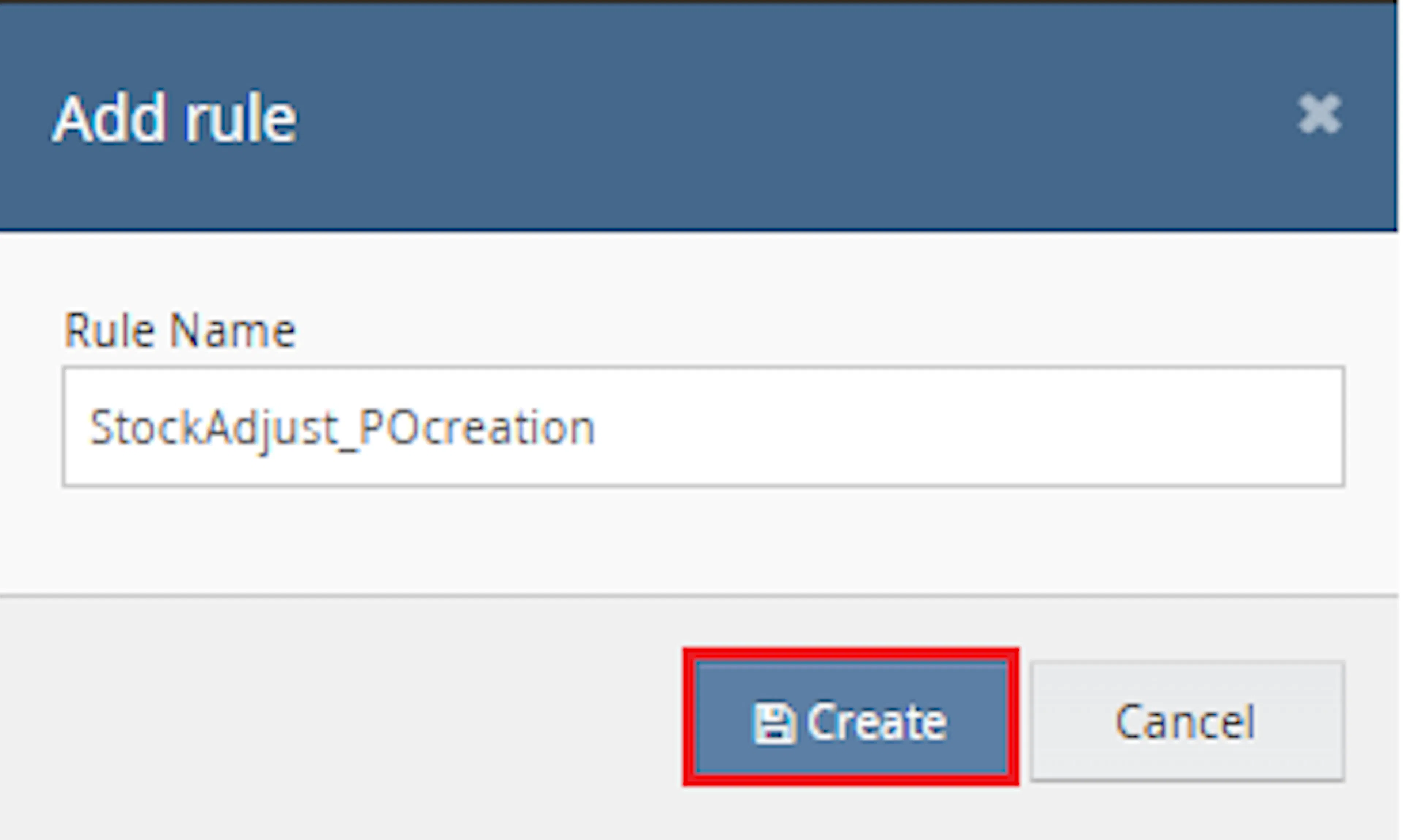
Enter the rule name and click Create.
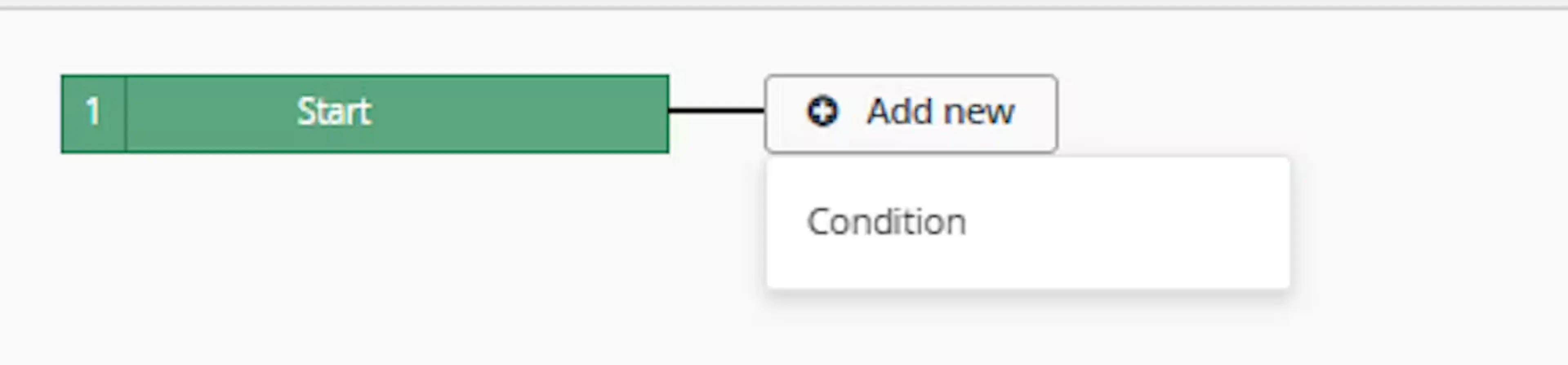
Click Add new, select Condition, set the condition as required, and save it.
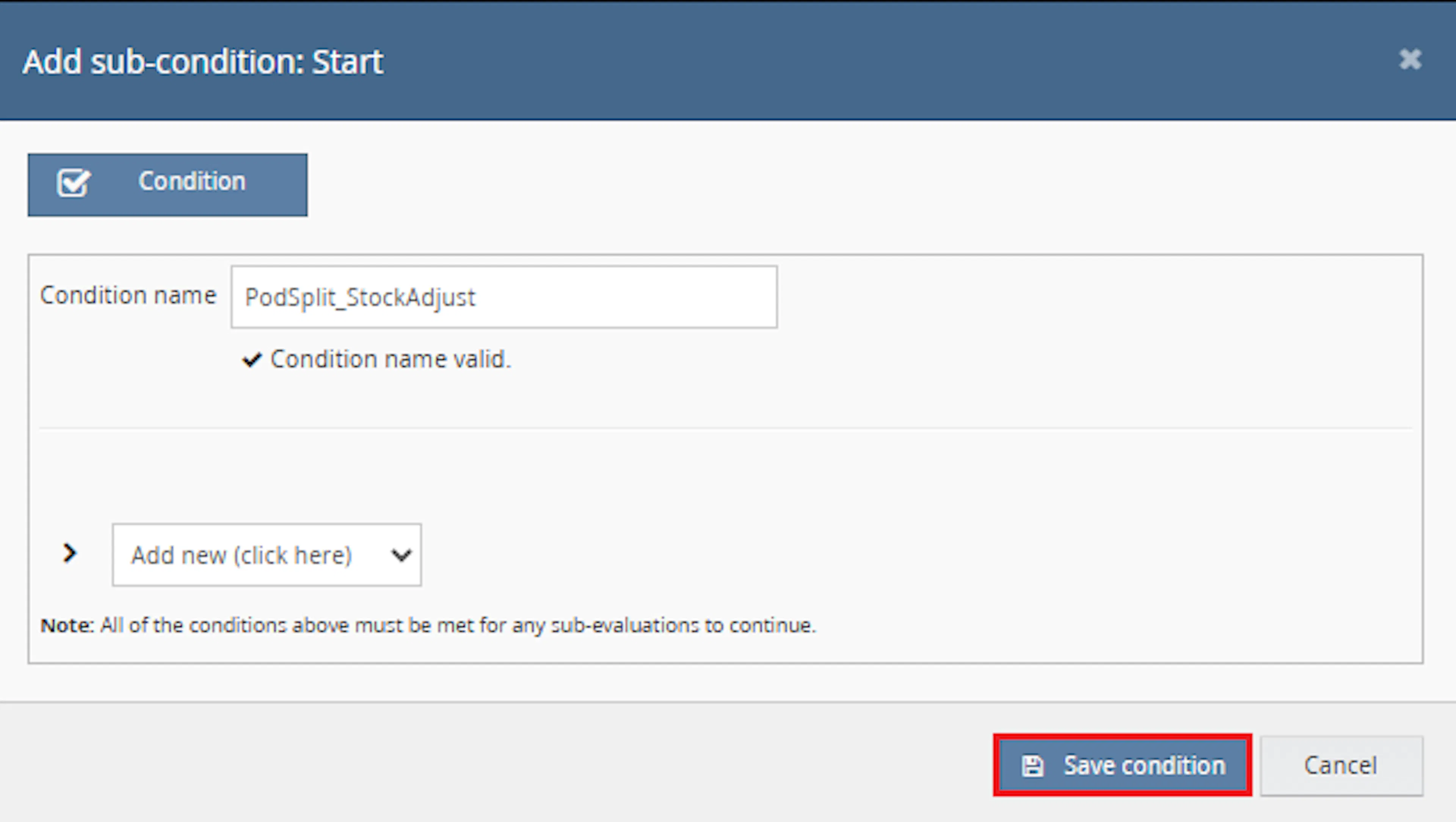
Use conditions that target orders requiring POD processing.
Add the macro action and click Save.

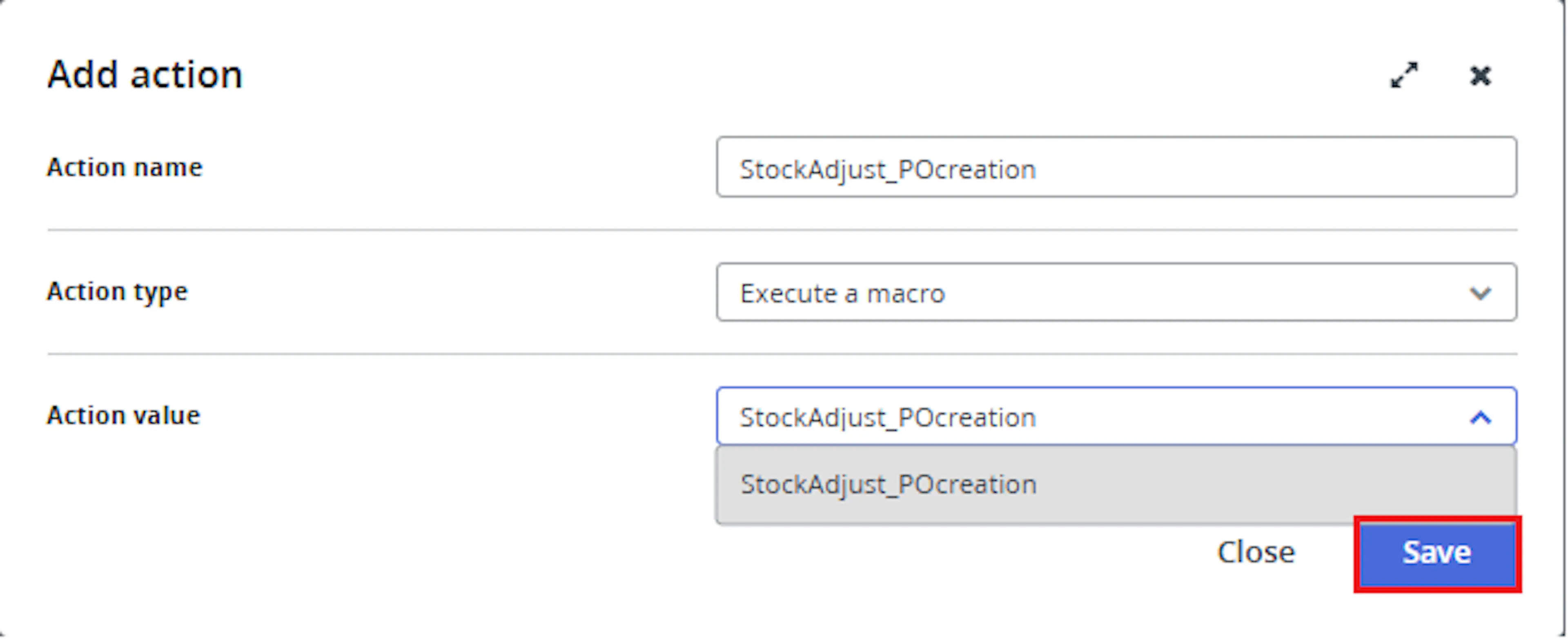
In the Add action window, enter the Action name, for example:
StockAdjust_POcreation
-
Set Action type to:
Execute a macro -
In Action value, select:
StockAdjust_POcreation -
Click Save
Note: If the macro is not enabled, it will not appear in the Action value list when setting up the rule.
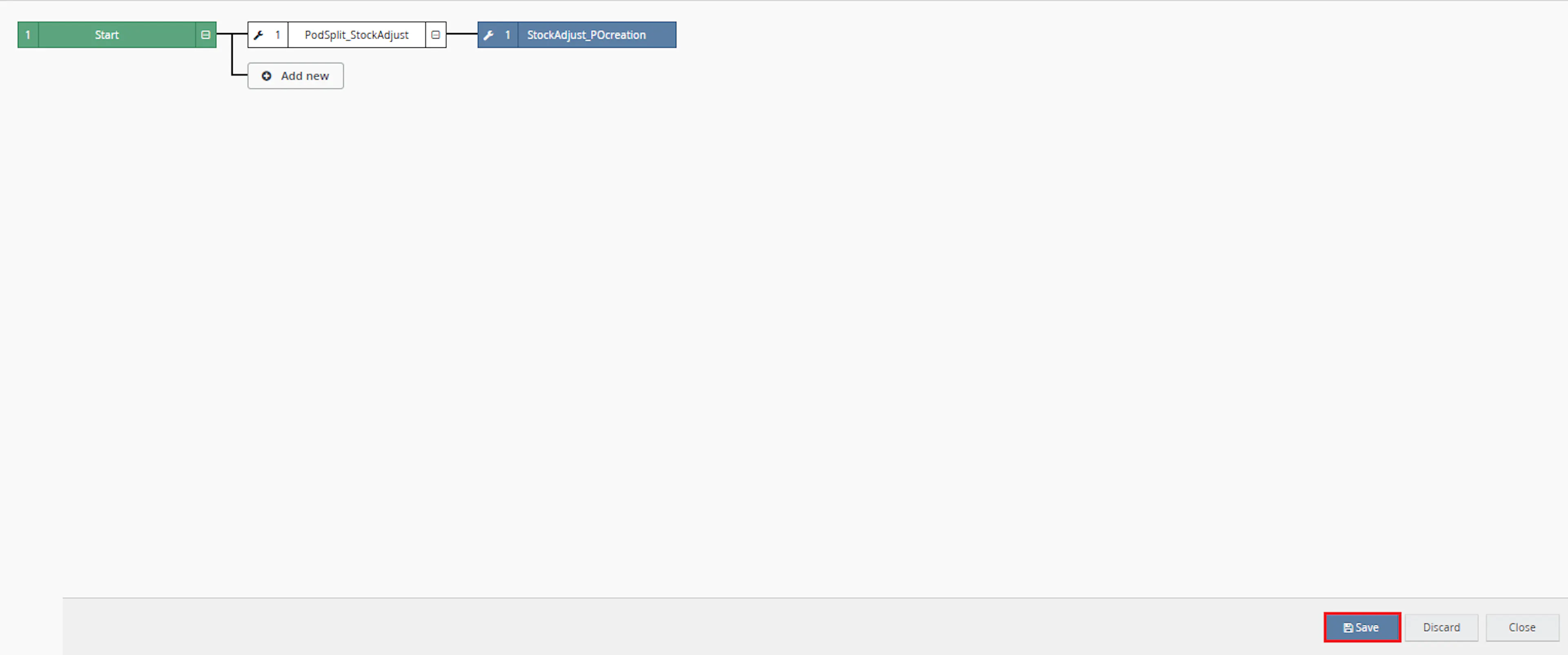
Review the saved rule setup.
-
Verify the condition and action are connected correctly
-
Click Save in the bottom-right corner to save the rule
POD orders can require multiple operational actions before fulfilment. This macro helps reduce manual work by combining location validation, stock adjustment, POD splitting, order movement, identifier assignment, and purchase order creation into one automated process.
Automate POD Handling
Identifies POD order lines and processes them automatically based on the configured source and POD locations.
Split Mixed Orders
Separates POD items from mixed orders so POD lines can be moved and processed independently.
Adjust Non-POD Stock Lines
Reduces or removes non-POD order lines when available stock is lower than the ordered quantity.
Move POD Orders
Moves POD-only orders or split POD orders to the configured POD location.
Create Purchase Orders
Creates a purchase order for resolved POD items using default supplier details and item cost extended properties.
Prevent Reprocessing
Applies the pod_macro_ran identifier so orders already processed by the macro can be skipped.
How It Works
The macro checks each selected order, validates the fulfilment location, identifies POD and non-POD items, adjusts stock-backed lines, moves POD orders, and creates purchase orders.
Step 1
The macro starts execution and writes OPT POD Macro Started to the log.
Step 2
It checks whether any OrderIds were provided. If none are provided, the macro logs a warning and exits.
Step 3
The macro loads all stock locations and caches each location name and ID.
Step 4
It validates the configured SourceLocation and PodLocation against the cached Linnworks stock locations.
Step 5
The macro retrieves each unique selected order and skips any order that already has the pod_macro_ran identifier.
Step 6
For each order, the macro confirms that the order fulfilment location matches the configured SourceLocation.
Step 7
The macro identifies POD items. An item is treated as POD when its title starts with a double quote character.
Step 8
The macro separates the order into POD lines and non-POD lines.
Step 9
For POD items, the macro validates that the POD parent item has a default supplier.
Step 10
If a POD item is composite, the macro also validates that each linked child item has a default supplier.
Step 11
For non-POD items, the macro checks available stock at the source location and adjusts order lines when stock is unavailable or only partially available.
Step 12
If an order contains only POD items, the macro moves the whole order to the configured POD location without splitting.
Step 13
If an order contains both POD and non-POD items, the macro splits the POD items into a separate POD order.
Step 14
The macro moves the POD-only order or split POD order to the configured POD location.
Step 15
The macro resolves POD purchase items. Composite POD items are converted into their linked component items.
Step 16
The macro creates a purchase order for the POD order using the default supplier from the first resolved purchase item.
Step 17
The macro adds purchase order items using quantities from the POD order and unit costs from the inventory extended property named cost.
Step 18
The macro adds internal order notes and assigns the pod_macro_ran identifier to the processed POD order.
Step 19
The macro logs any errors and writes OPT POD Macro Finished when execution ends.
Usage of App
This macro is designed to run against selected orders through the Rule Engine. It is useful when POD items need to be separated, moved to a POD location, and converted into purchase orders while standard stock items remain on the original order where possible.
OrderIds
Defines the Linnworks order IDs that should be processed. Duplicate order IDs are removed before processing.
SourceLocation
Defines the fulfilment location that selected orders must currently belong to. Orders at a different fulfilment location are skipped.
PodLocation
Defines the Linnworks stock location where POD-only orders or split POD orders should be moved.
POD Item Detection
An order line is treated as a POD item when the item title starts with a double quote character.
pod_macro_ran Identifier
The macro uses this identifier to mark processed POD orders and skip orders that have already been processed.
Stock Adjustment for Non-POD Items
Non-POD lines are reduced or removed when available stock at the source location is lower than the ordered quantity.
Purchase Order Creation
The macro creates a purchase order at the POD location for the resolved POD purchase items.
Inventory Extended Property cost
The macro reads the inventory item extended property named cost and uses it as the purchase order item unit cost.
Execution Logging
The macro records location validation, skipped orders, stock calculations, POD splitting, PO creation, errors, and completion status using the macro logger.
Key Points to Remember
-
The macro processes only the order IDs provided in OrderIds
-
Duplicate order IDs are removed before processing
-
The macro requires valid SourceLocation and PodLocation values
-
Location names are matched using cached Linnworks stock locations
-
Orders are skipped if their fulfilment location does not match SourceLocation
-
Orders are skipped if they already have the pod_macro_ran identifier
-
POD items are identified when the item title starts with a double quote character
-
POD parent items must have a default supplier
-
Composite POD child items must also have default suppliers
-
Non-POD stock lines can be reduced or removed based on available stock
-
POD-only orders are moved directly to the POD location without splitting
-
Mixed orders are split so POD items move into a separate POD order
-
One purchase order is created for the POD order
-
Purchase order references use PO-originalOrderNumber or PO-originalOrderNumber-podOrderNumber
-
Purchase order item cost is read from the inventory extended property named cost
-
The macro assigns pod_macro_ran after successful POD processing
Once the macro is running, it helps automate the POD fulfilment workflow and reduce manual order splitting, movement, and purchase order creation.
What You Can Expect
-
POD-only orders are moved to the POD location
Orders containing only POD items are moved without being split. -
Mixed orders are split
POD items are separated into a new order while non-POD items remain on the original order. -
Non-POD items are adjusted by stock availability
If available stock is not enough, the macro reduces the quantity or removes the item from the order. -
Internal notes are added
The macro records stock adjustments, POD split information, POD direct handling, and POD movement details as internal order notes. -
Purchase orders are created
The macro creates a purchase order for the resolved POD items at the configured POD location. -
Processed POD orders are marked
The macro assigns the pod_macro_ran identifier to help prevent repeated processing. -
Execution is logged
The macro records when it starts, processes orders, skips orders, creates purchase orders, handles errors, and finishes.
Overall Impact
This macro improves POD order handling by reducing manual splitting, stock adjustment, order movement, and purchase order creation. It helps teams process POD and non-POD items more consistently while keeping audit details visible through internal order notes.
What To Do After the Macro Runs
After the macro has completed, review the processed orders and created purchase orders to confirm the POD workflow completed as expected.
Steps to Follow
Step 1
Open Linnworks and locate the orders processed by the rule.
Step 2
Check whether the order was POD-only or mixed.
Step 3
For POD-only orders, confirm the order was moved to the configured PodLocation.
Step 4
For mixed orders, confirm that POD items were split into a separate POD order.
Step 5
Review internal order notes for stock adjustments, POD split details, or POD direct processing details.
Step 6
Confirm that the processed POD order has the pod_macro_ran identifier.
Step 7
Open Purchase Orders and confirm that the related POD purchase order was created.
Step 8
Continue with POD supplier processing, fulfilment review, or normal order dispatch workflow.
Why This Matters
Automating POD order handling helps:
-
Reduce manual order splitting
-
Prevent repeated POD processing
-
Improve accuracy when moving POD orders
-
Create POD purchase orders consistently
-
Keep stock-backed order lines aligned with available stock
-
Record key changes through internal order notes
-
Support faster fulfilment and supplier handoff workflows
Best Practices
To get the most value from this macro, configure the locations, supplier data, and item extended properties carefully.
Recommended Guidelines
-
Use exact location names
Make sure SourceLocation and PodLocation match Linnworks stock location names. -
Check POD item naming rules
Confirm that POD item titles start with a double quote character, since this is how the macro identifies POD items. -
Maintain default suppliers
Ensure every POD parent item and composite child item has a default supplier. -
Maintain item cost extended properties
Add and maintain the inventory extended property named cost for POD purchase items. -
Review mixed-order behaviour
Confirm that your workflow expects POD items to be split into a separate order when a mixed order is processed. -
Monitor internal notes
Use the internal notes to review stock reductions, removed items, POD movement, and split details. -
Avoid repeated rule triggers
The macro uses pod_macro_ran to skip already processed orders, but rule conditions should still be configured carefully.
Troubleshooting
Order was skipped because of location mismatch
Confirm that the order fulfilment location matches the configured SourceLocation.
Invalid Source or POD location
Check that SourceLocation and PodLocation match existing Linnworks stock location names.
Order was already processed
The order may already have the pod_macro_ran identifier assigned.
POD item was not detected
Confirm that the item title starts with a double quote character.
Order skipped because supplier is missing
Confirm that the POD parent item and any composite child items have default suppliers.
Non-POD item was reduced or removed
Review stock levels and InOrderBook values at the source location. The macro adjusts non-POD lines based on calculated availability.
Purchase order cost is zero
Confirm that the inventory item has an extended property named cost and that its value can be parsed as a decimal.
Purchase order was not created
Review macro logs for supplier validation, resolved POD items, and purchase order creation errors.
Summary
The OPT POD Split, Stock Adjustment & PO Creation macro processes selected Linnworks orders by validating location, identifying POD items, adjusting non-POD stock-backed lines, splitting mixed orders, moving POD orders to a configured POD location, and creating purchase orders for POD items.
This helps automate a complex POD fulfilment workflow, reduce manual work, improve consistency, and keep POD processing visible through notes, identifiers, and purchase orders.