Export Labels to 3PL via SFTP
Automatically find matching vendor channel orders, generate PDF label files, upload the labels to a configured SFTP folder for 3PL processing, and mark successfully uploaded orders with an identifier.
Overview
Export Labels to 3PL via SFTP is a scheduled label-export solution for Linnworks. It identifies eligible open orders, generates a PDF label file for each qualifying order, uploads the file to a configured SFTP folder, and marks successful orders with an export identifier.
The macro searches open orders associated with a configured Linnworks stock location. It then applies additional eligibility checks, including the vendor channel source, current despatch date, label-print status, and whether the export identifier has already been assigned.
For each eligible order, the macro generates PDF output using its configured print template and printer setup. The generated PDF URL and SFTP connection details are then passed to the configured upload service.
Only orders whose files upload successfully are assigned the export identifier.
Generate vendor-channel PDF labels automatically and deliver them to a 3PL through a scheduled SFTP export workflow.
Who Should Use Export Labels to 3PL via SFTP
Warehouse & Fulfilment Teams
Teams preparing vendor-channel orders can automate label generation and transfer instead of handling each PDF manually.
3PL & Logistics Teams
Logistics teams can receive order label files through a consistent SFTP processing folder.
Integration Administrators
Administrators configure the schedule, stock location, SFTP connection, remote folder, and macro-enabled status.
Operations Teams
Operations teams can review export identifiers and execution logs to confirm which orders uploaded successfully.
Key Features
Scheduled Label Export
Runs automatically through a one-time or recurring Linnworks macro schedule.
Location-Based Order Search
Retrieves open orders associated with the configured Linnworks stock location.
Order Eligibility Filtering
Filters orders by vendor source, despatch date, label-print status, and existing export identifier.
Automatic PDF Generation
Generates a PDF for each eligible order using the configured print template and printer setup.
SFTP Upload
Sends generated PDF files to the configured remote SFTP processing folder.
Successful Export Identification
Applies the configured export identifier only after the upload service confirms success.
How Export Labels to 3PL via SFTP Works
Export Labels to 3PL via SFTP follows a defined sequence whenever its configured schedule runs.
Step 1: Validate required settings
The macro confirms that LocationName, SFTP_server, SFTP_user, and SFTP_password contain values.
Step 2: Apply optional defaults
If SFTP_port is blank, the macro uses port 22. If SFTP_fullPath is blank, it uses the default configured processing folder.
Step 3: Find the stock location
The configured LocationName is matched against the available Linnworks stock locations.
Step 4: Build the open-order date range
The macro searches recent open orders using a period from the previous 14 days through the next day.
Step 5: Retrieve location orders
Open orders associated with the matching stock location are retrieved.
Step 6: Apply order filters
The macro retains orders matching the configured vendor channel, current despatch date, and label-not-printed requirement.
Step 7: Exclude completed exports
Orders already carrying the configured export identifier are skipped.
Step 8: Generate each PDF
A PDF is generated for every remaining order using the configured print template and printer setup.
Step 9: Build the remote file path
The SFTP folder path is normalised and the order number is combined with _Shipping Labels.pdf.
Step 10: Upload the label file
The PDF URL, SFTP details, and remote file path are sent to the configured upload service.
Step 11: Track successful uploads
Orders are added to the successful-upload list only when the upload service confirms success.
Step 12: Apply the export identifier
The configured identifier is created when required and assigned to successfully uploaded orders.
Step 13: Record the execution result
Matching orders, PDF generation, upload responses, identifier assignments, order-level failures, general errors, and macro completion are logged.
Configure the Macro
Once the app has been installed, create a macro configuration so the system knows when the macro should run, which stock location should be checked, and where the generated PDF labels should be uploaded.
This configuration can be updated at any time to suit your operational requirements.
Steps to Configure
Go to Apps > Macro Configuration and click + Add new configuration.
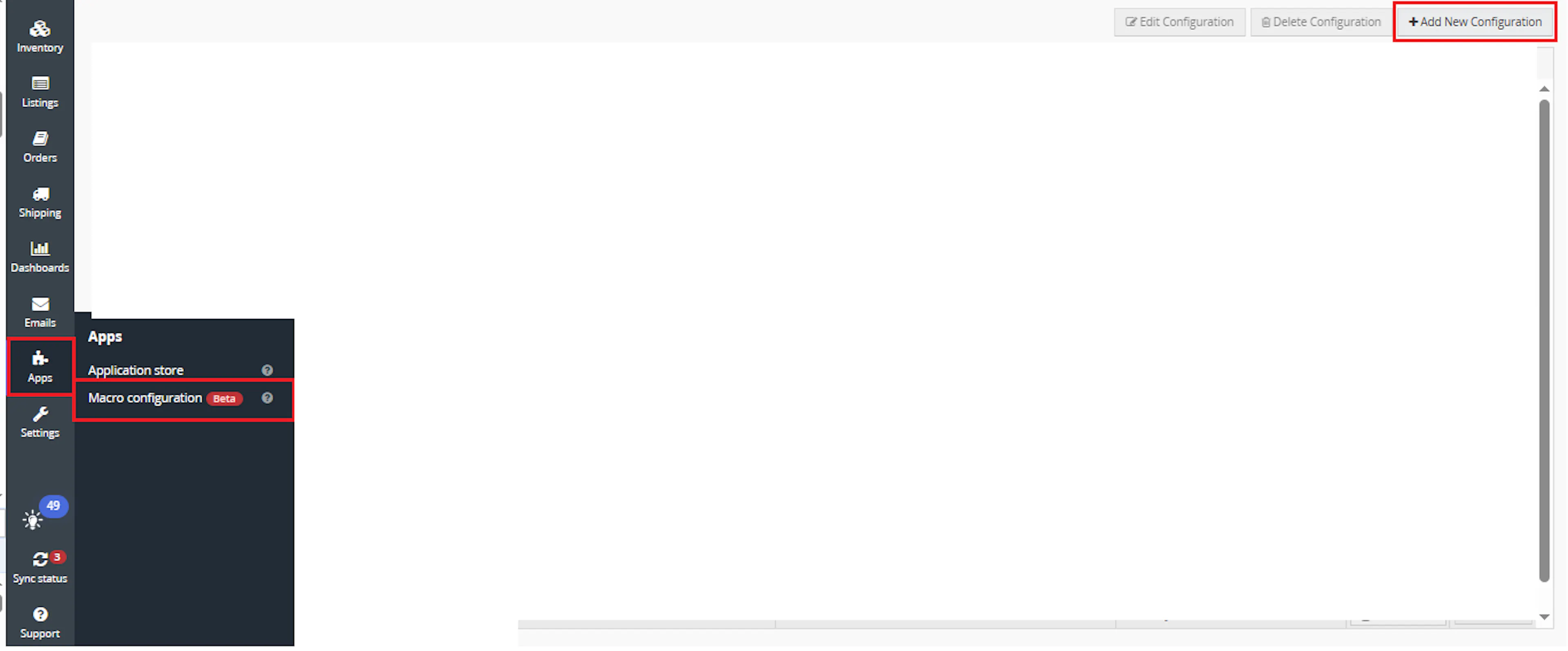
Select the Vendor Label SFTP Export macro and click Create Configuration.
This creates a new configuration where the schedule and required parameter values can be entered.
In the Macro Configuration screen, go to the Schedules tab and click New Schedule.
Configure the schedule settings.
- In the Schedule Config window, enter the Name
- Select Schedule type from the dropdown:
- One time runs once only
- Recurring runs repeatedly based on the configured schedule
- If Recurring is selected:
- In Frequency, choose Occurs from the dropdown:
- Daily
- Weekly
- In Frequency, choose Occurs from the dropdown:
- Set the Recurs every value, for example 1 day or 1 week
- Set the Starting on date and time
- Under Daily frequency, choose one option:
- Occurs once at → enter the exact time
- Occurs every → enter the interval in hours and define:
- Starting time
- Ending time
- Review the Summary section
- Click Save
Note: Review the schedule carefully. This macro can generate and upload multiple PDF label files each time it runs.
Navigate to the Parameters tab and enter the required values.
Configure the following parameters:
-
LocationName
Main Warehouse -
SFTP_server
sftp.example.com -
SFTP_user
sftp_user -
SFTP_password
dummy-sftp-password -
SFTP_fullPath
/labels/processing -
SFTP_port
22
The LocationName value must match the Linnworks stock location name that should be checked.
If SFTP_port is left blank, the macro uses 22.
If SFTP_fullPath is left blank, the macro uses the default configured processing folder.
Make sure to enable the macro to continue with the schedule Engine configuration.
Make sure to enable the macro so it can run from the configured schedule.
Key Benefits
Generating labels manually and transferring each file to SFTP can be repetitive and prone to delay. Export Labels to 3PL via SFTP combines order selection, PDF generation, upload, and successful-export identification into one scheduled process.
Reduce manual label handling while giving the 3PL a consistent SFTP location for incoming PDF files.
Reduce Manual Label Work
Removes the need to generate, download, rename, and upload each qualifying label PDF manually.
Apply Consistent Order Filters
Uses the same location, source, despatch date, label status, and identifier checks during every run.
Deliver Files Automatically
Uploads generated label PDFs to the configured remote SFTP folder.
Prevent Repeat Exports
Skips orders already marked with the configured export identifier.
Support 3PL Processing
Places label documents into a predictable processing folder for warehouse or external fulfilment use.
Maintain Export Visibility
Logs successful order numbers, upload failures, PDF issues, identifier updates, and execution errors.
Usage of App
Export Labels to 3PL via SFTP is designed to run through the Linnworks Macro Schedule Engine.
It does not require selected OrderIds. Each execution searches open orders at the configured location and evaluates them against the macro's eligibility rules.
Execution
Trigger via Schedule
Configure a one-time or recurring schedule, enter the required location and SFTP values, save the configuration, and enable the macro.
Outcome
When the scheduled macro runs, it:
Validates the configuration
Confirms that the required stock location and SFTP connection values are available.
Retrieves recent open orders
Searches the configured stock location using the documented date window.
Filters eligible vendor orders
Retains orders matching the source, current despatch date, label status, and identifier requirements.
Generates a PDF label file
Uses the configured print template and printer setup for each eligible order.
Uploads the generated PDF
Sends the PDF URL and SFTP details to the configured upload service.
Marks successful orders
Applies the configured export identifier only when the upload is confirmed.
Records processing details
Logs matching orders, generated files, upload results, skipped orders, identifiers, and errors.
The remote file name follows this format:
{OrderNumber}_Shipping Labels.pdf
For example:
100245_Shipping Labels.pdf
A representative result is:
| Order Result | Macro Behaviour |
|---|---|
| Eligible order and successful PDF upload | Applies the export identifier. |
| Eligible order but no PDF URL returned | Logs an error and skips the upload. |
| Eligible order but SFTP upload fails | Logs the failure and does not apply the identifier. |
| Order already has the export identifier | Skips the order. |
| Order despatch date is not today | Excludes the order from processing. |
| Label printed flag is already set | Excludes the order from processing. |
| No eligible orders found | Logs a message and stops without uploading files. |
Input Parameters
Export Labels to 3PL via SFTP uses the following configuration values:
| Parameter | Required | Description |
|---|---|---|
| LocationName | Yes | Exact Linnworks stock location name used to retrieve open orders. |
| SFTP_server | Yes | Host name or address of the SFTP server. |
| SFTP_user | Yes | Username used by the SFTP upload connection. |
| SFTP_password | Yes | Password used by the SFTP upload connection. |
| SFTP_fullPath | No | Remote folder used for uploaded label files. A default processing folder is used when blank. |
| SFTP_port | No | SFTP connection port. Defaults to 22 when blank. |
| Schedule | Yes | One-time or recurring schedule used to start the macro. |
| OrderIds | No | The macro searches open orders directly and does not process selected order IDs. |
Example configuration:
| Parameter | Example |
|---|---|
| LocationName | Main Warehouse |
| SFTP_server | sftp.example.com |
| SFTP_user | sftp_user |
| SFTP_password | dummy-sftp-password |
| SFTP_fullPath | /labels/processing |
| SFTP_port | 22 |
Security: Store SFTP credentials securely. Do not expose live usernames, passwords, server addresses, or private remote paths in public documentation, screenshots, logs, or source repositories.
The macro also relies on internal or previously configured values that are not named in the supplied parameter list:
| Internal Dependency | Purpose |
|---|---|
| Vendor channel source | Restricts processing to the intended vendor-channel orders. |
| Export identifier | Prevents repeat processing and marks successful uploads. |
| Print template | Generates the PDF label output. |
| Printer setup | Supports PDF generation through Linnworks. |
| Upload service | Transfers the generated PDF from its URL to the SFTP destination. |
| Default processing folder | Used when SFTP_fullPath is blank. |
The supplied documentation does not state the exact names or values of these internal settings.
Best Practices
Test order filtering, PDF generation, SFTP access, and identifier assignment with controlled orders before enabling a recurring production schedule.
Use the exact location name
Confirm that LocationName matches the active Linnworks stock location exactly.
Protect SFTP credentials
Restrict access to the macro configuration and avoid exposing connection details publicly.
Validate the remote path
Confirm that the configured user can write files to the intended processing folder.
Test the print setup
Generate a sample PDF and verify that the configured template produces the required label output.
Confirm identifier behaviour
Verify that only successfully uploaded orders receive the export identifier.
Monitor execution logs
Review location validation, matching orders, PDF URLs, upload responses, identifiers, and failures after each run.
The following checks can help diagnose common issues:
| Issue | Check |
|---|---|
| Stock location is not found | Confirm that LocationName matches an active Linnworks location exactly. |
| No orders are selected | Review the location, vendor source, date, label-print flag, and export identifier conditions. |
| An expected order is skipped | Check whether its despatch date is today, the label flag is unset, and the export identifier is absent. |
| No PDF URL is returned | Verify the configured print template and printer setup. |
| SFTP upload fails | Confirm the server, user, password, port, folder permissions, and remote path. |
| File is missing from SFTP | Review the order-specific upload response in the macro log. |
| Identifier is not applied | Confirm that the upload service returned a successful result. |
| Wrong remote file location is used | Review SFTP_fullPath and the macro's folder-path normalisation. |
| Macro does not run | Confirm that the configuration, schedule, and macro are enabled. |
FAQ
How is Export Labels to 3PL via SFTP triggered?
The macro runs through a one-time or recurring schedule configured in Linnworks Macro Configuration.
Does the macro use OrderIds?
No. It retrieves open orders directly from the configured stock location.
Which macro should be selected in Macro Configuration?
Select Vendor Label SFTP Export.
Which parameters are mandatory?
LocationName, SFTP_server, SFTP_user, and SFTP_password are required.
What happens when SFTP_port is blank?
The macro uses port 22.
What happens when SFTP_fullPath is blank?
The macro uses its default configured processing folder.
Must LocationName match exactly?
Yes. The value must match the Linnworks stock location name used by the macro.
Which orders are searched?
The macro retrieves recent open orders from the configured stock location.
What date range is used for the open-order search?
The documented range covers the previous 14 days through the next day.
Which orders remain eligible after retrieval?
Orders must match the configured vendor channel, have a despatch date equal to the current date, have no label-printed flag, and not already carry the export identifier.
What happens when no orders match?
The macro logs that no matching orders were found and stops.
How is the PDF created?
The macro uses its configured print template and printer setup.
What happens when no PDF URL is returned?
The order is skipped and an error is written to the log.
How are uploaded files named?
Each file uses the order number followed by _Shipping Labels.pdf.
Does the macro connect directly to SFTP?
The source states that the PDF URL and SFTP details are sent to a configured upload service.
When is the export identifier applied?
Only after the upload service confirms that the PDF was uploaded successfully.
What happens when the upload fails?
The failure is logged and the order is not added to the successful-upload list.
Does the macro create the export identifier?
Yes. It creates the configured identifier when required before assigning it to successful orders.
Are orders with the identifier processed again?
No. They are skipped.
Does the macro set the label-printed flag?
The source states that the label-printed flag is checked during filtering. It does not state that this macro changes the flag.
Can multiple orders be processed during one run?
Yes. The macro can generate and upload multiple PDF files in one scheduled execution.
Does an error on one order stop all processing?
The documented behaviour states that an order-level error is logged and processing continues with the next order.
What happens when a general error occurs?
The error details are written to the macro log.
What should be checked when an expected order is missing?
Review its stock location, vendor source, despatch date, label-print status, and existing identifiers.
What should be checked when the SFTP file is missing?
Review the upload response, remote path, connection details, permissions, and order-specific log entries.
What should be checked when the macro does not run?
Confirm that the macro configuration is enabled and that the schedule has been saved and enabled.
Legal Information
- Privacy Policy: https://rishvi.co.uk/privacy-policy/
- Terms and Conditions: https://rishvi.co.uk/terms-conditions/
Please review these pages to understand how data is handled and the terms governing the use of this application.
Access to the macro configuration should be restricted because it contains SFTP connection details and controls the automatic export of shipping-label documents.
Summary
Export Labels to 3PL via SFTP automates scheduled PDF label generation and transfer for eligible vendor-channel orders.
Once configured and enabled, the macro validates the SFTP settings, finds the required Linnworks stock location, retrieves recent open orders, applies the vendor, despatch-date, label-status, and identifier filters, generates PDF label files, and uploads them to the configured SFTP folder.
Scheduled order selection
Eligible orders are located automatically through the configured schedule and stock location.
Automatic PDF generation
Label documents are generated using the configured Linnworks print setup.
SFTP delivery
Generated PDFs are uploaded to the configured remote processing folder.
Successful export tracking
Only confirmed uploads receive the configured export identifier.
For orders or files that do not process as expected, review the macro schedule and enabled status, confirm the exact stock location name, verify the SFTP connection and path, check the print-template output, and inspect the order-specific upload logs.