Split Every Macro
Automatically split qualifying Linnworks order items into child orders based on each SKU's Split every extended property, while handling composite items, service lines, split notes, and processed-order tracking.
Overview
Split Every Macro is an automated order-splitting solution for Linnworks. It divides qualifying order-item quantities into smaller parent and child order groups using the inventory extended property named Split every.
The macro processes selected orders supplied through the Linnworks Rule Engine. It checks whether an order has already been processed, excludes service lines from the splitting logic, handles composite items separately, and evaluates normal items against their SKU-level Split every values.
When child orders are created, the macro adds internal notes to the parent and child orders to keep the relationship traceable. It also applies the order extended property OrderSplitMacro = Yes to prevent the same parent or child order from being processed again.
Split large order quantities consistently using SKU-level rules while keeping parent and child order relationships traceable in Linnworks.
Who Should Use Split Every Macro
Warehouse & Fulfilment Teams
Teams responsible for picking, packing, and dispatch can use the macro to divide large quantities into smaller and more manageable fulfilment orders.
Operations Managers
Operations managers can define SKU-level split quantities and apply the same order-splitting rules consistently across selected orders.
Integration Administrators
Administrators configure the macro, enable it for the Rule Engine, maintain the Split every inventory extended property, and monitor execution logs.
Warehouse Planning Teams
Planning teams benefit from smaller order groups, clear parent-child references, and reduced manual order splitting.
Key Features
SKU-Level Quantity Splitting
Splits qualifying item quantities using the Split every inventory extended property configured against each SKU.
Composite Item Handling
Processes composite items before applying the normal Split every logic to non-composite items.
Service Line Exclusion
Ignores service lines so shipping, surcharge, and other service items are not included in split calculations.
Parent and Child Notes
Adds internal notes showing the child orders created, parent order reference, and item quantities moved.
Processed-Order Tracking
Marks parent and child orders with OrderSplitMacro = Yes to prevent duplicate processing.
Split Rule Validation
Skips missing, invalid, non-positive, or unusable Split every values and records the relevant result.
How Split Every Macro Works
Split Every Macro follows a defined sequence whenever it receives one or more order IDs from the Linnworks Rule Engine.
Step 1: Order retrieval
The macro reads each order ID supplied through the OrderIds parameter and retrieves the corresponding order details from Linnworks.
Step 2: Processed-order validation
The order is checked for the extended property OrderSplitMacro = Yes. Orders already marked as processed are skipped.
Step 3: Item classification
Service lines are excluded, and the remaining items are separated into composite items and normal items.
Step 4: Composite item processing
Composite items are handled first. Depending on the order structure, composite items may remain on the parent order or be moved into child orders.
Step 5: Split every validation
Normal items are checked for the inventory extended property named Split every. Missing, invalid, or non-positive values are skipped.
Step 6: Split group calculation
Eligible item quantities are divided into groups using the configured Split every value. The first group remains on the parent order.
Step 7: Child order creation
Additional quantity groups are converted into child order definitions and submitted to Linnworks through the SplitOrder API.
Step 8: Notes and process markers
Internal notes are added to the parent and child orders, and all processed orders are marked with OrderSplitMacro = Yes.
Configure the Macro
Once the app is installed, you need to create a macro configuration so the system knows which macro to run and allows it to be selected in the Rule Engine.
This setup can be adjusted anytime based on your operational requirements.
Steps to Configure
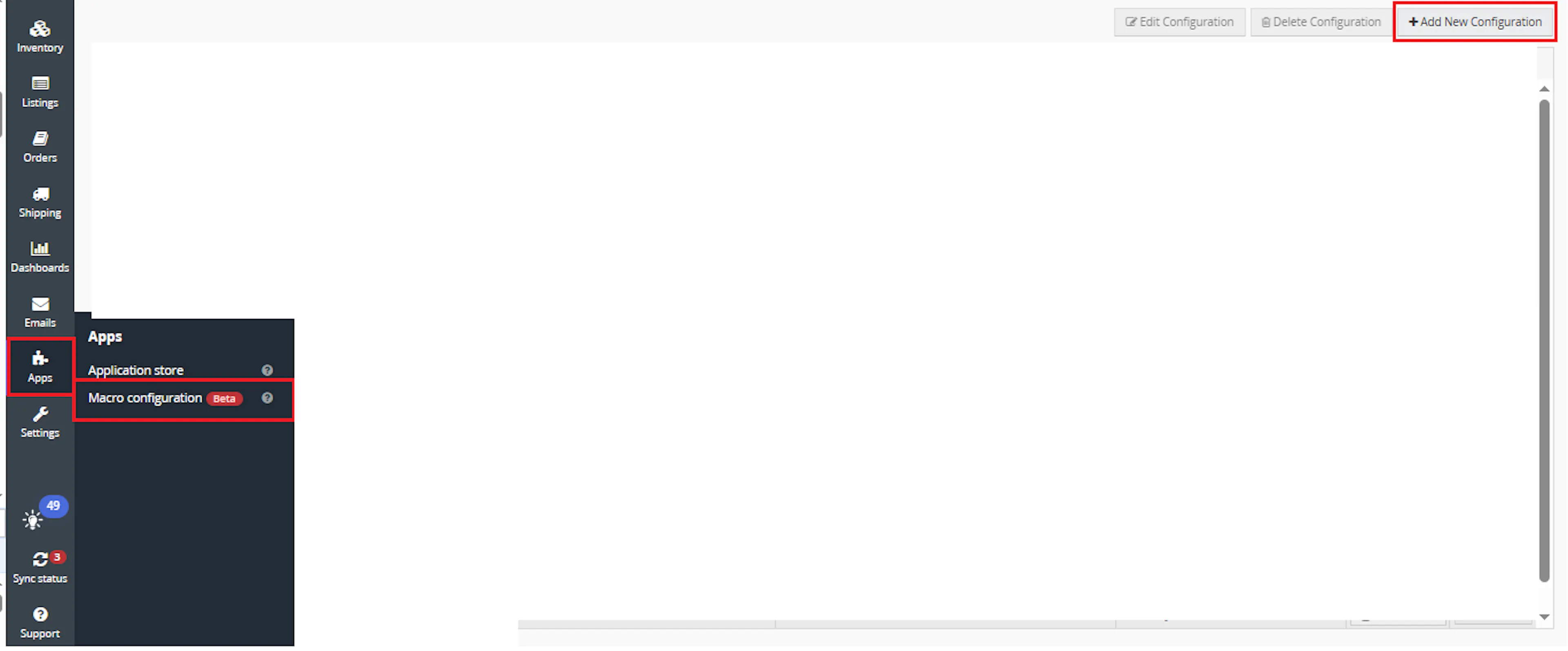
Go to Apps > Macro Configuration and click + Add new configuration.
Select the SplitEveryMacro macro and click Create Configuration.
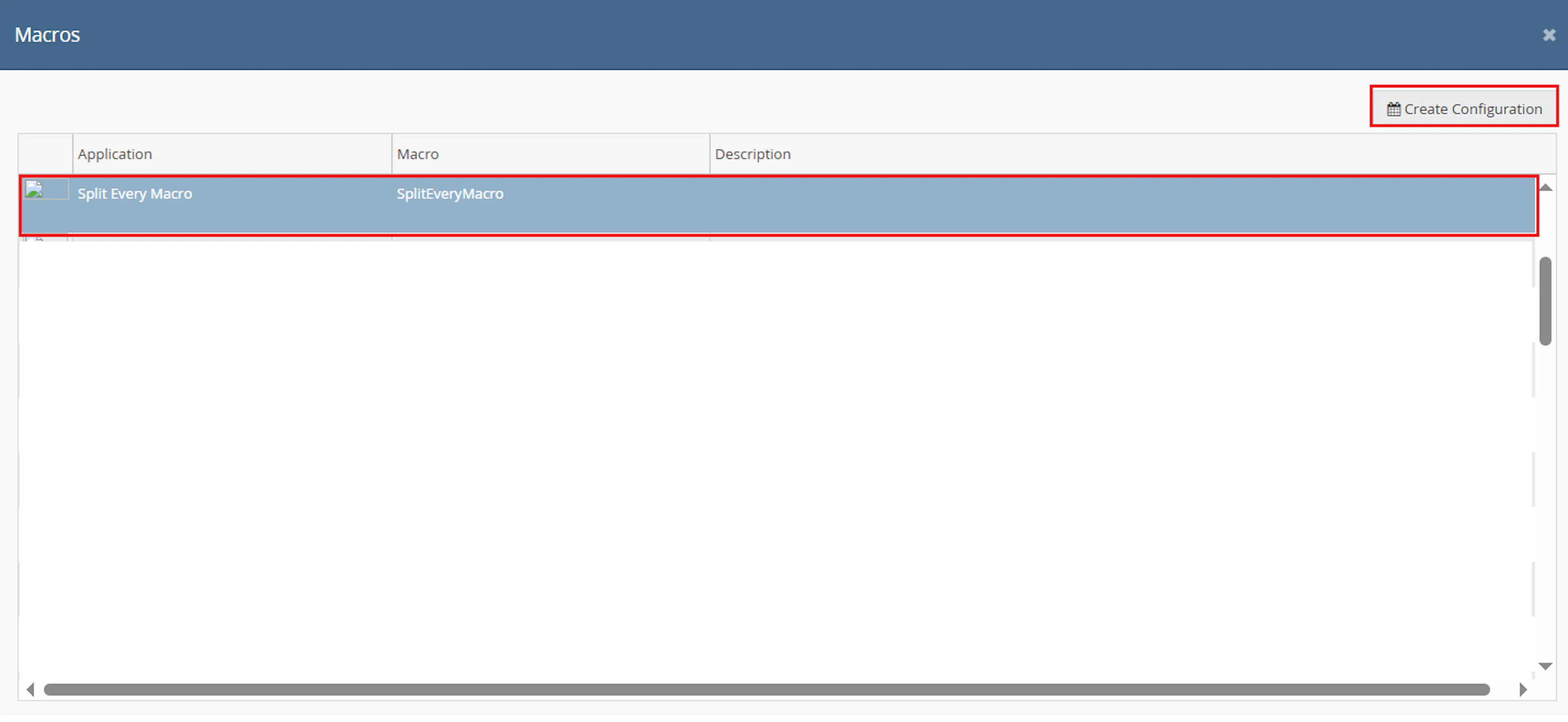
This creates a new configuration where the macro can be enabled and used by the Rule Engine.
In the Macro Configuration screen, add the configuration name.
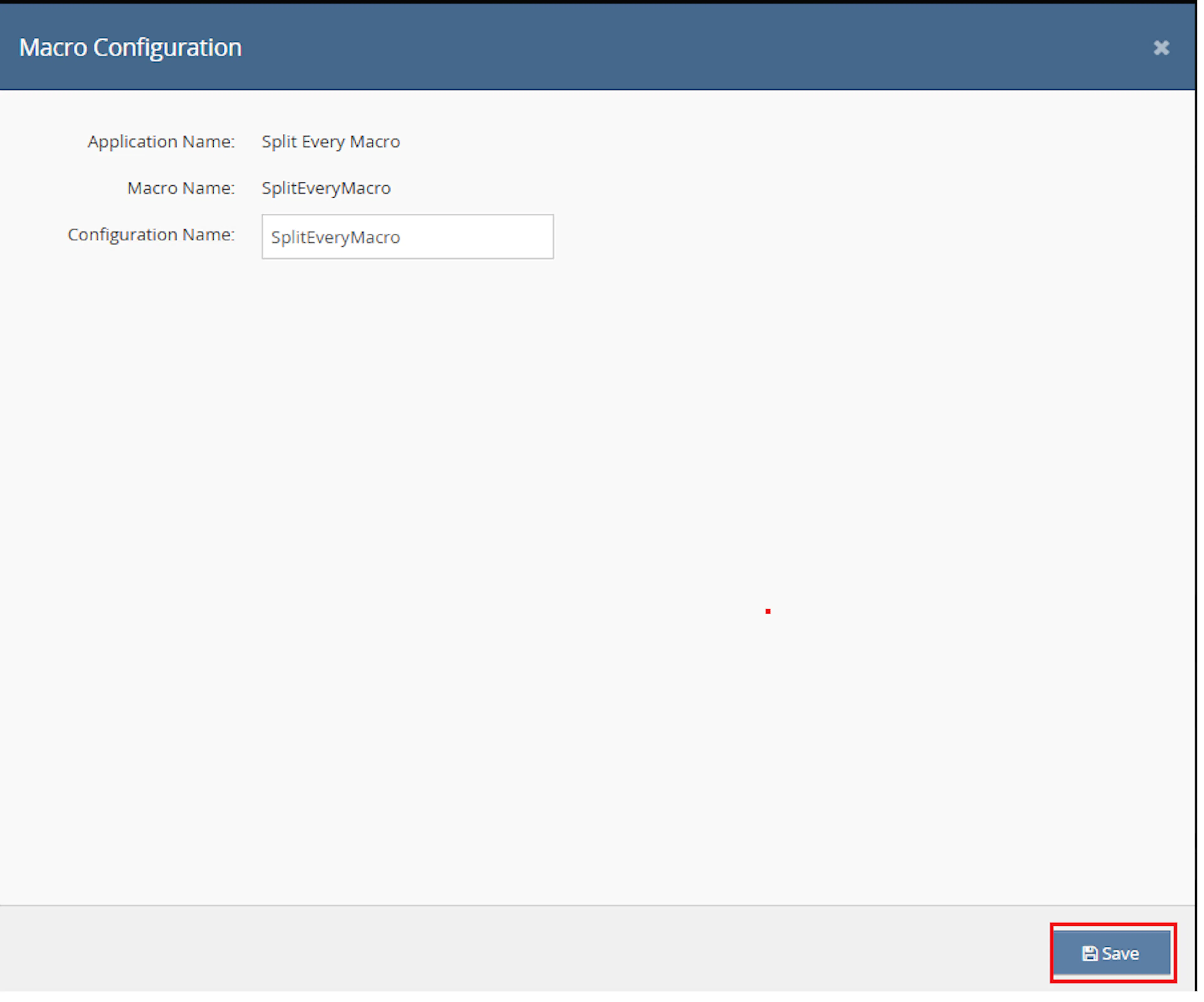
This macro uses the selected order IDs provided by the Rule Engine. No additional custom parameter values are required.
Make sure to enable the macro to continue with the Rule Engine configuration.

Note: If the macro is not enabled, it will not appear in the Action value list when setting up the rule.
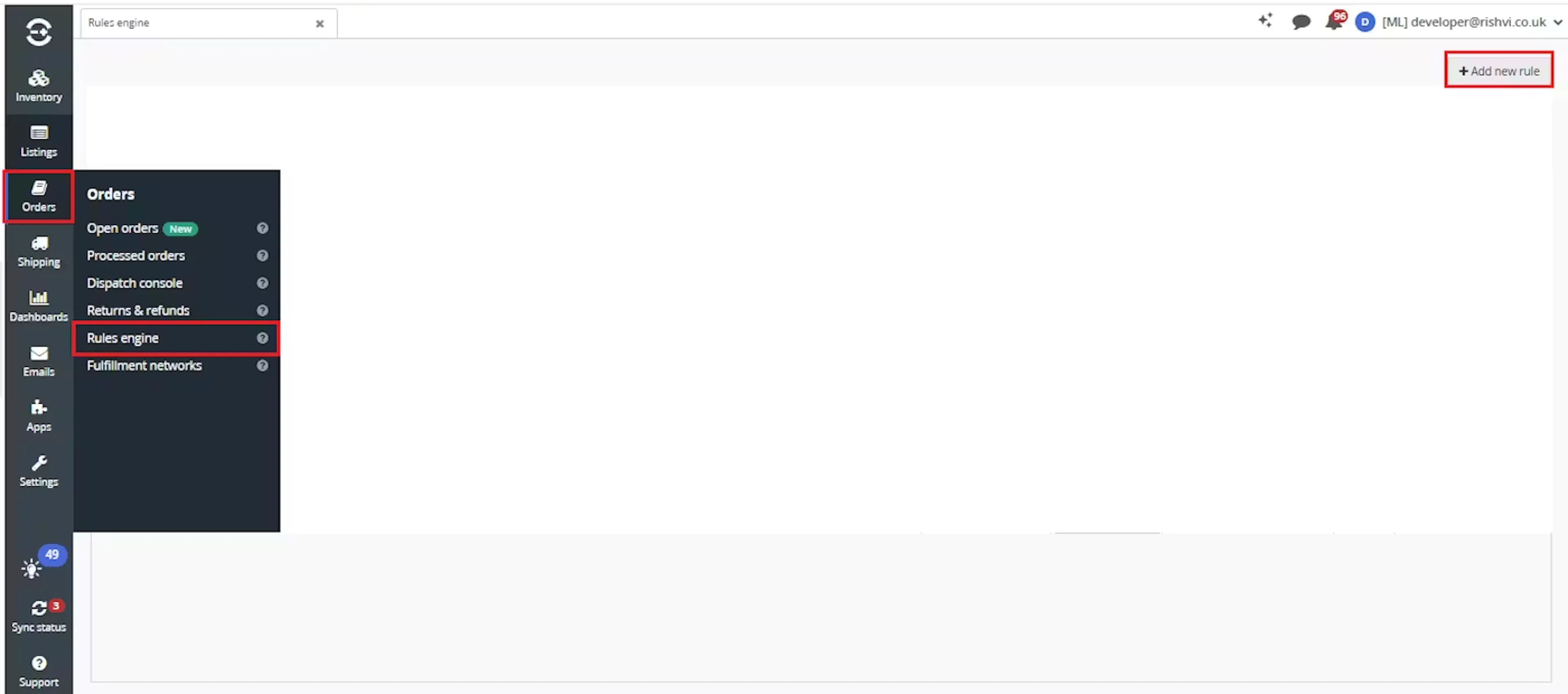
Go to Orders > Rules engine and click + Add new rule.
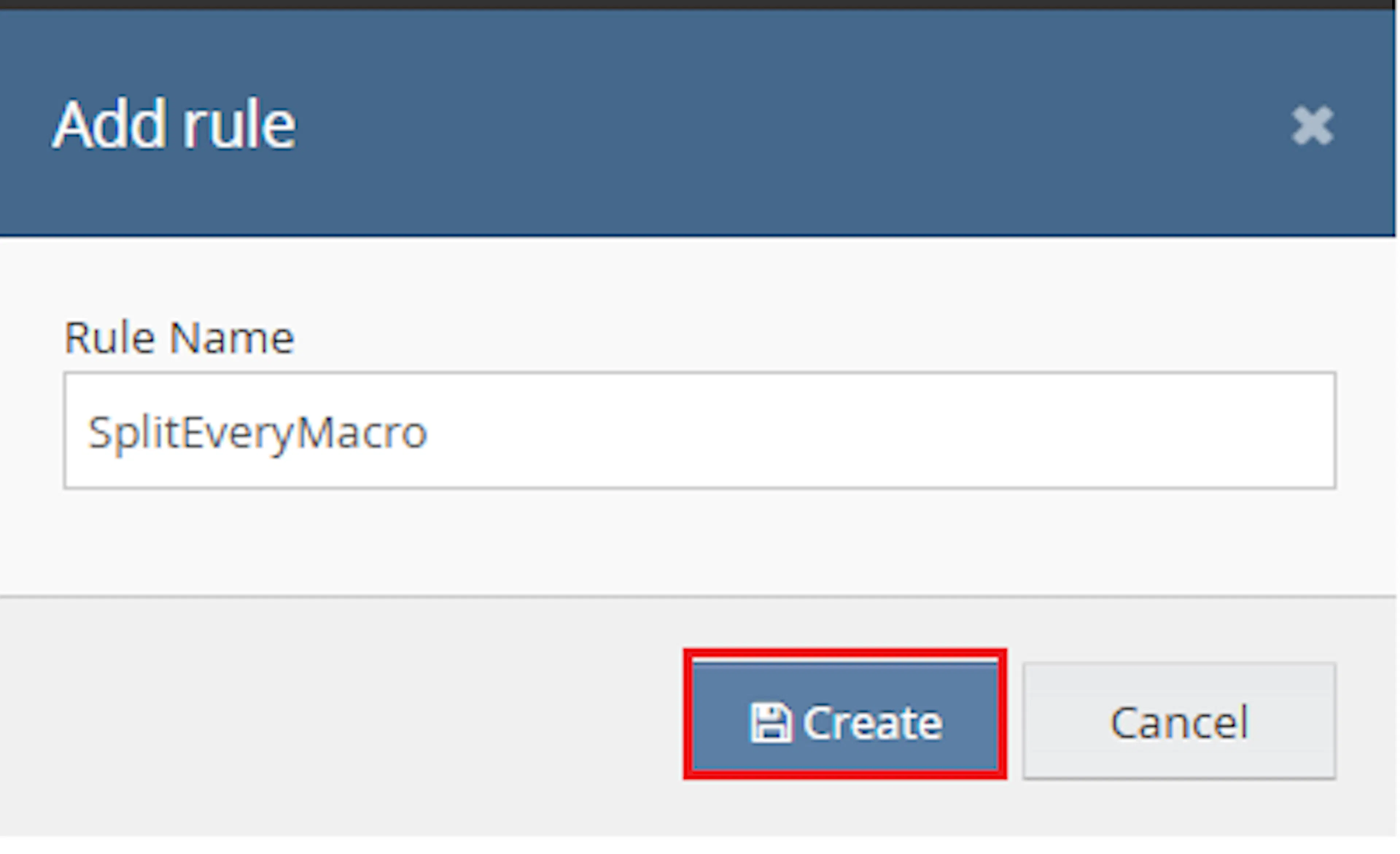
Enter the rule name and click Create.
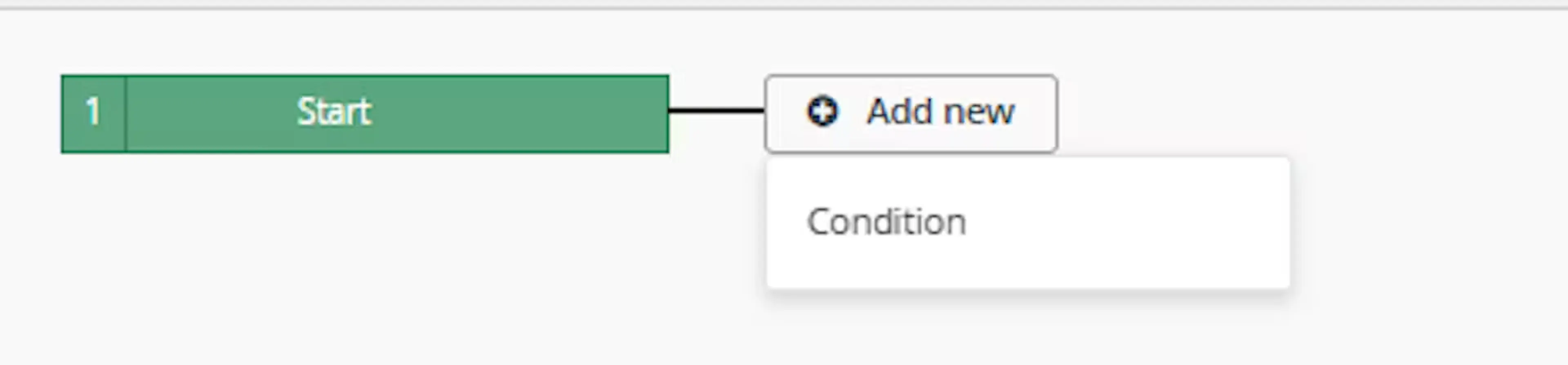
Click Add new, select Condition, set the condition as required, and save it.
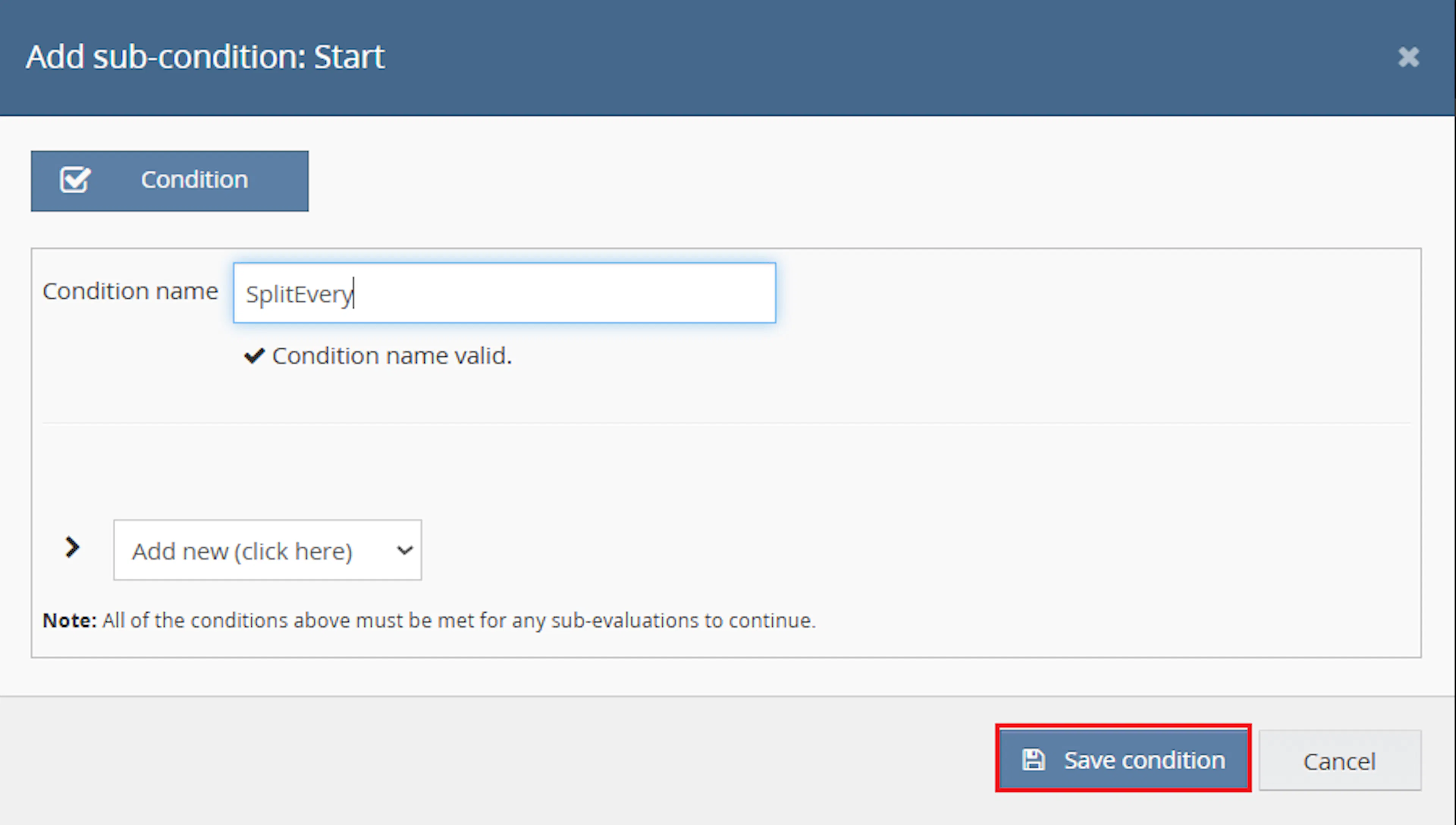
Use conditions that target orders requiring quantity-based splitting.
Add the macro action and click Save.
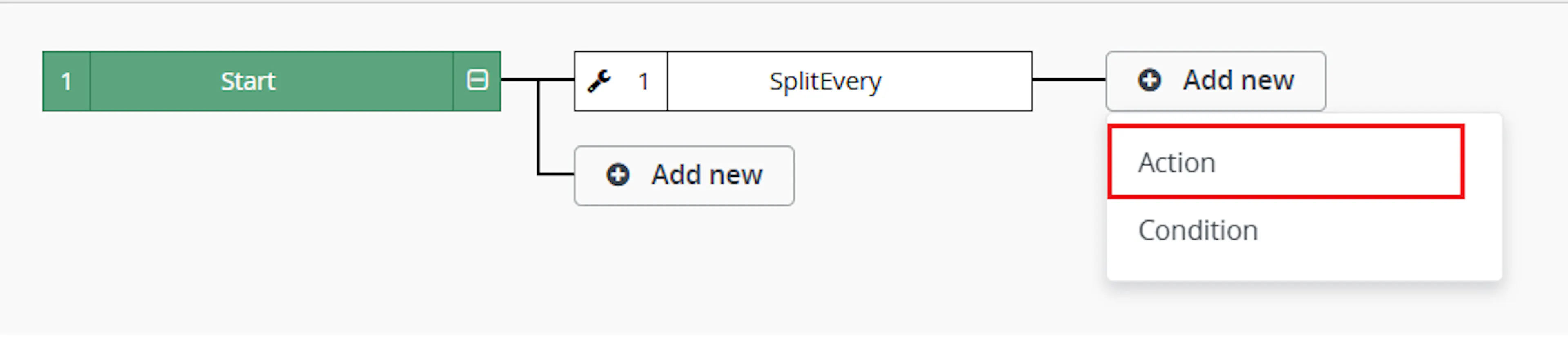
In the Add action window, enter the Action name, for example:
SplitEveryMacro
-
Set Action type to:
Execute a macro -
In Action value, select:
SplitEveryMacro
-
Click Save
Note: If the macro is not enabled, it will not appear in the Action value list when setting up the rule.
Review the saved rule setup.
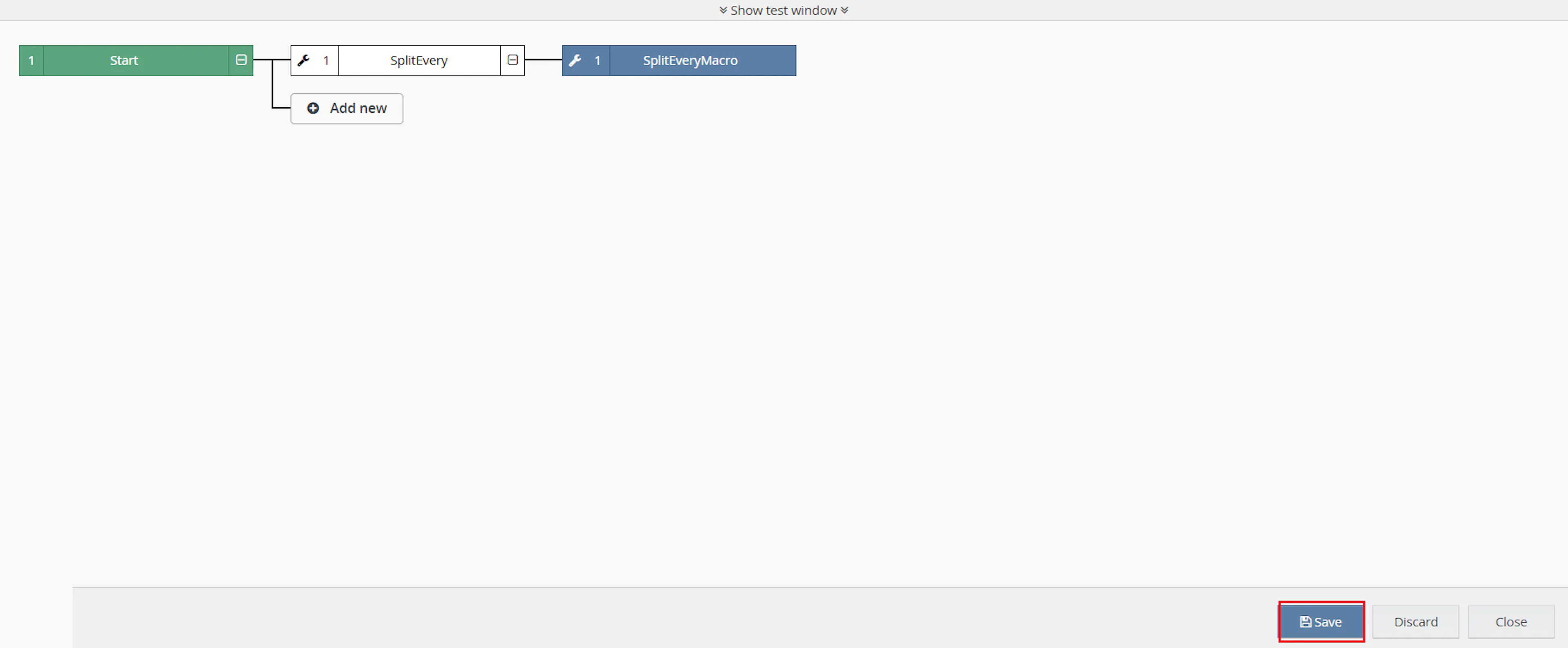
- Verify the condition and action are connected correctly
- Click Save in the bottom-right corner to save the rule
Key Benefits
Manually splitting large order quantities can take time and may produce inconsistent results. Split Every Macro applies the configured SKU-level quantity rules automatically to each selected order.
Reduce manual order splitting, improve fulfilment consistency, and maintain clear parent-child order tracking.
Automate Order Splitting
Automatically divides eligible item quantities into parent and child order groups.
Apply SKU-Level Rules
Uses each item's Split every inventory extended property to determine the maximum quantity per group.
Handle Composite Orders
Applies dedicated behaviour for single-composite, multiple-composite, and mixed composite orders.
Improve Order Traceability
Adds internal notes to parent and child orders showing how item quantities were moved.
Prevent Duplicate Processing
Uses the OrderSplitMacro process marker to prevent parent and child orders from being processed repeatedly.
Reduce Fulfilment Errors
Applies consistent split calculations and excludes service lines from item quantity processing.
Usage of App
Split Every Macro is triggered through the Linnworks Rule Engine to split qualifying order-item quantities automatically.
Execution
Trigger via Rule Engine
Call the SplitEveryMacro action through the Rule Engine with the required OrderIds. No additional custom parameter values are required once the rule is active.
Outcome
When the macro runs against an order, it:
Checks processed status
Confirms that the order has not already been marked with OrderSplitMacro = Yes.
Classifies order items
Excludes service lines and separates the remaining items into composite and normal item groups.
Handles composite items
Applies the required parent and child order behaviour based on the number and combination of composite items.
Reads Split every values
Retrieves the Split every inventory extended property for each normal item.
Builds quantity groups
Divides eligible item quantities into groups based on the configured Split every value.
Creates child orders
Keeps the first group on the parent order and creates child orders for the remaining groups.
Adds notes and markers
Writes internal relationship notes and marks the parent and child orders as processed.
Input Parameters
Split Every Macro requires the following input:
| Parameter | Required | Description |
|---|---|---|
| OrderIds | Yes | The Linnworks order IDs to process. Passed through the Rule Engine. |
No additional custom values are required in the Macro Configuration screen.
The following rules and values are configured within Linnworks inventory and the macro logic:
| Setting | Required | Description |
|---|---|---|
| Split every | Conditional | Inventory extended property that defines the maximum quantity per order group for a SKU. |
| OrderSplitMacro | Automatic | Order extended property used to mark processed parent and child orders. |
| OrderSplitMacro value | Automatic | The processed marker value is Yes. |
| OrderSplitMacro property type | Automatic | The processed marker is stored with type Order. |
Split Rules
The macro applies the following rules when evaluating orders:
| Order or Item Condition | Macro Behaviour |
|---|---|
| Order already has OrderSplitMacro = Yes | Skips the order. |
| Service line | Excludes the line from splitting. |
| Single composite item only | Does not split and marks the order as processed. |
| Composite and normal items | Splits composite items into child orders first. |
| Multiple composite items only | Keeps the first composite item on the parent and splits the remaining composites. |
| Missing Split every property | Does not split the item. |
| Invalid or non-positive Split every value | Skips the item and adds an internal note. |
| Quantity lower than Split every | Skips the item and adds an internal note. |
| Valid quantity and Split every value | Splits the quantity into the required parent and child groups. |
Split Group Example
When an item has a quantity of 10 and its Split every value is 3, the macro calculates the groups as follows:
| Group | Quantity | Result |
|---|---|---|
| Group 1 | 3 | Remains on the parent order |
| Group 2 | 3 | Moved to a child order |
| Group 3 | 3 | Moved to a child order |
| Group 4 | 1 | Moved to a child order |
The final split pattern is:
3, 3, 3, 1
Best Practices
Accurate Split every values and controlled Rule Engine conditions are essential for reliable order splitting.
Configure relevant SKUs
Add the Split every inventory extended property only to SKUs that should use quantity-based splitting.
Use positive whole numbers
Ensure every Split every value is a valid positive whole number.
Use targeted rule conditions
Configure the Rule Engine to select only orders that should be evaluated by the macro.
Test composite scenarios
Test single-composite, multiple-composite, and mixed-item orders before enabling the macro at scale.
Review parent and child notes
Use the generated internal notes to verify which items and quantities were moved.
Monitor processed markers
Confirm that processed parent and child orders contain the OrderSplitMacro extended property.
FAQ
How is Split Every Macro triggered?
The macro is triggered through the Linnworks Rule Engine. Matching order IDs are passed automatically through the OrderIds parameter.
Does the macro require custom configuration values?
No. The macro configuration does not require additional custom parameter values.
Where is the split quantity configured?
The quantity is configured against each relevant inventory item using the extended property named Split every.
What value should Split every contain?
The value must be a positive whole number.
What happens when Split every is missing?
The item is not split.
What happens when Split every is invalid?
Invalid, non-numeric, or non-positive values are skipped, and an internal note is added where applicable.
What happens when the item quantity is lower than Split every?
The item is not split, and the result is recorded in an internal order note.
Does the macro process service lines?
No. Service lines are excluded from the split calculations.
How are composite items handled?
Composite items are processed before normal items. The exact behaviour depends on whether the order contains one composite, multiple composites, or a mix of composite and normal items.
What happens to a single composite-only order?
The order is not split and is marked as processed.
What happens when an order contains composite and normal items?
The composite items are split into child orders before normal items are evaluated using the Split every property.
Which quantity remains on the parent order?
The first calculated quantity group remains on the parent order.
How are the remaining groups handled?
Each additional group is used to create a child order.
How does the macro prevent duplicate processing?
It checks for the order extended property OrderSplitMacro = Yes before processing.
Are child orders marked as processed?
Yes. Created child orders are marked with OrderSplitMacro = Yes.
Are notes added to the orders?
Yes. The parent order receives a split summary, and child orders receive notes containing the parent order reference and moved item details.
What happens when no items qualify for splitting?
The order is marked as processed so it is not evaluated repeatedly.
Legal Information
- Privacy Policy: https://rishvi.co.uk/privacy-policy/
- Terms and Conditions: https://rishvi.co.uk/terms-conditions/
Please review these pages to understand how data is handled and the terms governing the use of this application.
Summary
Split Every Macro automates quantity-based Linnworks order splitting using each SKU's Split every inventory extended property.
Once connected to the Rule Engine, the macro checks processed status, excludes service lines, handles composite items, validates split values, calculates quantity groups, creates child orders, and records the parent-child relationship through internal notes.
Automated quantity splitting
Eligible item quantities are divided automatically using SKU-level Split every values.
Composite-aware processing
Composite items are handled separately before normal item split rules are applied.
Traceable child orders
Parent and child orders receive internal notes showing the split relationship and moved quantities.
Duplicate processing prevention
Parent and child orders are marked with OrderSplitMacro = Yes after processing.
For orders that do not split as expected, review the Rule Engine and macro logs, confirm that the order is not already marked as processed, and verify that the relevant SKUs contain valid positive Split every values.